 LTS Connect Súgóközpont
Getting Started
Boot up the LTS Sapphire NVR and complete device initialization — set the time zone, create the admin password, configure the unlock pattern, and set up password protection.
This chapter introduces device initial settings such as boot up, device initialization, reset password, and quick settings.
Slight difference may be found on the user interface. The following figures are for reference only.
Boot up
- For device security, connect the NVR to the power adapter first and then connect the device to the power socket.
- The rated input voltage matches the device power button. Make sure the power wire connection is OK, then click the power button.
- Always use the stable current; if necessary, a UPS is a best alternative measure.
Connect the monitor and mouse
Connect the device to the monitor and then connect a mouse.
Connect the power cable
Connect power cable.
Power on
Click the power button at the front or rear panel and then boot up the device. After the device booted up, the system is in multiple-channel display mode by default.
Device Initialization
If it is your first time to use the device, set a login password of admin (system default user). You can select to use an unlock pattern to login or not at your own choosing.
For your device safety, keep your login password of admin well after the initialization steps, and change the password regularly.
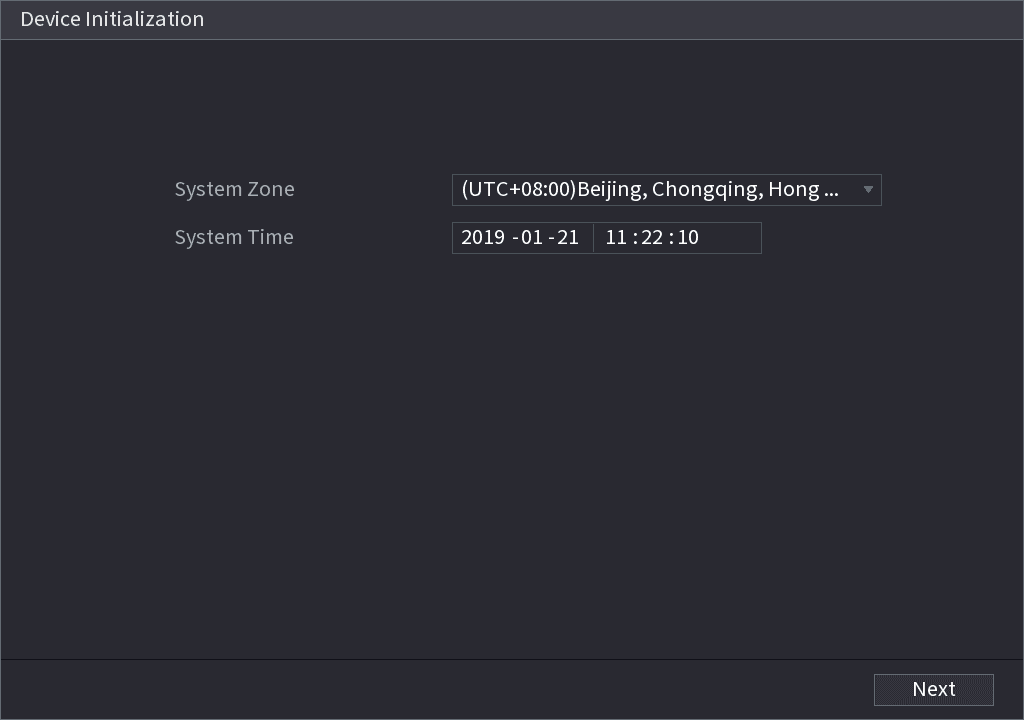
Set the system time zone
Set the system time zone according to the actual environment. Refer to Date and Time for detailed information.
Click  to shut down the device. It is suitable for the system integrator or the user to shut down directly after setting the time zone.
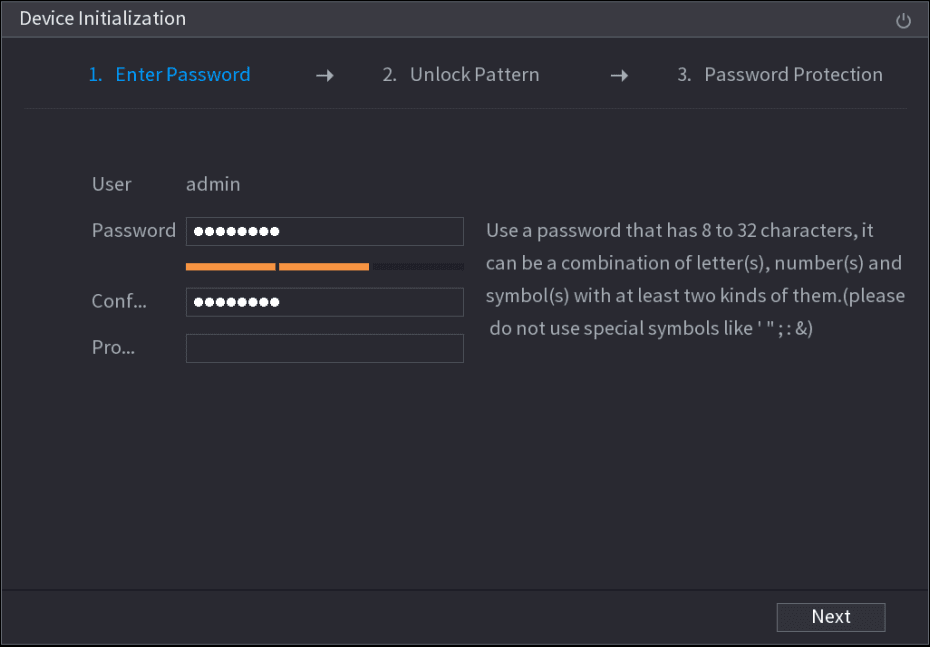
Set the admin login password
Set the login password of admin.
| Parameter | Description |
|---|---|
| User | By default, the user is admin. |
| Password / Confirm Password | In the Password box, enter the password for admin. The new password can be set from 8 characters through 32 characters and contains at least two types from number, letter and special characters (excluding ', ", ;, :, and &). |
| Prompt Question | In the Prompt Question box, enter the information that can remind you of the password. On the login interface, click  , the prompt will display to help you reset the password. , the prompt will display to help you reset the password. |
For your device's own safety, create a strong password of your own choosing. We also recommend you change your password periodically, especially in a high security system.
Set the unlock pattern
Click Next. The Unlock Pattern interface is displayed. Set the unlock pattern.
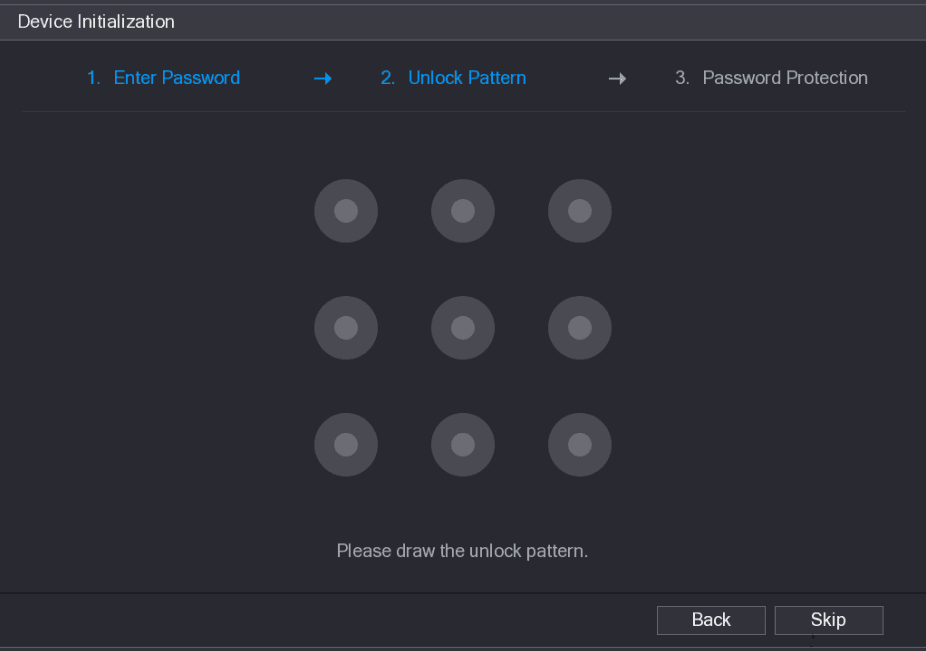
- The pattern that you want to set must cross at least four grids.
- If you do not want to configure the unlock pattern, click Skip.
- Once you have configured the unlock pattern, the system will require the unlock pattern as the default login method. If you skip this setting, enter the password for login.
Set the security questions
After you set the unlock pattern, the Password Protection interface is displayed. Set the security questions.
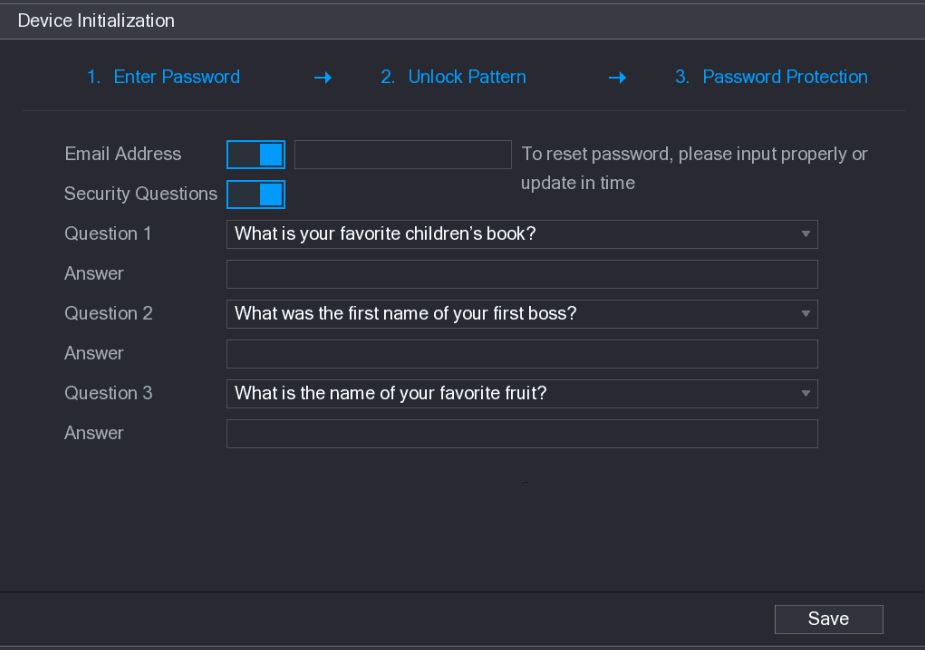
| Password Protection Mode | Description |
|---|---|
| Email Address | Enter the reserved email address. In the Email Address box, enter an email address for password reset. If you forget the password, enter the security code that you will get from this reserved email address to reset the password of admin. |
| Security Questions | Configure the security questions and answers. If you forget the password, entering the answers to the questions can allow you to reset the password. |
- After configuration, if you forgot the password for admin user, you can reset the password through the reserved email address or security questions.
- If you do not want to configure the settings, disable the email address and security questions functions on the interface.
Save
Click Save to complete the device initialization setup. The device then goes to the startup wizard interface, where you can quickly configure your device. Refer to Quick Settings for detailed information.
Reset Password
You can reset the password by the following methods when you forgot the password for the admin account.
- If the password reset function is enabled, you can use a mobile phone to scan the QR code to reset the password. For details, see Reset the password on the local interface.
- If the password reset function is disabled, there are two situations:
- If you configured security questions, you can reset the password by the security questions.
- If you did not configure the security questions, you can only use the reset button on the mainboard to restore the Device to factory default.
The reset button is for some series products only.
Enable the password reset function
After enabling the password reset function, you can scan the QR code on the local menu to reset the password.
Open the Reset Password interface
Select Main Menu > Account > Reset Password. The Reset Password interface is displayed.
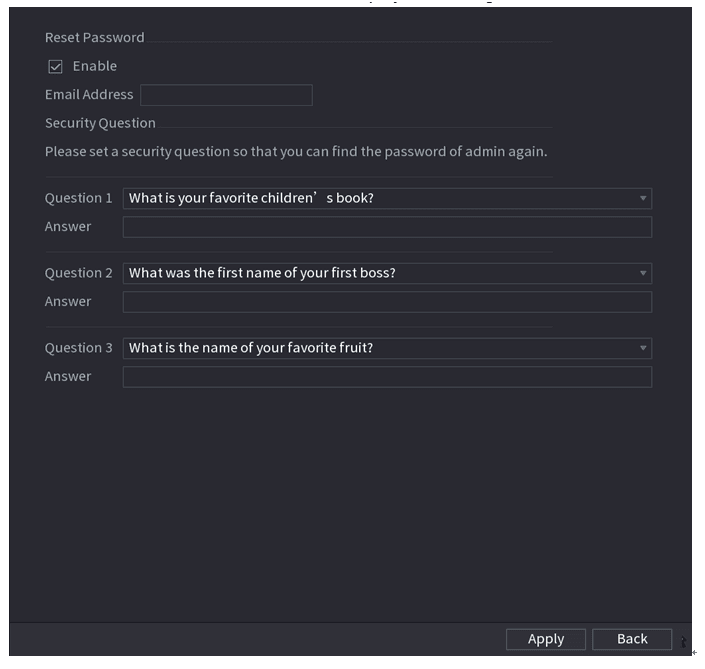
Enable the reset function
Check the box to enable the reset function. This function is enabled by default.
Apply
Click Apply to save the settings.
If the password reset function is disabled, you can reset the password as follows:
- Device supports the Reset button on the mainboard: You can answer the security question on the local menu or click the Reset button on the mainboard to reset the password. Refer to Reset button for detailed information.
- Device does not support the Reset button on the mainboard: You can only answer the security question on the local menu to reset the password (make sure you have set security questions).
Reset the password on the local interface
Enter the system login interface
- If you have configured an unlock pattern, the unlock pattern login interface is displayed. Click Forgot Pattern, and the password login interface is displayed.
- If you did not configure an unlock pattern, the System Login interface is displayed.
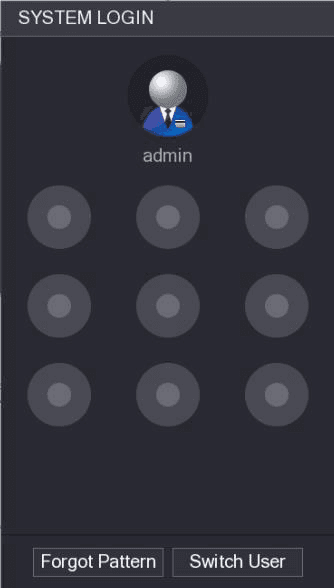
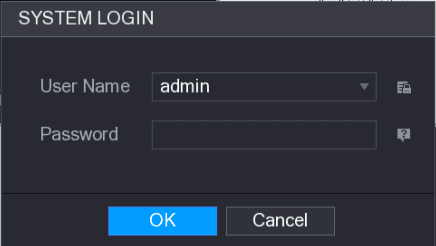
To login from another user account, on the unlock pattern login interface click Switch User, or on the password login interface, in the Switch User list, select another user to login.
Open the password reset flow
Click .
- If you have set the reserved email address, the Prompt interface is displayed.
- If you did not set the reserved email address, the email entering interface is displayed. Enter the email address, and then click Next; the Prompt message interface is displayed.
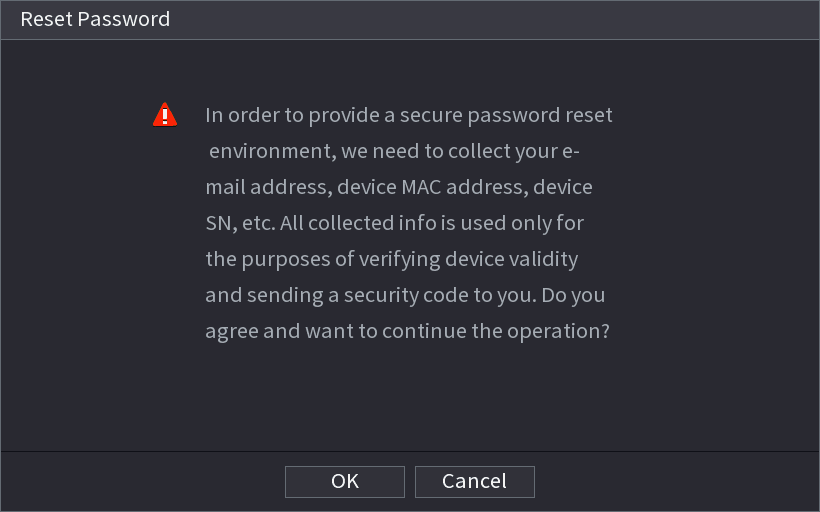
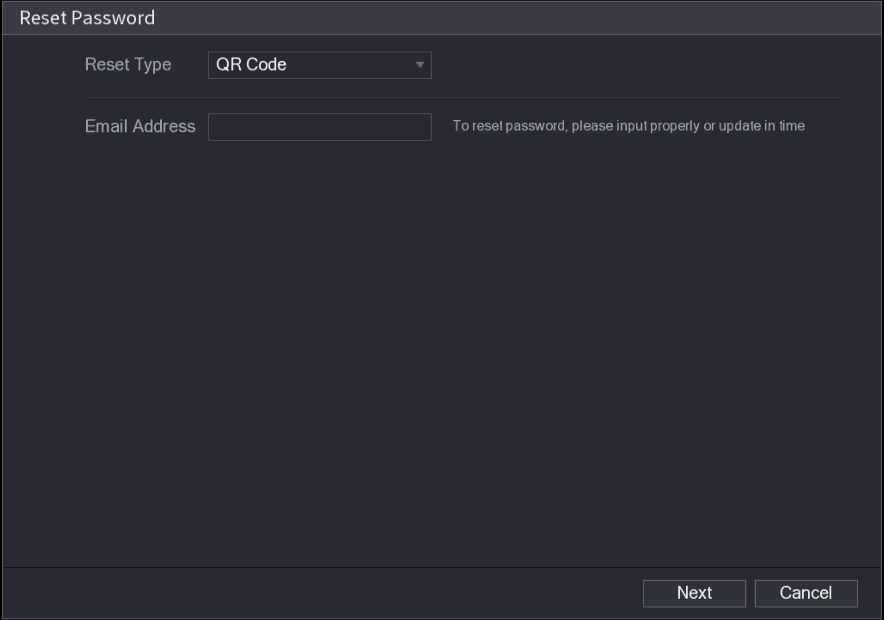
Click Next
Click Next. The Reset Password interface is displayed.
After clicking Next, the system will collect your information for password reset. The purpose and the information include but are not limited to email address, MAC address, and device serial number. Read the prompt carefully before clicking Next.
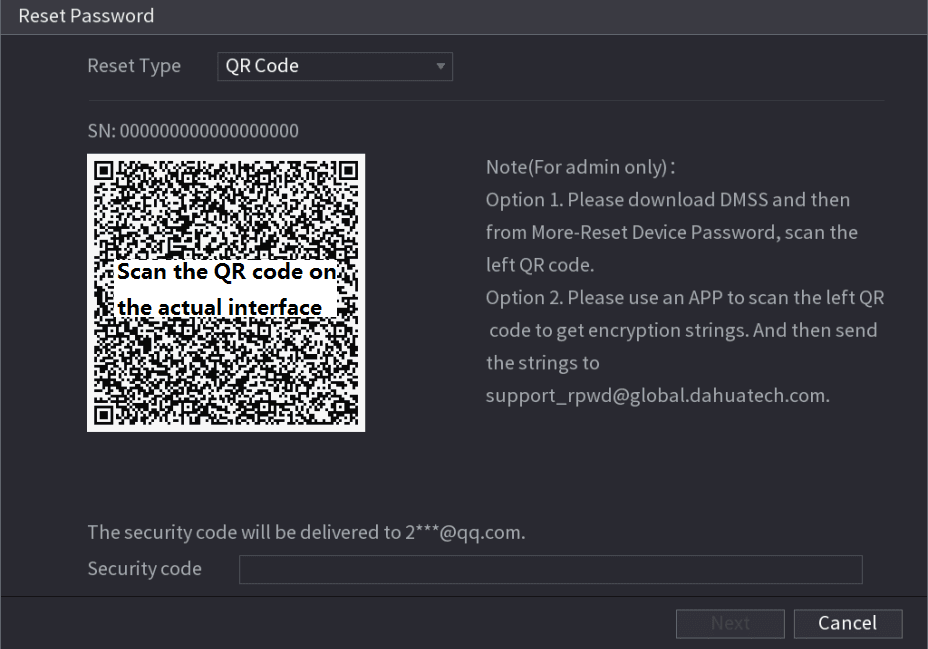
Reset the password
- QR code — Follow the onscreen instructions to get the security code in your reserved email address. In the Security code box, enter the security code.
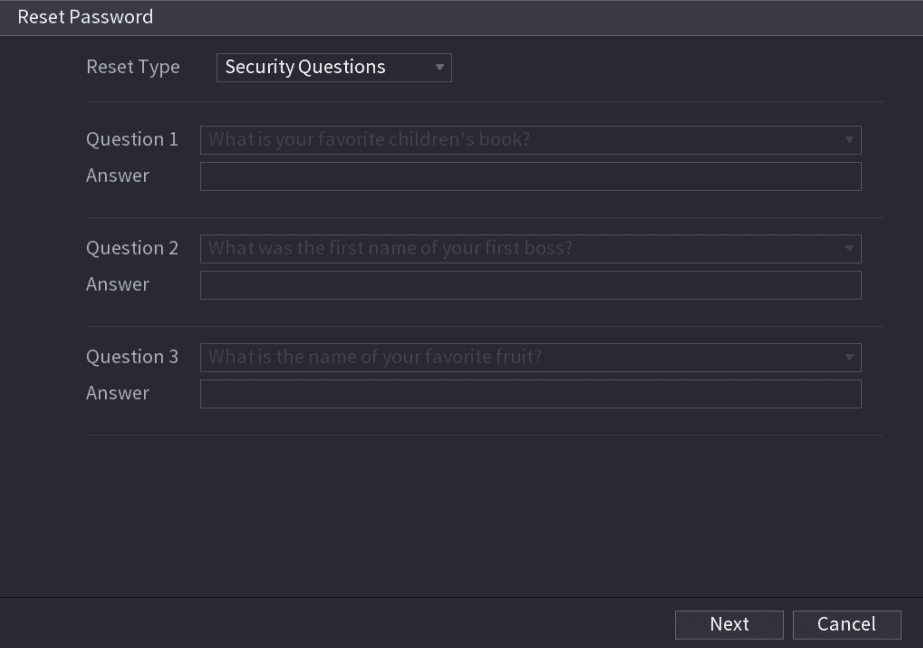
- Security questions — On the Reset Password interface, in the Reset Type list, select Security Questions; the Security Questions interface is displayed.
- You can get the security code twice by scanning the same QR code. If you need to get the security code once again, refresh the interface.
- Use the security code received in your email box to reset the password within 24 hours; otherwise the security code becomes invalid.
- If you did not configure the security questions before, there is no Security Questions option in the Reset Type list.
Enter the new password
Click Next. In the New Password box, enter the new password and enter it again in the Confirm Password box.
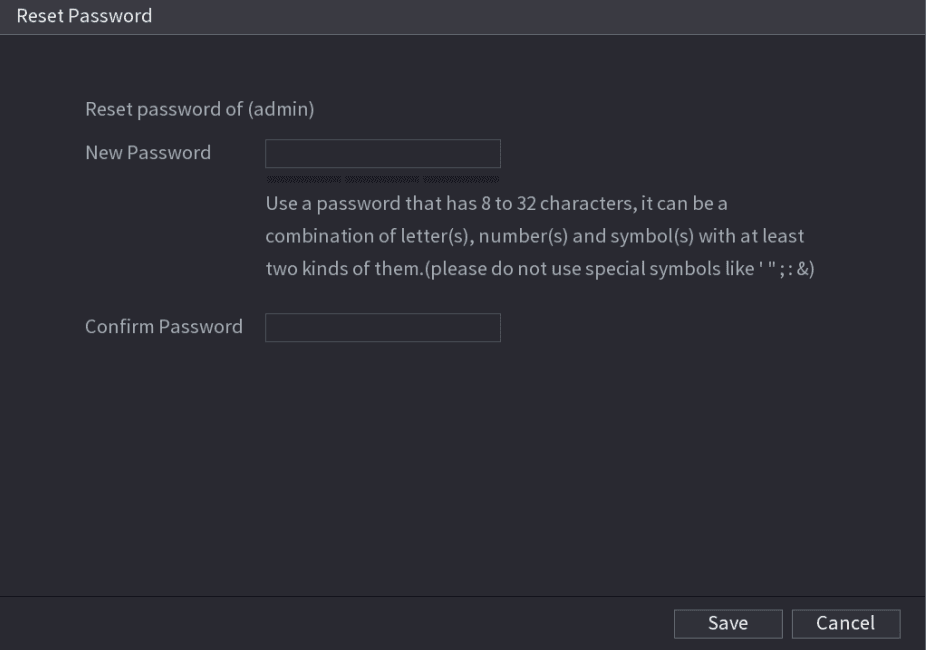
Save and sync
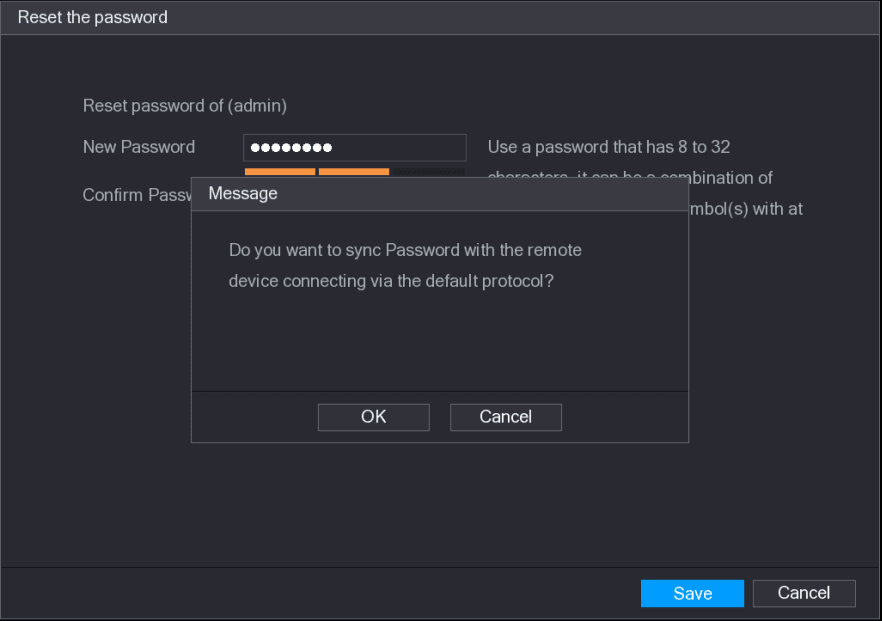
Click Save. The password resetting is complete. A pop-up message is displayed asking if you want to sync the password with the remote devices.
Reset button
You can always use the reset button on the mainboard to reset the Device to the factory default settings.
The reset button is for some series products only.
Open the cover panel
Disconnect the Device from the power source, and then remove the cover panel. For details about removing the cover panel, see HDD Installation.
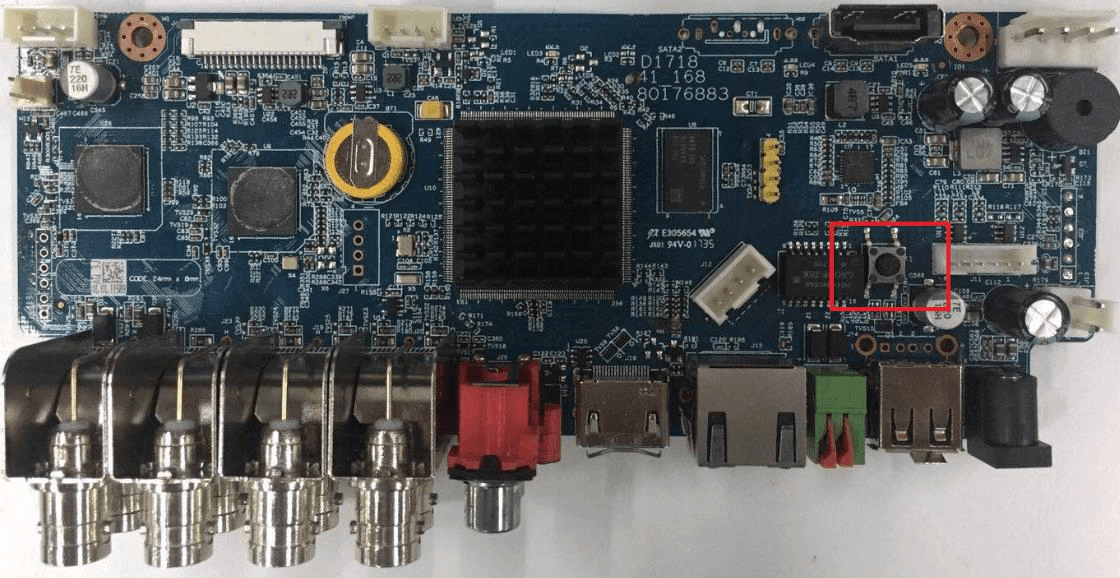
Locate the reset button
Find the reset button on the mainboard, and then connect the Device to the power source again.
Reboot
Reboot the Device. After the Device is rebooted, the settings have been restored to the factory default. You can start resetting the password.
Device Installation
How to unpack, inspect, and install the NVR hardware, including HDD installation for each chassis series, CD-ROM installation, and rear-panel connection samples.
Quick Settings
Use the NVR startup wizard to configure general settings, date and time, holidays, basic network and P2P, remote device registration, RAID, and the record and snapshot schedules.