 Центр помощи LTS Connect
PTZ
Configure and control PTZ cameras on the NVR, including PTZ settings, basic and expanded control panels, and configuring and calling presets, tours, patterns, auto scan, auto pan, and AUX functions.
PTZ
PTZ is a mechanical platform that carries a camera and a protective cover and performs overall control remotely. A PTZ can move in both horizontal and vertical direction to provide all-around view to the camera.
Before you control the PTZ, make sure the PTZ decoder and the NVR network connection is OK.
PTZ Settings
You can set different PTZ parameters for local type and remote type. Before you use local PTZ, make sure you have set PTZ protocol; otherwise you cannot control the local PTZ.
- Local: The PTZ device connects to the NVR via the cable.
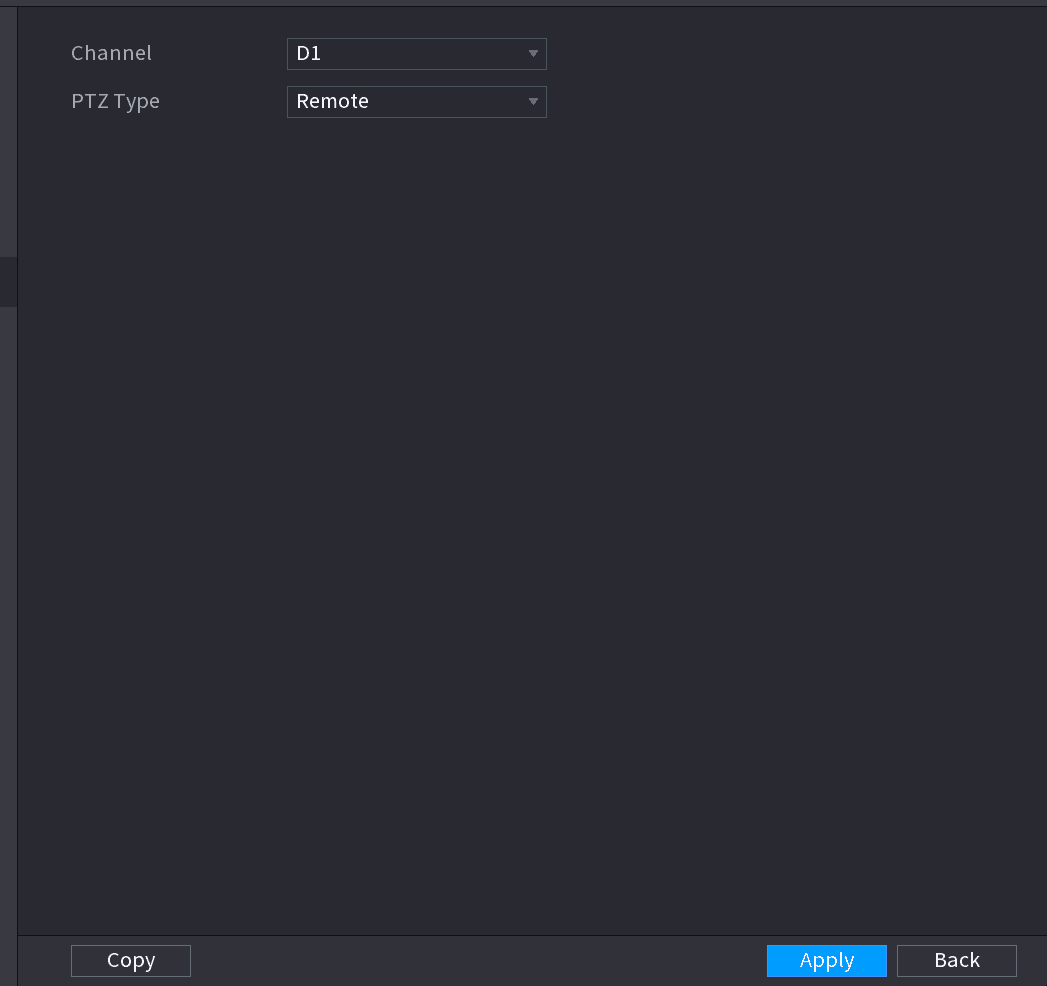
- Remote: The PTZ device connects to the NVR via the network.
This function is for some series products only.
Open the PTZ interface
Select Main menu > CAMERA > PTZ.
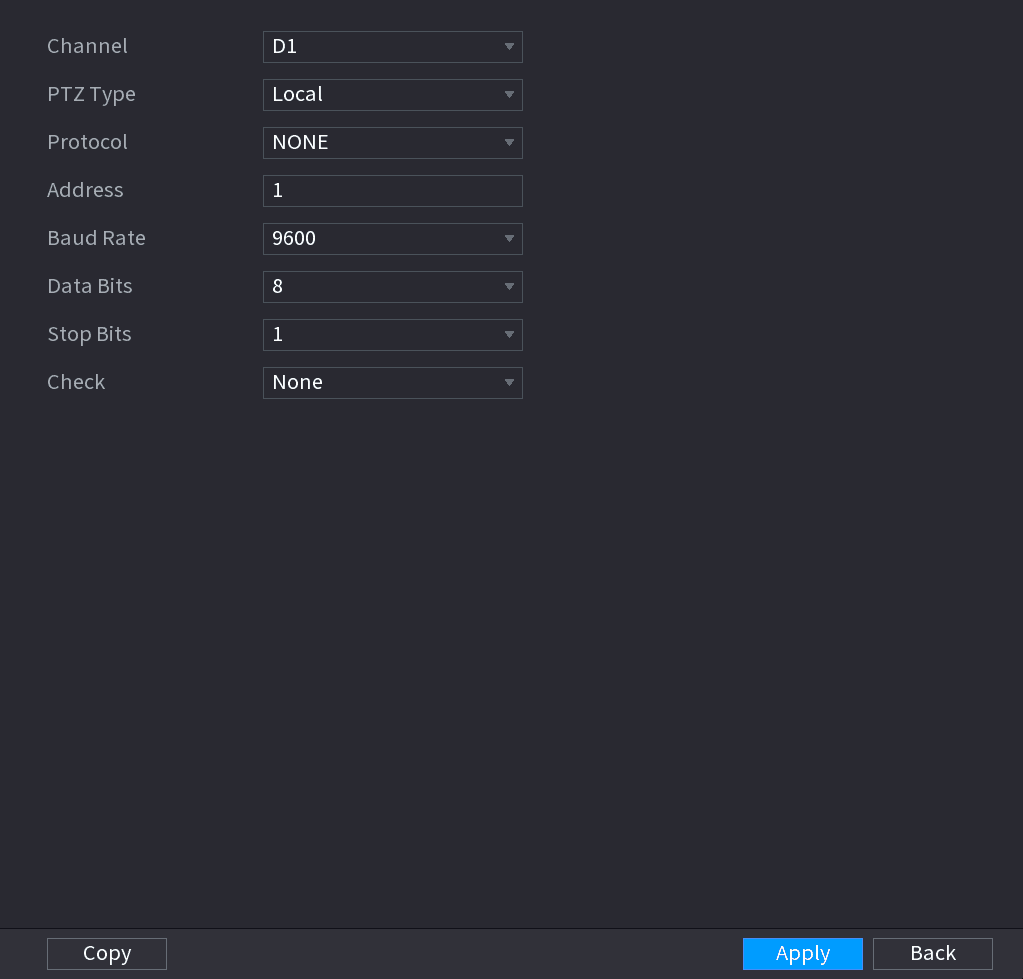
The PTZ interface is displayed. See Figure 4-82 (Local) or Figure 4-83 (Remote).
Configure parameters
Configure parameters. See Table 4-20.
| Parameter | Description |
|---|---|
| Channel | In the Channel list, select the channel that you want to connect the PTZ camera to. |
| PTZ Type |
|
| Protocol | In the Protocol list, select the protocol for the PTZ camera such as PELCOD. |
| Address | In the Address box, enter the address for PTZ camera. The default is 1. The entered address must be the same with the address configured on the PTZ camera; otherwise the system cannot control PTZ camera. |
| Baud rate | In the Baud rate list, select the baud rate for the PTZ camera. The default is 9600. |
| Data Bits | The default is 8. |
| Stop Bits | The default is 1. |
| Parity | The default is NONE. |
Apply the settings
Click Apply.
PTZ Control
PTZ control panel performs the operations such as directing camera in eight directions, adjusting zoom, focus and iris settings, and quick positioning.
Basic PTZ Control Panel
Right-click on the live view screen and then select PTZ. The PTZ control panel is displayed. See Figure 4-84.
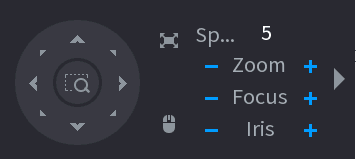
- The gray button means system does not support current function.
- For some series products, the PTZ function is valid in one-window mode.
| Parameter | Description |
|---|---|
| Speed | Controls the movement speed. The bigger the value is, the faster the movement will be. |
| Zoom | Zoom out / Zoom in. |
| Focus | Focus far / Focus near. |
| Iris | Image darker / Image brighter. |
| PTZ movement | Supports eight directions. |
| Fast positioning button |
|
| Mouse control | Click the icon, you can control the four directions (left, right, up, and down) PTZ movement through mouse operation. |
| Expand | Click the icon to open the expanded PTZ control panel. |
Expanded PTZ Control Panel
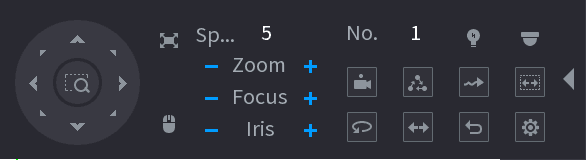
On the basic PTZ control panel, click the expand icon to open the expanded PTZ control panel to find more options. See Figure 4-85.
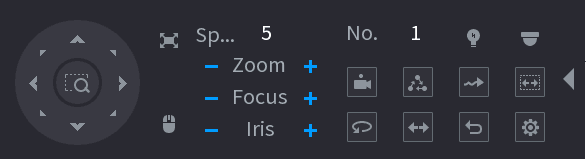
- The functions with buttons in gray are not supported by the system.
- Right-click once to return to the interface of PTZ basic control panel.
| Icon | Function | Icon | Function |
|---|---|---|---|
| Preset | Auto Pan | ||
| Tour | Flip | ||
| Pattern | Reset | ||
| Auto scan | Click the AUX Config icon to open the PTZ functions settings interface. | ||
| AUX Switch | Click the Enter Menu icon to open the MENU OPERATION interface. |
Configuring PTZ Functions
Configuring Presets
Open the Preset interface
On the Expanded PTZ Control Panel, click the preset icon.
The Preset interface is displayed. See Figure 4-86.
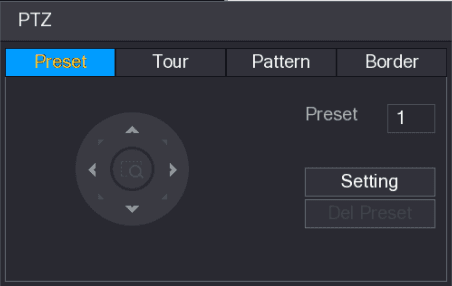
Position the camera
Click the direction arrows to the required position.
Enter the preset value
In the Preset box, enter the value to represent the required position.
Save the preset
Click Setting to complete the preset settings.
Configuring Tours
Open the PTZ interface
On the Expanded PTZ Control Panel, click the preset icon.
The PTZ interface is displayed.
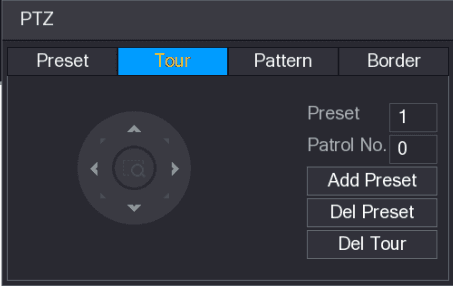
Enter the tour route
In the Patrol No. box, enter the value for the tour route.
Enter the preset value
In the Preset box, enter the preset value.
Add the preset
Click Add Preset.
A preset will be added for this tour.
- You can repeat adding more presets.
- Click Del Preset to delete the preset for this tour. This operation can be repeated to delete more presets. Some protocols do not support deleting.
Configuring Patterns
Open the PTZ interface
On the Expanded PTZ Control Panel, click the preset icon.
The PTZ interface is displayed.
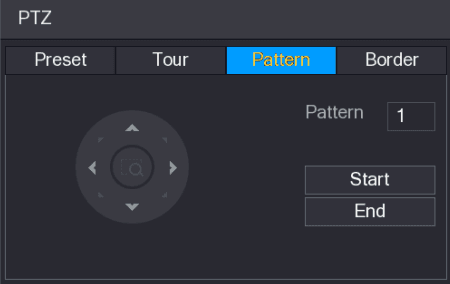
Enter the pattern value
In the Pattern box, enter the value for pattern.
Start the pattern
Click Start to perform the directions operations. You can also go to the PTZ Control Panel to perform the operations of adjusting zoom, focus, iris, and directions.
Complete the settings
On the PTZ interface, click End to complete the settings.
Configuring AutoScan
Open the PTZ interface
On the Expanded PTZ Control Panel, click the preset icon.
The PTZ interface is displayed.
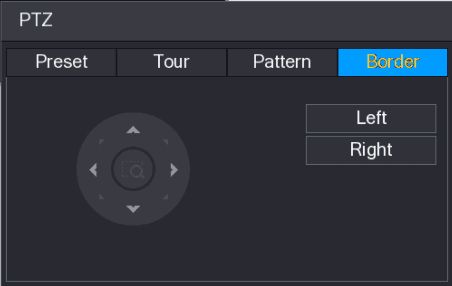
Set the borders
Click the direction arrows to position the left and right borders.
Calling PTZ Functions
After you have configured the PTZ settings, you can call the PTZ functions for monitoring from the Expanded PTZ Control Panel. See Figure 4-90.
Calling Presets
Enter the preset value
On the Expanded PTZ Control Panel, in the No. box, enter the value of the preset that you want to call.
Call the preset
Click the preset icon to call the preset.
Stop calling
Click the preset icon again to stop calling the preset.
Calling Tours
Enter the tour value
On the Expanded PTZ Control Panel, in the No. box, enter the value of the tour that you want to call.
Call the tour
Click the tour icon to call the tour.
Stop calling
Click the tour icon again to stop calling the tour.
Calling Patterns
Enter the pattern value
On the Expanded PTZ Control Panel, in the No. box, enter the value of the pattern that you want to call.
Call the pattern
Call the pattern icon to call the pattern.
The PTZ camera moves according to the configured pattern repeatedly.
Stop calling
Click the pattern icon again to stop calling the pattern.
Calling AutoScan
Enter the border value
On the Expanded PTZ Control Panel, in the No. box, enter the value of the border that you want to call.
Start auto scan
Click the auto scan icon.
The PTZ camera performs scanning according to the configured borders.
Stop auto scanning
Click the auto scan icon again to stop auto scanning.
Calling AutoPan
Start moving
On the Expanded PTZ Control Panel, click the auto pan icon to start moving in horizontal direction.
Stop moving
Click the auto pan icon again to stop moving.
Using AUX Button
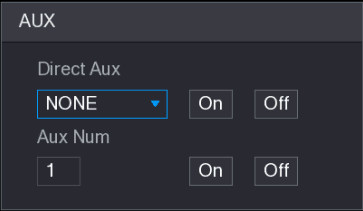
On the Expanded PTZ Control Panel, click the AUX icon, the AUX setting interface is displayed. See Figure 4-91.
In the Direct Aux list, select the option that corresponds to the applied protocol.
In the Aux Num box, enter the number that corresponds to the AUX switch on the decoder.
Live View
Use the Sapphire NVR Live View to preview channel video, operate the navigation bar and shortcut menu, perform instant replay, digital zoom, fisheye de-warp, temperature test, and AI preview.
Playback and Search
How to search and play back recorded video and pictures on the Sapphire Series NVR, including instant playback, the search interface, playback controls, clip, backup, smart search, mark playback, splice playback, and file list management.