 Center za pomoč LTS Connect
File Management
Search, filter, and export recorded video and picture files by type — All Files, Human Files, and Vehicle Files — and save or recall search conditions for quick access.
Search and Export All Files
Search Files
Purpose: Specify detailed conditions to search videos and pictures.
Go to All Files
Go to File Management > All Files.
Specify search conditions
Specify detailed conditions, including time, camera, event type, etc.
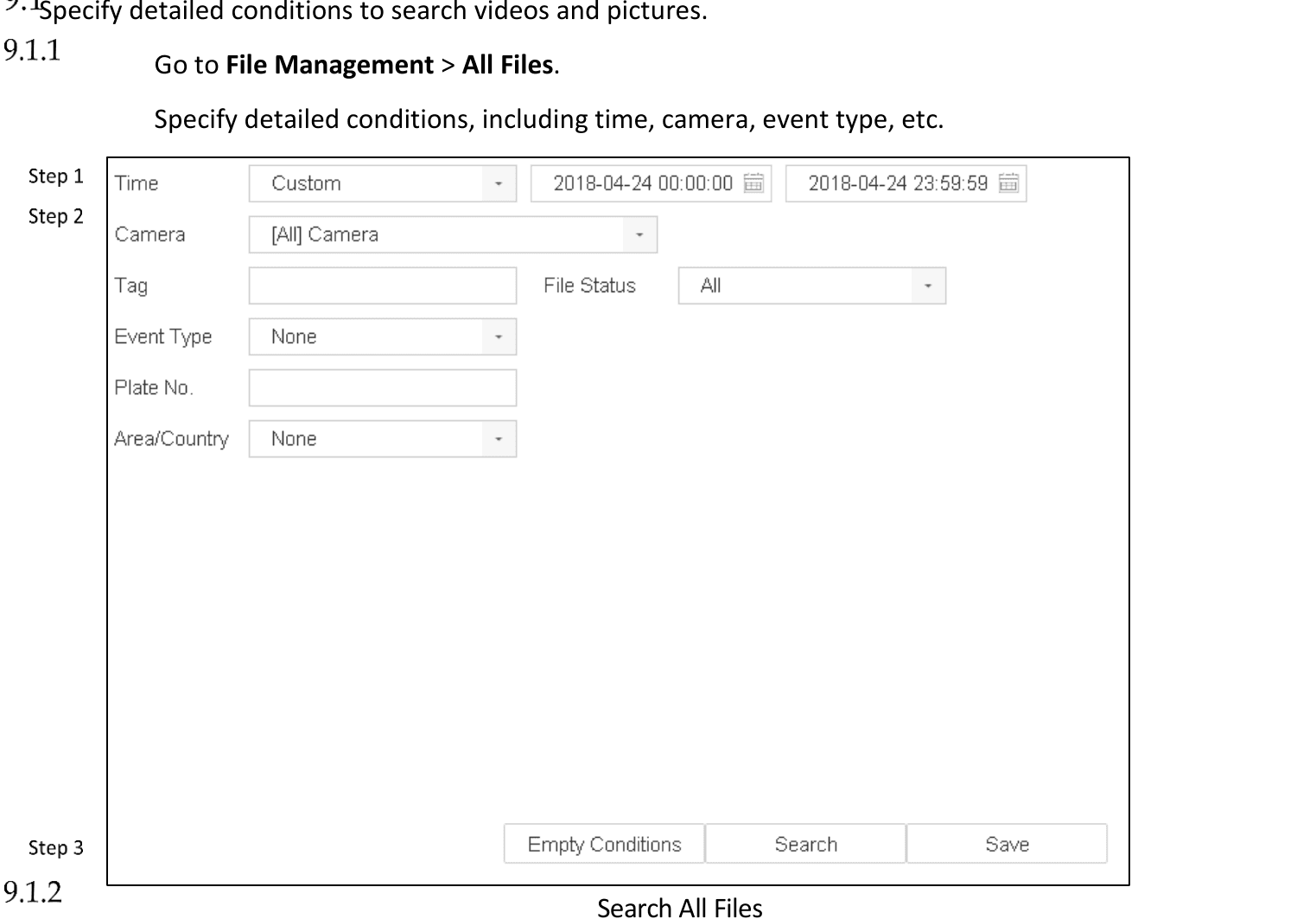
Figure 9-1 Search All Files
Search
Click Search to display results. The matched files will be displayed.
Export Files
Purpose: Export files for backup purposes using USB device (USB flash drive, USB HDD, USB optical disc drive), SATA optical disc drive or eSATA HDD.
Search files to export
Search files to export. For details, see Search Files.
Select files and export
Click to select files and click Export.
Select export format
Select the file to export as Video and Log and click OK.
Confirm export
Click OK to export files to backup device.
Search and Export Human Files
Search Human Files
Purpose: Specify detailed conditions to search human pictures and videos.
Before you start: Configure human body detection function for the cameras you want to search and export human pictures and videos.
Go to Human Files
Go to File Management > Human Files.
Select Time and Camera
Select Time and Camera to search.
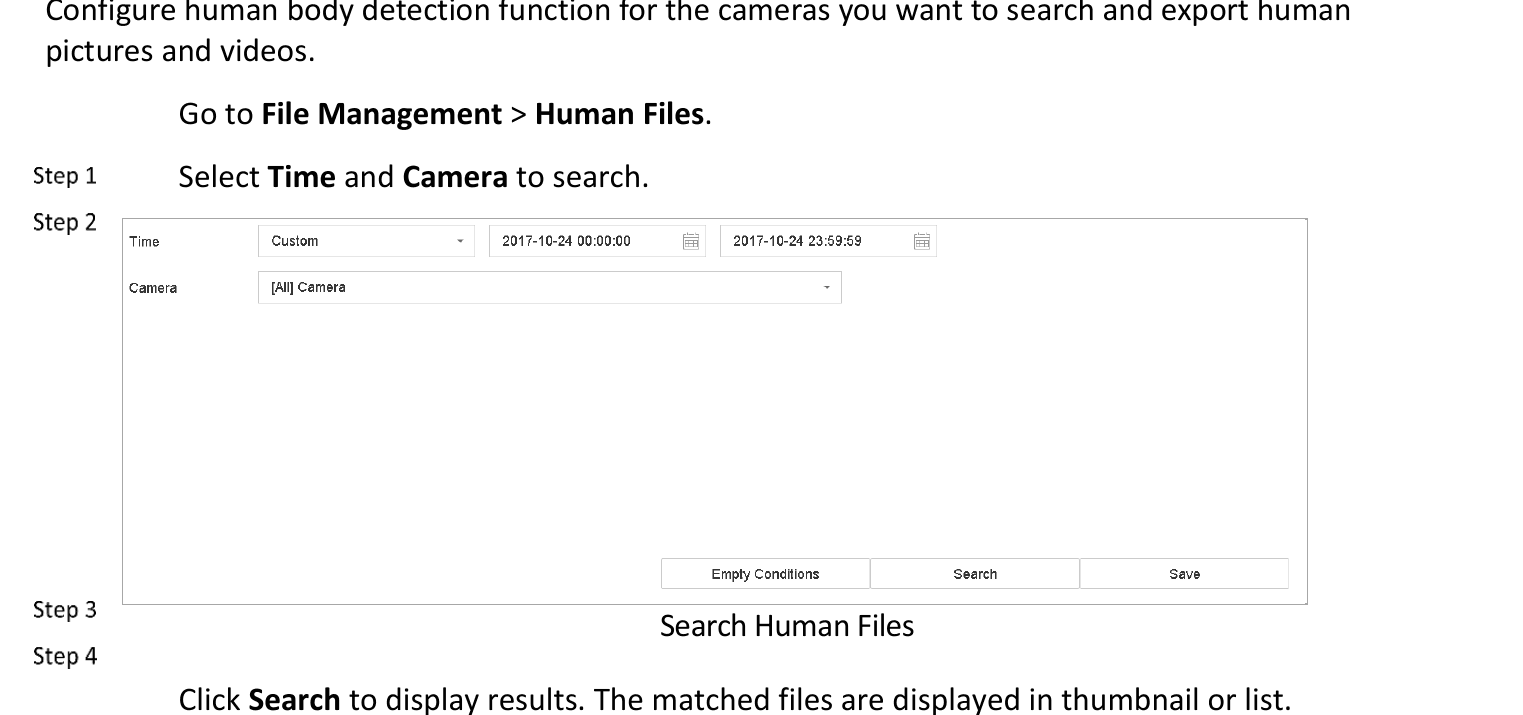
Figure 9-2 Search Human Files
Search
Click Search to display results. The matched files are displayed in thumbnail or list.
Filter results
Select Target Picture or Source Picture in menu bar to display related pictures only.
- Target Picture: Display the search results of people close-up.
- Source Picture: Display the search results of original picture captured by camera.
Export Human Files
Purpose: Export files for backup purposes using USB device (USB flash drive, USB HDD, USB optical disc drive), SATA optical disc drive or eSATA HDD.
Search for files
Search for the human files to export. For details, see Search Human Files.
Select files and export
Click to select files and click Export.
Select export format
Select the file to export as Video and Log and click OK.
Confirm export
Click OK to export files to backup device.
Search and Export Vehicle Files
Search Vehicle Files
Purpose: Specify detailed conditions to search vehicle pictures and videos.
Before you start: Configure vehicle detection function for the cameras you want to search and export vehicle pictures and videos.
Go to Vehicle Files
Go to File Management > Vehicle Files.
Specify search conditions
Specify detailed conditions, including Time, Camera, Plate No., and Area/Country.
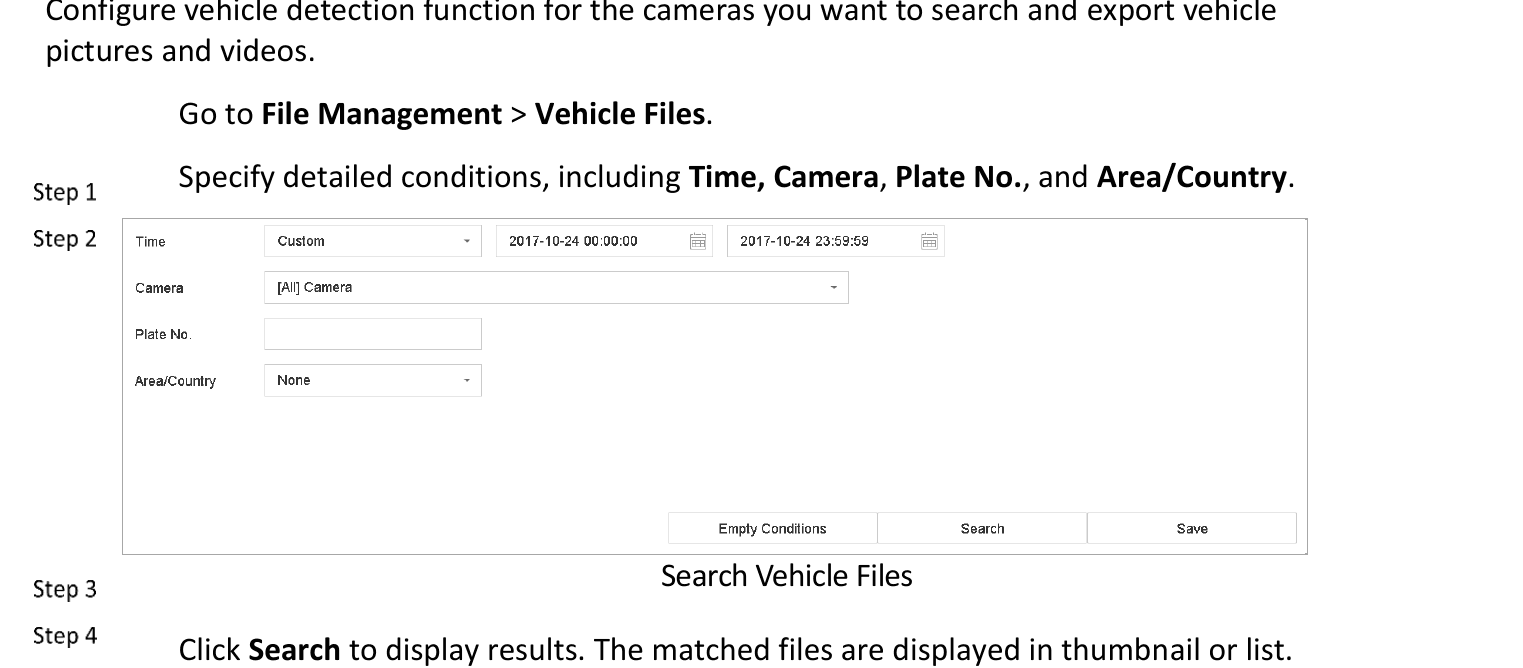
Figure 9-3 Search Vehicle Files
Search
Click Search to display results. The matched files are displayed in thumbnail or list.
Filter results
Select Target Picture or Source Picture in menu bar to display related pictures only. Select Video or Picture to specify the file type.
- Target Picture: Display the search results of vehicle close-up.
- Source Picture: Display the search results of original picture captured by camera.
Export Vehicle Files
Purpose: Export files for backup purposes using USB device (USB flash drive, USB HDD, USB optical disc drive), SATA optical disc drive or eSATA HDD.
Search for files
Search for the vehicle files to export. For details, see Search Vehicle Files.
Select files and export
Click to select files and click Export.
Select export format
Select the file to export as Video and Log and click OK.
Confirm export
Click OK to export files to backup device.
Search History Operation
Save Search Condition
Purpose: You can save the search conditions for future reference and quick search.
Go to file search
Go to File Management > All Files/People Appearance File/Vehicle File.
Set conditions
Set the search conditions.
Save
Click Save.
Name the condition
Enter a name in text field and click Finished. The saved search conditions will be displayed in Search Condition.
Call Search History
Purpose: You can quickly search files by calling search history.
Go to file search
Go to File Management > All Files/Human Files/Vehicle Files.
Select a saved condition
Click a search condition in Search Condition to quickly search files.
Disk Array
Configure software RAID disk arrays on the Turbo HD DVR: create, rebuild, delete arrays, manage hot spare disks, and check firmware.
Playback
Comprehensive guide to playing back recorded video on the Turbo HD DVR GUI 4.0, covering instant playback, normal playback, smart search, custom search, tag files, event files, sub-periods, log files, external files, and playback operations.