 ศูนย์ช่วยเหลือ LTS Connect
USB Device Auto Pop-up and Shutdown
How the NVR automatically detects an inserted USB device for backup or upgrade, and how to safely shut down the device from the main menu, remote control, or rear panel.
USB Device Auto Pop-up
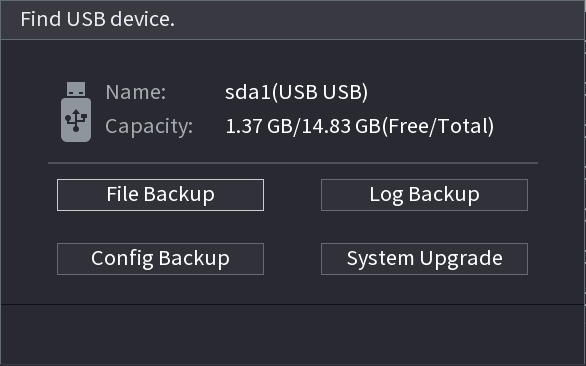
After you inserted the USB device, system can auto detect it and pop up the following dialogue box. It allows you to conveniently backup file, log, configuration or update system. See Figure 4-258.
Refer to 4.17.1 File Manage, 4.10.1 Log, 4.10.4.2 IMP/EXP, and 4.10.4.4 System Update for detailed information.
Shutdown
- When you see corresponding dialogue box "System is shutting down…" Do not click power on-off button directly.
- Do not unplug the power cable or click power on-off button to shutdown device directly when device is running (especially when it is recording.)
- Shut down the device and then unplug the power cable before you replace the HDD.
Operations
From the main menu (Recommended)
 at the top right corner. See Figure 4-259.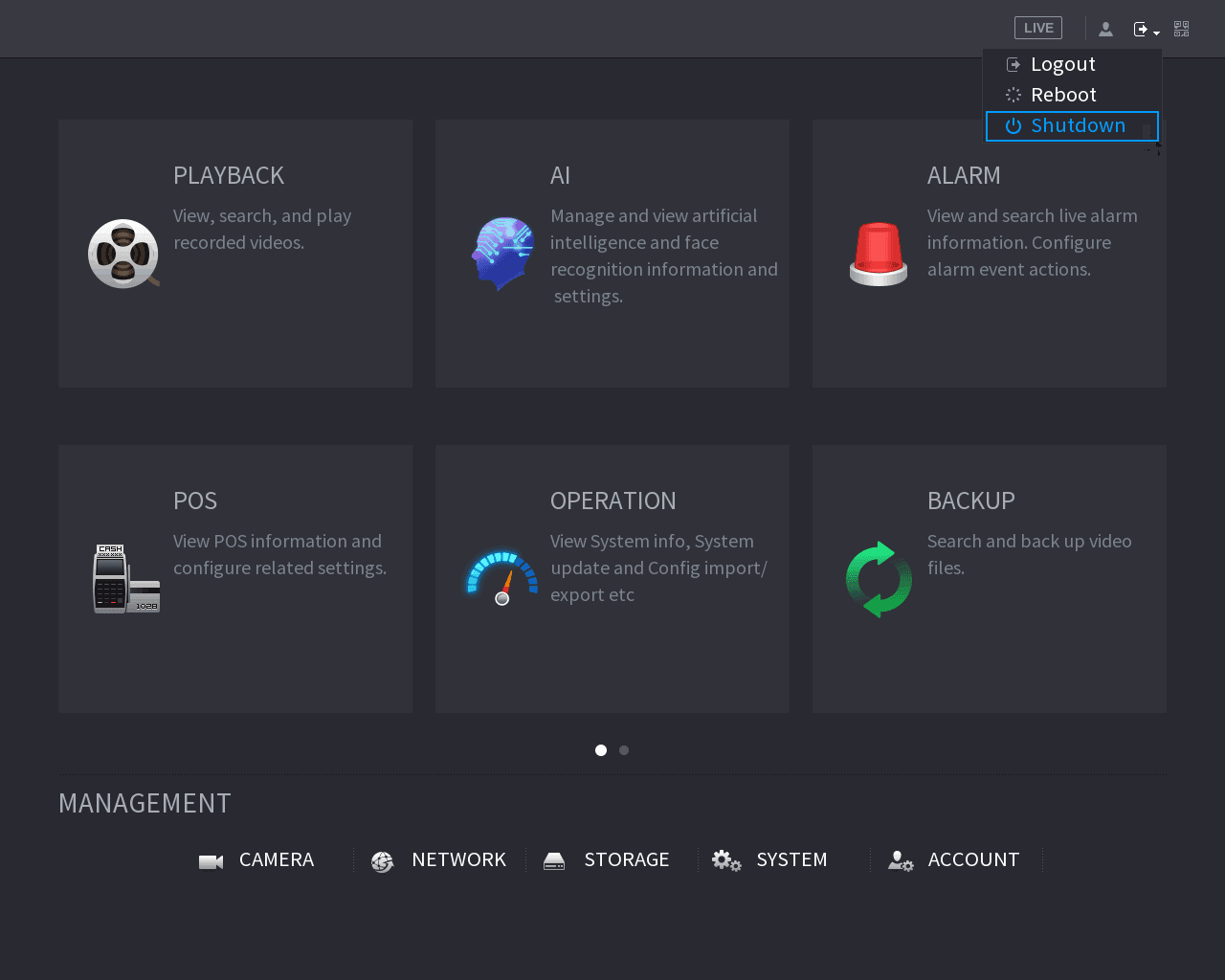
Select Shutdown
Select Shutdown.
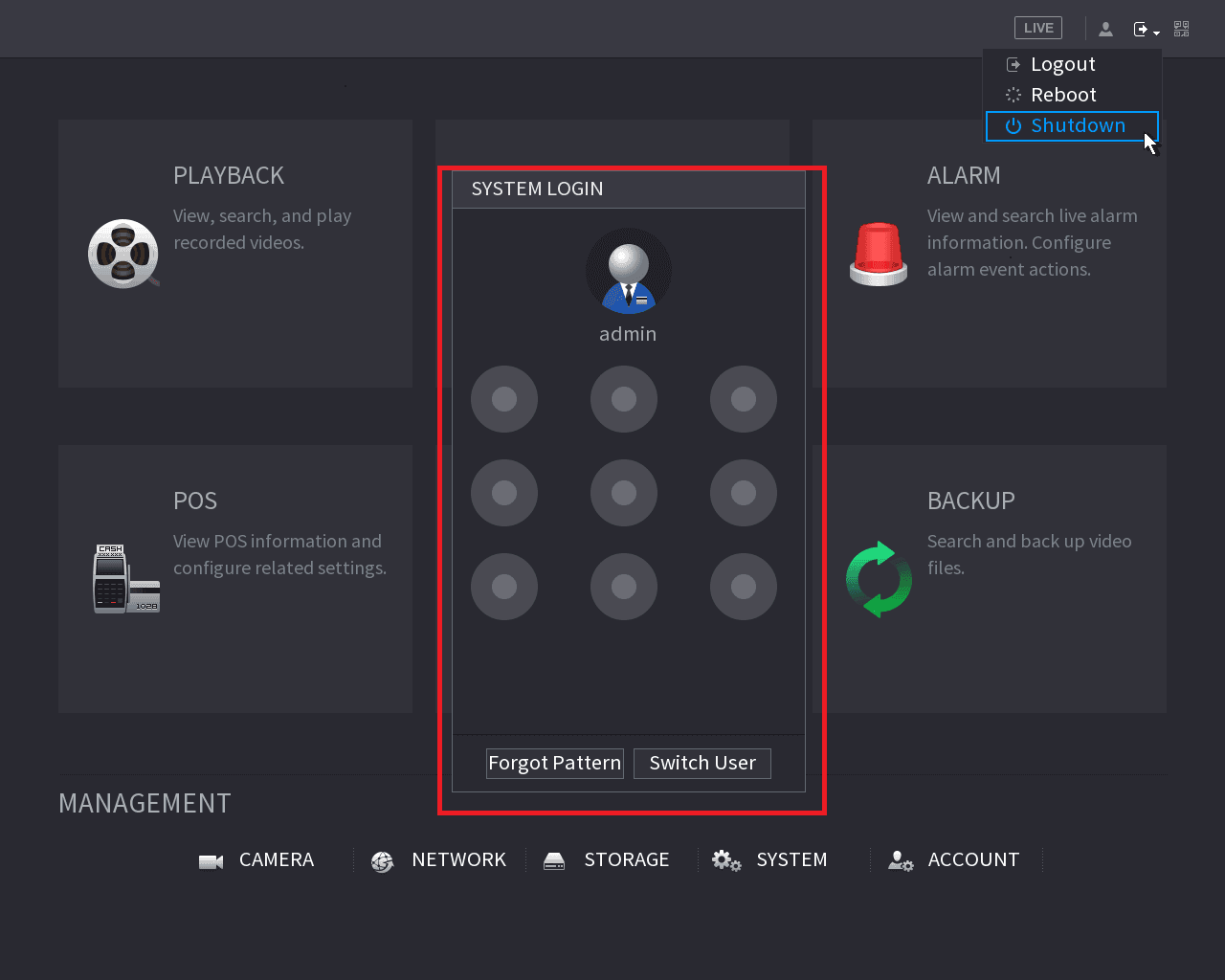
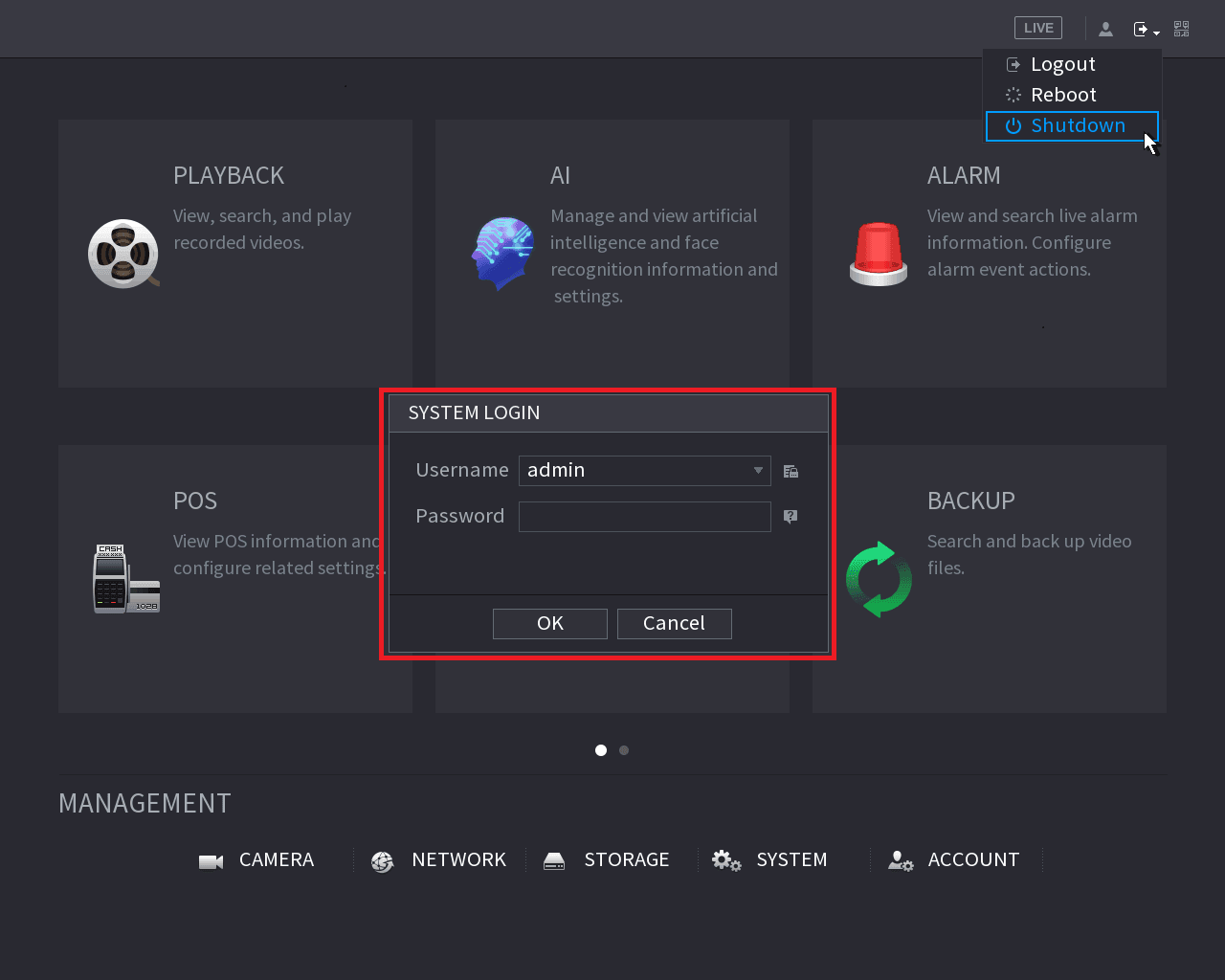
Draw the unlock pattern or input password first if you have no authority to shut down. See Figure 4-260 or Figure 4-261.
Remote Control
Press the power button on the remote for at least 3 seconds.
- Press the power button at the rear panel of the device.
Auto Resume after Power Failure
The system can automatically backup video file and resume previous working status after power failure.