 Centre d'aide LTS Connect
Human Body Detection
Configure and use smart analysis and human body search features, including enabling smart analysis tasks, searching by appearance or picture, and managing sample pictures on the Turbo HD DVR GUI 4.0.
This chapter is only available for iDS-7316HUHI-K4/16S and iDS-9016HUHI-K8/16S.
Smart Analysis
Enable Smart Analysis
Purpose: Smart analysis function models human body pictures captured via smart events, including human body detection, line crossing detection, intrusion detection, region entrance, and region exiting, and analyzes human body appearance, including gender, age, etc. Smart analysis results are used for filtering the pictures when searching interested human body pictures.
Before you start: Check Save VCA Pictures for human body detection, line crossing detection, intrusion detection, region entrance, or region exiting.
Go to Task Configuration
Go to Smart Analysis > Smart Analysis > Task Configuration.
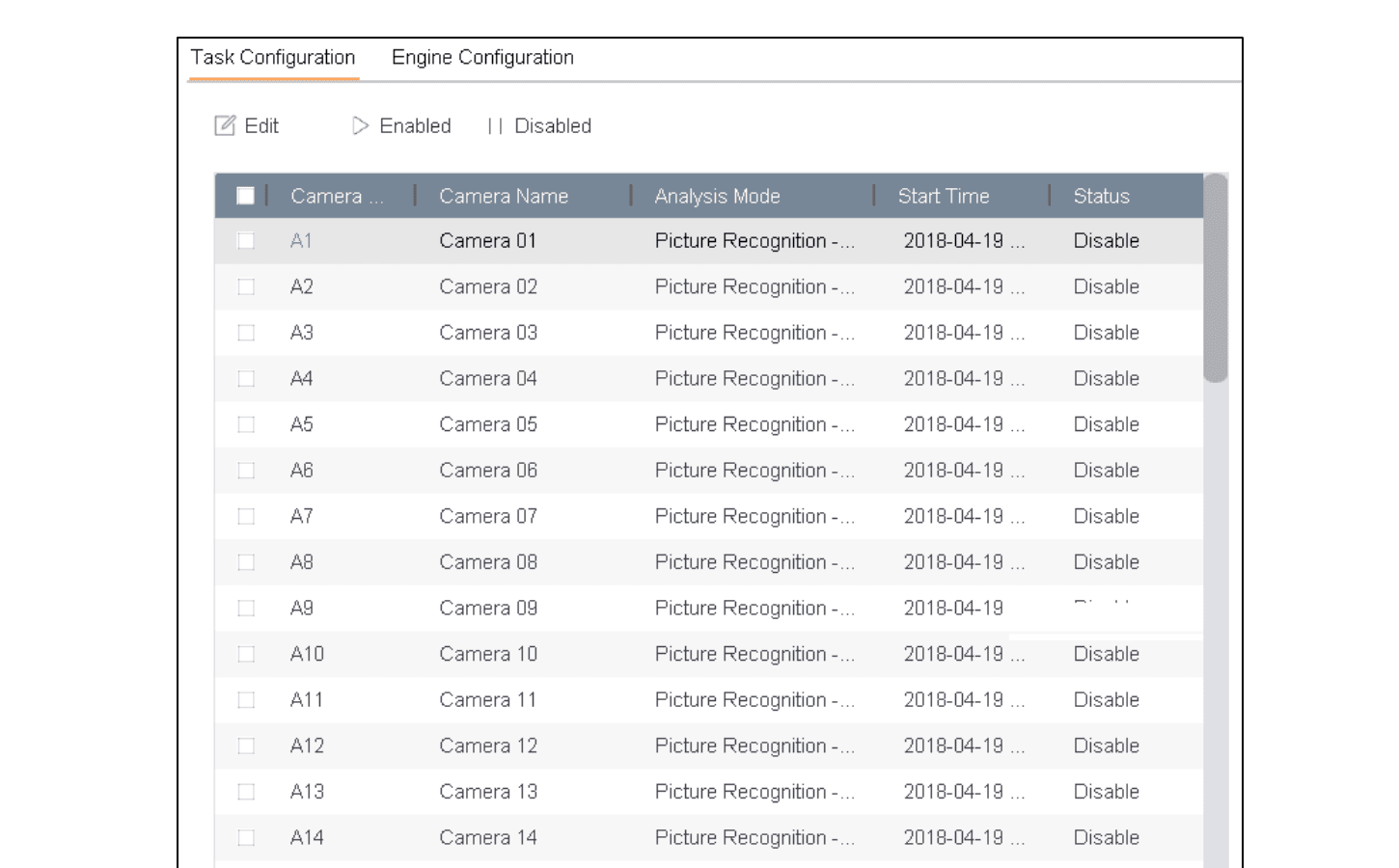
Figure 15-1 Task Configuration
Check cameras and analysis mode
Check cameras to enable corresponding analysis mode. Ensure engine is available for the selected analysis mode.
Enable auto analysis
Enable auto analysis.
- Click Edit.
- Optionally, check Enable of Display Status and Notify Surveillance Center.
- Set Start Time of video to analyze.
- Click OK.
Start analyzing
Check cameras and click Enabled to start analyzing.
Task status includes 3 situations: Disabled, Waiting, and Enabled.
- Disabled: No analysis task is enabled on the camera.
- Waiting: The analysis task of the camera is enabled. Device is waiting to start analyze data.
- Enabled: The analysis task of the camera is enabled and device is analyzing data of the camera.
View Engine Status
Purpose: Smart analysis engine is applied to analyze false alarm and smart analysis task. Go to Smart Analysis > Smart Analysis > Engine Configuration to view the working status, usage rate, and applied channel of smart analysis engine.
Human Body Search
Search by Appearance
Purpose: Search human body pictures by specified human body appearance.
Search by Manually Specified Human Body Appearance
Purpose: Search human body pictures according to manually specified search conditions.
Before you start: Import human body pictures you want to search.
Go to Search by Appearance
Go to Smart Analysis > Smart Search > Human Body Detection > Search by Appearance.
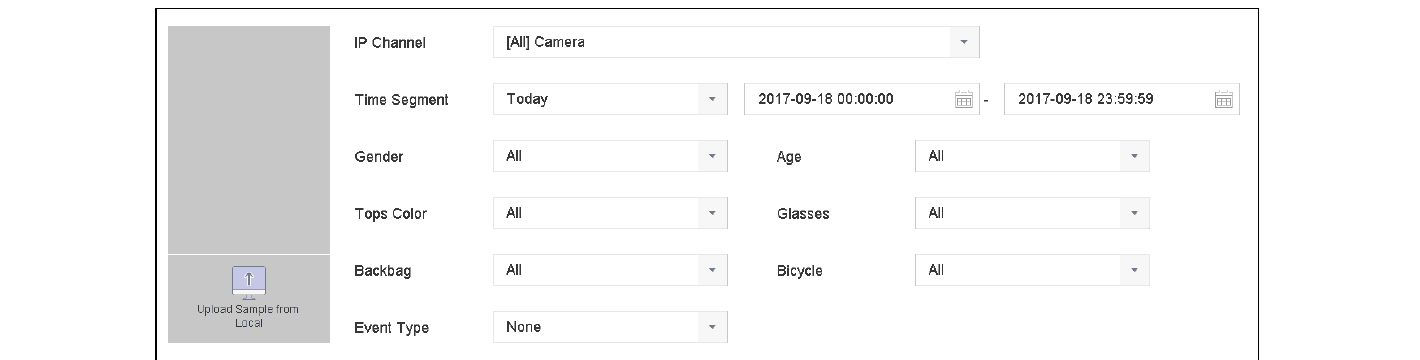
Figure 15-2 Search by Appearance
Specify search conditions
Specify search conditions.
Start search
Click Start Search.
Search by Human Body Appearance Automatically Obtained from Uploaded Sample
Purpose: Search human body pictures according to human body appearance automatically obtained from uploaded sample pictures.
Before you start: Import a human body picture in USB flash drive and connect it to device.
- When there are multiple targets existing in the same picture, up to 30 target pictures can be analyzed and displayed.
- The maximum allowed picture size is 3840*2160.
- The picture must be in jpg or jpeg format.
- The picture name (with the suffix) cannot exceed 64 characters.
- Make sure the picture you uploaded is clear and recognizable.
Go to Search by Appearance
Go to Smart Analysis > Smart Search > Human Body Detection > Search by Appearance.
Upload sample
Click Upload Sample from Local. Device will analyze the appearance of human body in the uploaded sample picture.
Specify time and event type
Specify Time Segment and Event Type.
Start search
Click Start Search. Human body pictures match the appearance of uploaded human body picture will be listed.
Search by Picture
Purpose: To increase search accuracy, upload several pictures of one person to compare with captured human body pictures.
Before you start: Import human body pictures in USB flash drive and connect it to device.
- When there are multiple targets existing in the same picture, up to 30 target pictures can be analyzed and displayed.
- The maximum allowed picture size is 3840*2160.
- The picture must be in jpg or jpeg format.
- The picture name (with the suffix) cannot exceed 64 characters.
- Make sure the picture you uploaded is clear and recognizable.
Go to Search by Picture
Go to Smart Analysis > Smart Search > Human Body Detection > Search by Picture.
Upload sample
Click Upload Sample from Local.
Select picture
Select a picture in USB flash drive and click Import.
Select and upload
Select related pictures and click Upload.
Specify search conditions
Specify search conditions.
- Similarity: Device will analyze the similarity between samples and captured human body pictures and show pictures the similarity of which are higher than the set one.
Start search
Click Start Search. Search results will be arranged in similarity ascending order.
Add Search Result as Sample Picture
Purpose: You can add searched human body pictures as sample pictures. And then search human body pictures by the sample pictures.
Search human body pictures
Search human body pictures.
Add to sample
In search result interface, click to select a picture and click Add to Sample.
Return to search
Return to search condition settings interface, the selected sample will be listed.