 Pusat Bantuan LTS Connect
Smart Analysis
Use VCA-based smart analysis features including face search, human body search, vehicle search, people counting, and heat map on the Turbo HD DVR GUI 4.0.
With the configured VCA detection, the device supports the smart analysis for people counting and heat map.
Face Search
This chapter is not available for iDS-7200HQHI-K/S and iDS-7200HUHI-K/S series.
Purpose: When there are detected face picture captured and saved in HDD, you can enter the Face Search interface to search the picture and play the picture related video file according to the specified conditions.
Before you start: Please refer to Chapter 13.2 Face Detection for configuring the face detection.
Go to Face Search
Go to Smart Analysis > Smart Search > Face Search.
Select the camera
Select the IP camera for the face search.
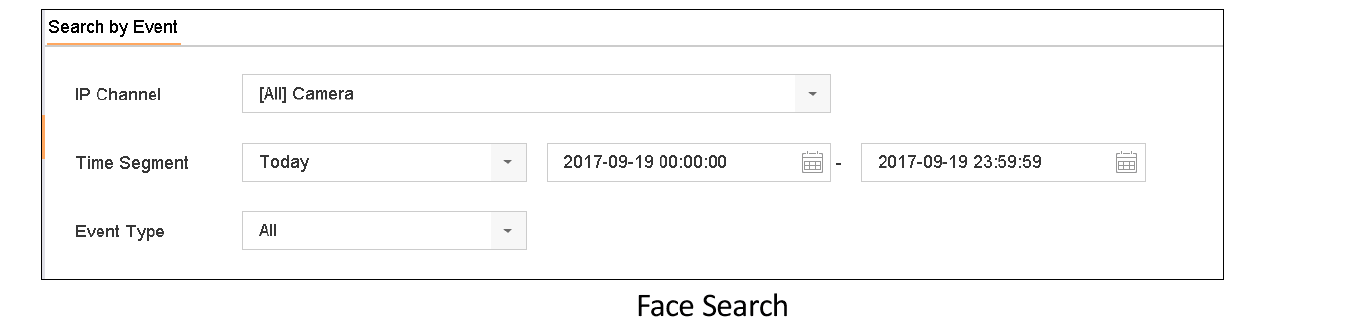
Figure 14-1 Face Search
Set the time range
Specify the start time and end time for search the captured face pictures or video files.
Start searching
Click Start Search to start searching.
Play related video
Double click on a face picture to play its related video file in the view window on the top right. Play the face picture related video file.
Export results
To export the captured face pictures to local storage device, connect the storage device to the device and click Export.
Human Body Search
This chapter is only available for iDS series.
Purpose: You can search and view the matched captured human body pictures.
Go to Human Body Detection
Go to Smart Analysis > Smart Search > Human Body Detection.
Select the camera
Select the camera for the human body search.
Set search conditions
Set search conditions.
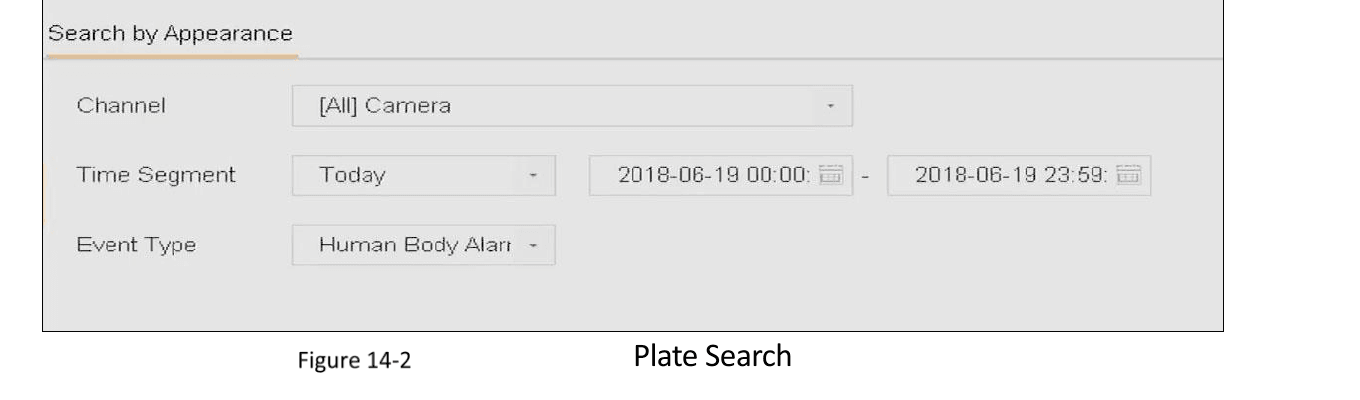
Figure 14-2 Human Body Search
Start searching
Click Start Search.
Vehicle Search
This chapter is only available for iDS series.
Purpose: You can search and view the matched captured vehicle pictures.
Go to Vehicle Search
Go to Smart Analysis > Smart Search > Vehicle Search.
Select the camera
Select the IP camera for the vehicle search.
Set search conditions
Set search conditions.
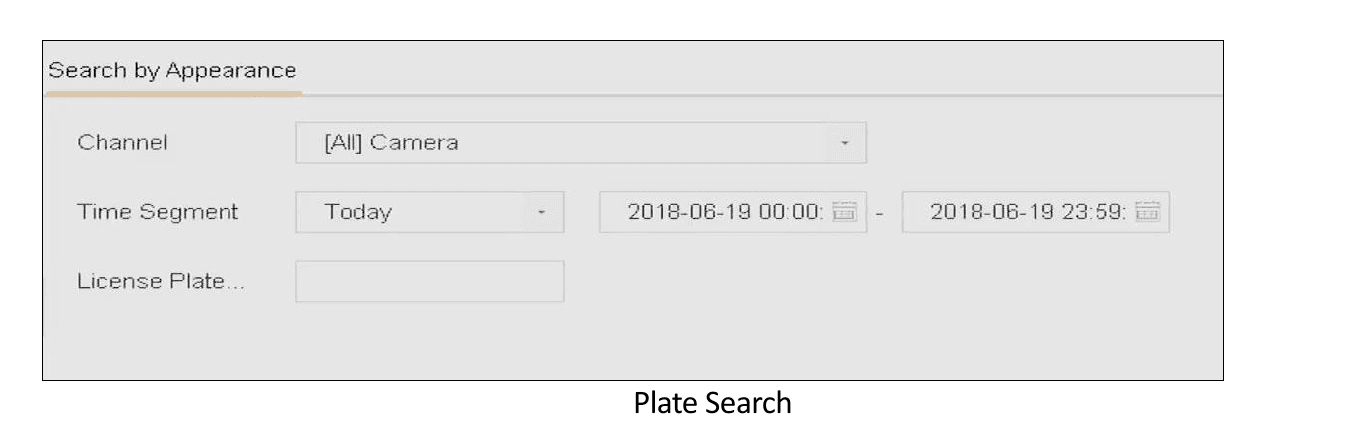
Figure 14-3 Plate Search
Start searching
Click Start Search.
People Counting
Purpose: The Counting is used to calculate the number of people entered or left a certain configured area and form in daily/weekly/monthly/annual reports for analysis.
Go to Counting
Go to Smart Analysis > Smart Search > Counting.
Select a camera
Select a camera.
Select report type
Select the report type to Daily Report, Weekly Report, Monthly Report, or Annual Report as you desired.
Set the date
Set the Date to analyze. Then it will generate the people counting graphic.
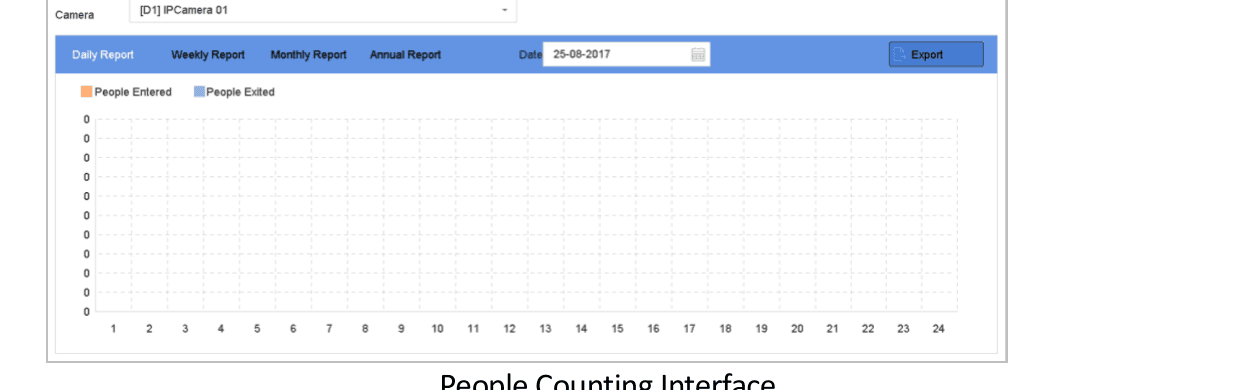
Figure 14-4 People Counting Interface
Export the report
(Optional) Click Export to export the report in excel format.
Heat Map
Purpose: Heat map is a graphical representation of data. The heat map function is usually used to analyze how many people visited and stayed in a specified area.
The heat map function must be supported by the connected IP camera and the corresponding configuration must be set.
Go to Heat Map
Go to Smart Analysis > Smart Search > Heat Map.
Select a camera
Select a camera.
Select report type
Select the report type to Daily Report, Weekly Report, Monthly Report, or Annual Report as you desired.
Set the date
Set the Data to analyze.
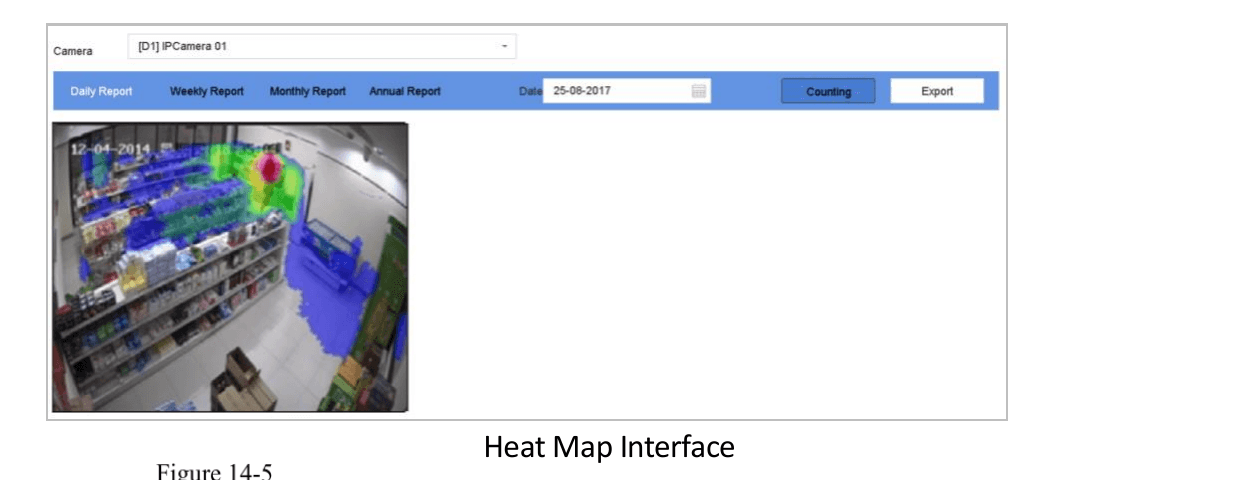
Figure 14-5 Heat Map Interface
Generate result graphic
Click Counting. Then, there will generate the result graphic in different colors.
As shown in the figure above, red color block (255, 0, 0) indicates the most welcome area, and blue color block (0, 0, 255) indicates the less-popular area.
Export the report
(Optional) Click Export to export the statistics report in excel format.
VCA Event Alarm
Configure VCA smart event alarms on the Turbo HD DVR GUI 4.0, including human body, face, vehicle, line crossing, intrusion, region entrance/exiting, unattended baggage, object removal, audio exception, sudden scene change, defocus, and PIR detection.
Human Body Detection
Configure and use smart analysis and human body search features, including enabling smart analysis tasks, searching by appearance or picture, and managing sample pictures on the Turbo HD DVR GUI 4.0.