 Centro assistenza LTS Connect
AI Search
How to use the Sapphire Series NVR AI Search to find and play back recorded files by face, IVS, human body, vehicle, non-motor vehicle, people counting, and heat map rules.
AI
AI Search
You can search the record file on the NVR and filter the record file meets the corresponding rule. It is suitable for you to play the specified file.
This series NVR products support playback the AI by camera file only. AI by camera means the connected camera does all the AI analytics, and then gives the results to the NVR.
Face Detection
You can search the detected faces and play back.
Open Face Detection
Select Main Menu > AI > SMART SEARCH > FACE DETECTION.
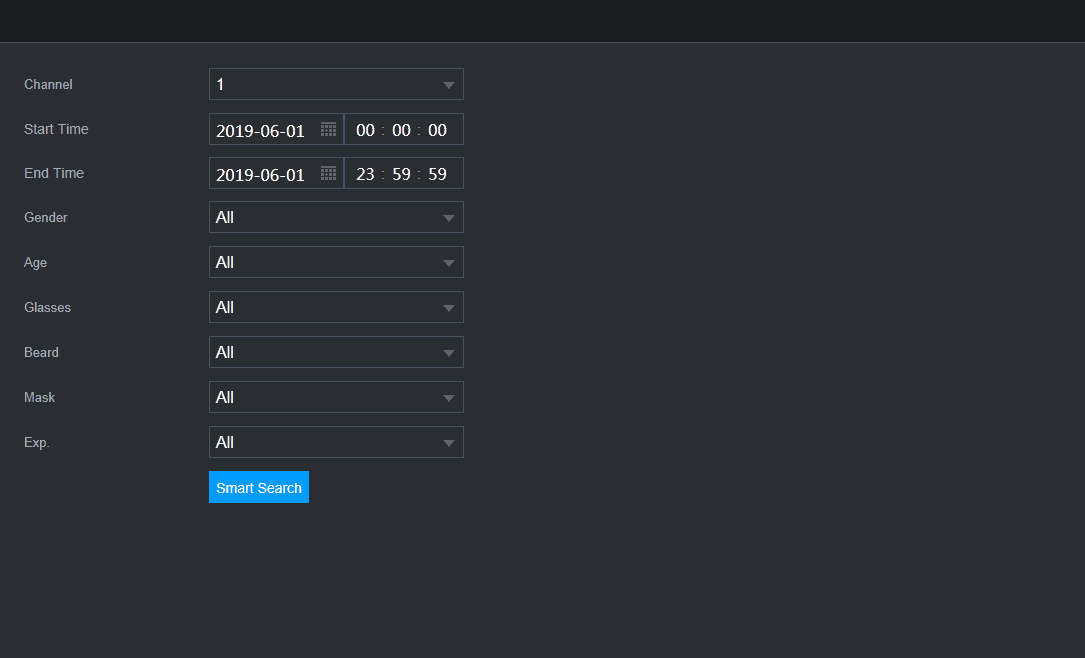
The FACE DETECTION interface is displayed. See Figure 4-104.
Set conditions and search
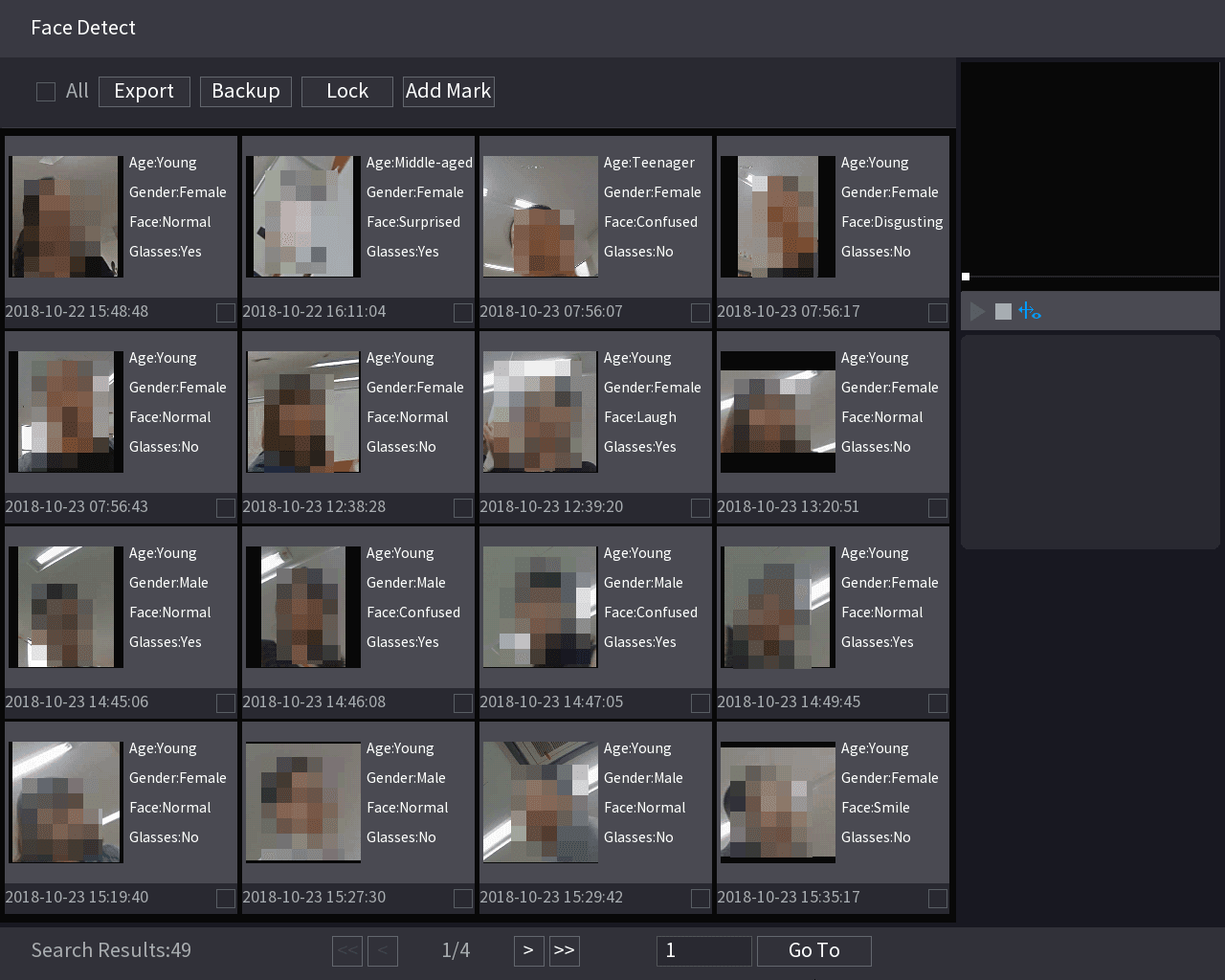
Select the channel, enter the start time and end time, and set for the gender, age, glasses, beard, and mask. Click Smart Search. The results are displayed. See Figure 4-105.
For privacy reason, the human face in the image is pixelated. The actual image is clear.
Play back and manage files
Select the face that you want to play back.
The picture with registered information is displayed.
You can also do the following operations to the recorded files.
-
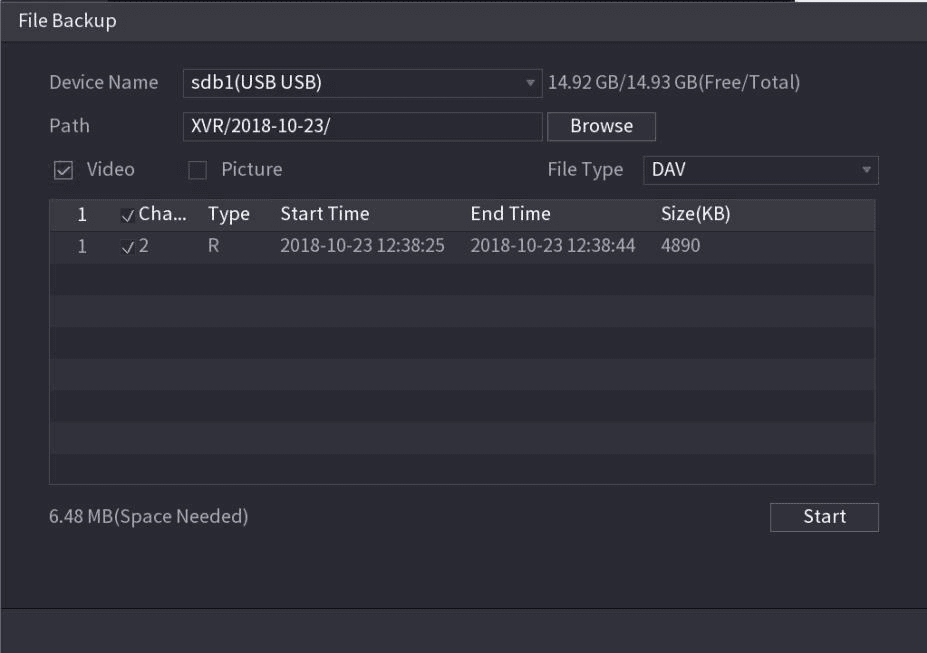
To back up the recorded files to the external storage device, select files, click Backup, select the save path and file type, and then click Start. See Figure 4-106.
-
To lock the files to make it unable to be overwritten, select the files, and then click Lock.
-
To add a mark to the file, select the files and then click Add Mark.
-
Go to Face Properties and Person Details to view detailed information.
Face Recognition
System can search and compare the human face on the video with the face image on the database, and playback the corresponding record file.
The AI search includes two ways: Search by attributes and search by image.
This function is for some series products only.
Searching by Attributes
Open Search by Attributes
Select Main Menu > AI > SMART SEARCH > FACE RECOGNITION > Search by Attributes.
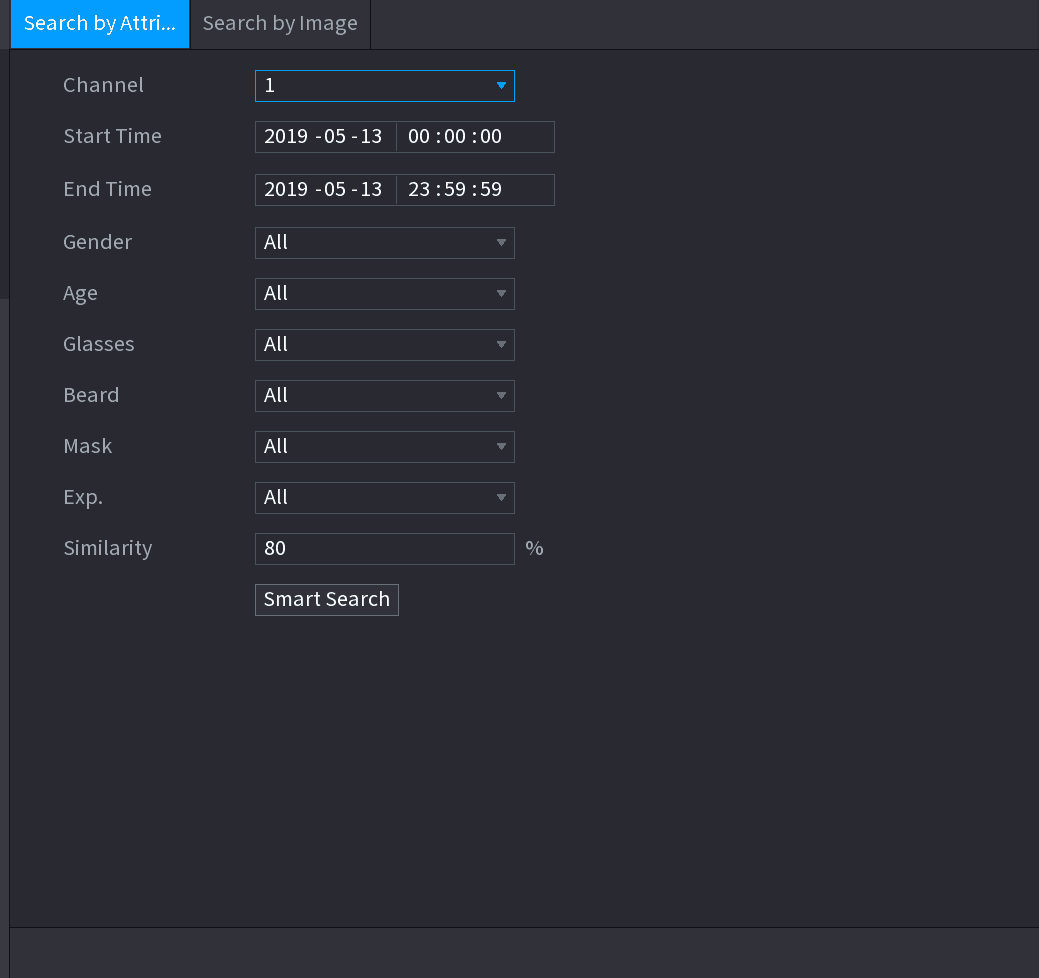
The Search by Attributes interface is displayed. See Figure 4-107.
Set parameters
Select the channel and set the parameters such as start time, end time, gender, age, glasses, beard, mask, and similarity according to your requirement.
Run the search
Click Smart Search.
The search result is displayed. See Figure 4-108.
The human face in the image is pixelated. The actual image is clear.
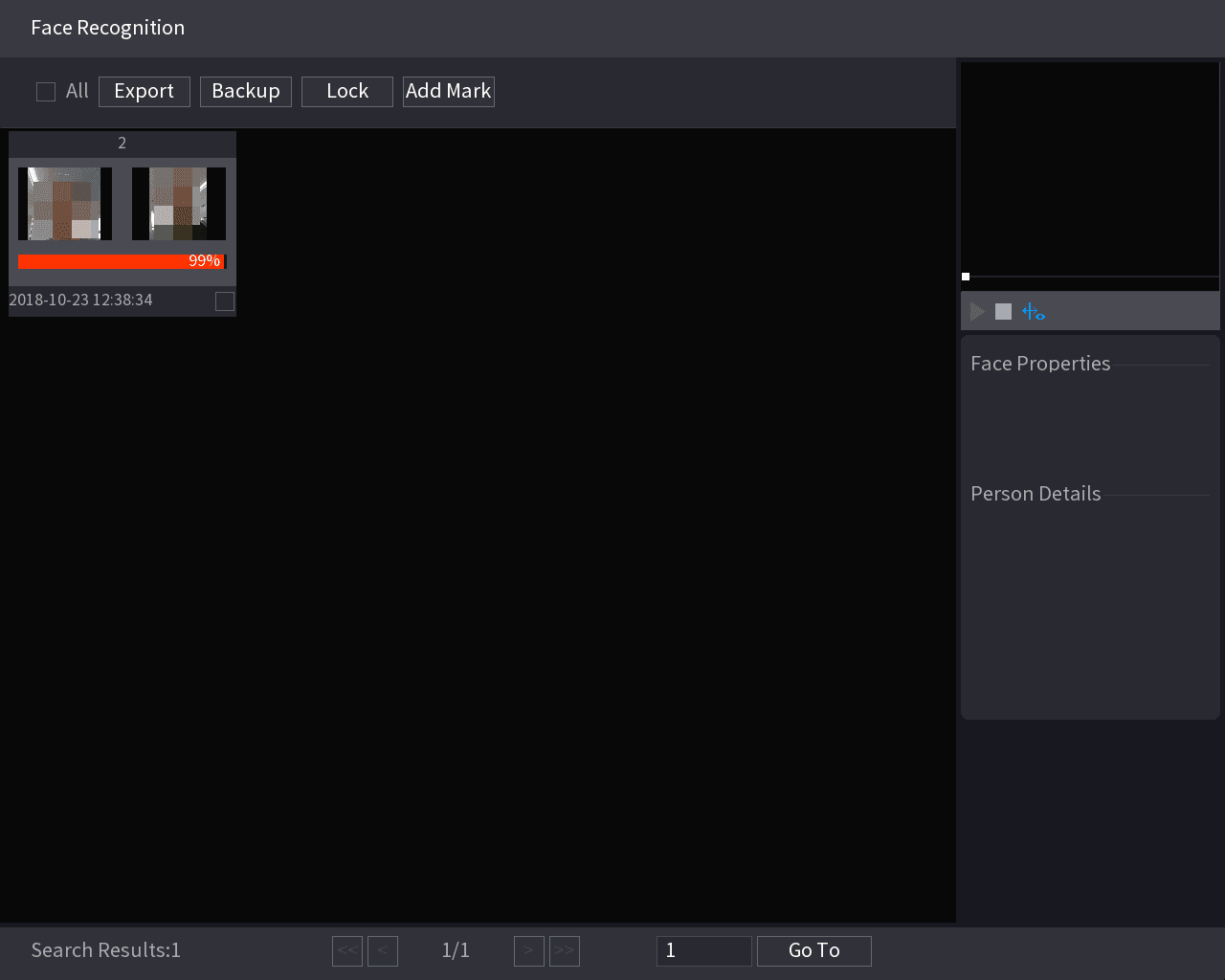
Play back and manage files
Click the picture that you want to play back.
The picture with registered information is displayed.
You can also do the following operations to the recorded files.
- To back up the recorded files to the external storage device, select files, click Backup, select the save path and file type, and then click Start.
- To lock the files to make it unable to be overwritten, select the files, and then click Lock.
- To add a mark to the file, select the files and then click Add Mark.
- Go to the Face Properties and Person Details to view detailed information.
Search by Image
Open Search by Image
Select Main Menu > AI > SMART SEARCH > FACE RECOGNITION > Search by Image.
The Search by Image interface is displayed. See Figure 4-109.
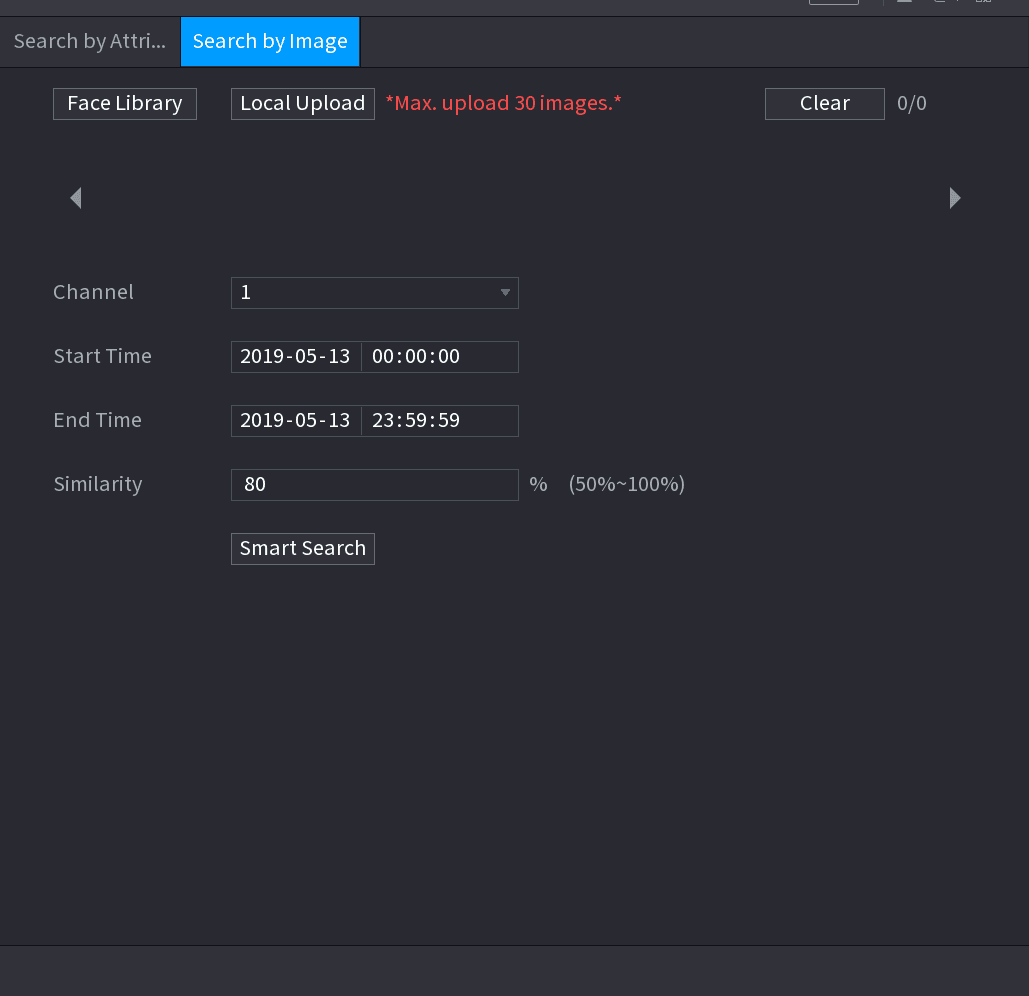
Set parameters
Select the channel and set the parameters such as start time, end time, gender, age, glasses, beard, mask, and similarity according to your requirement.
Run the search
Click Smart Search.
The search result is displayed. See Figure 4-110.
The human face in the image is pixelated. The actual image is clear.
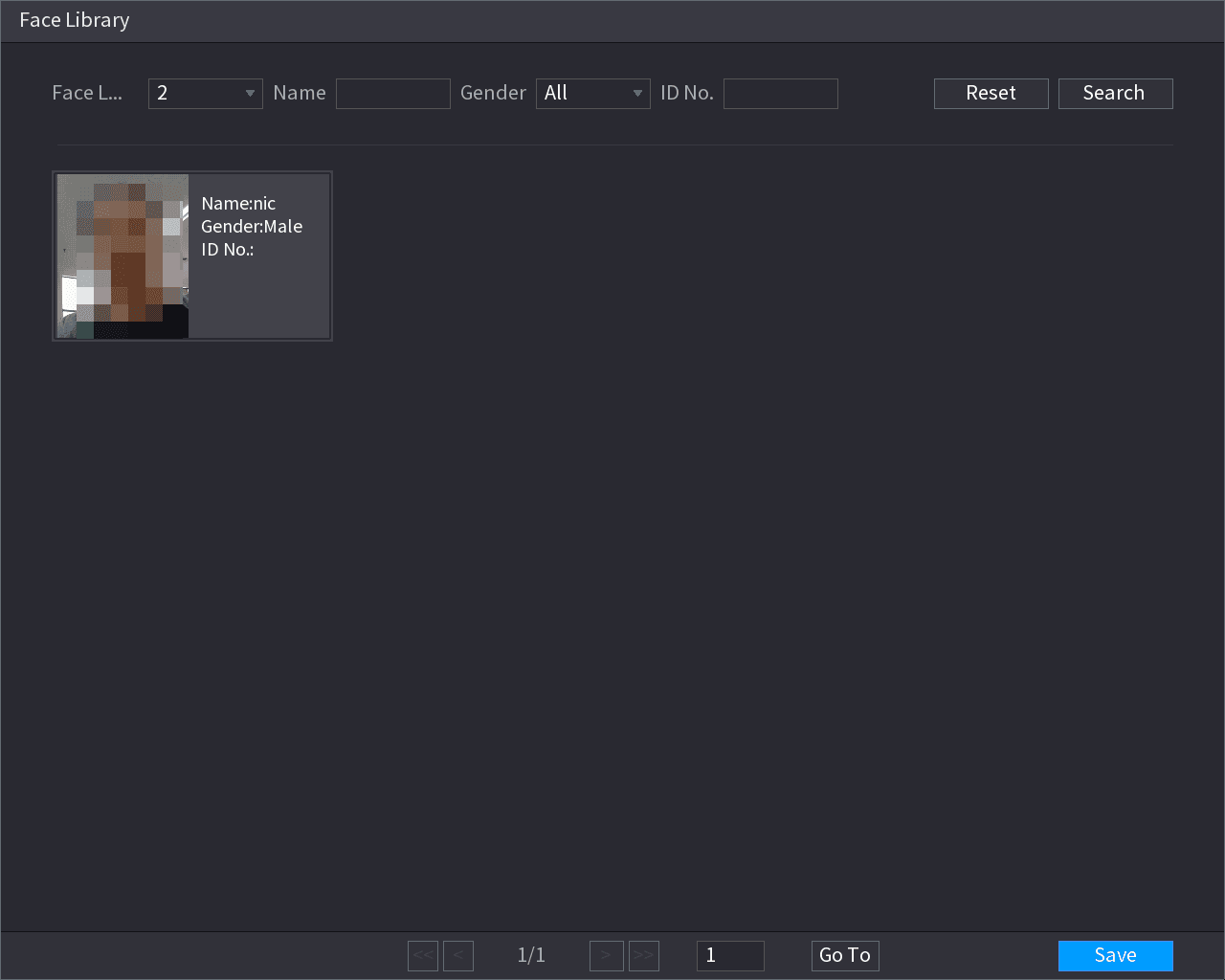
Play back and manage files
Click the picture that you want to play back.
The picture with registered information is displayed.
You can also do the following operations to the recorded files.
- To back up the recorded files to the external storage device, select files, click Backup, select the save path and file type, and then click Start.
- To lock the files to make it unable to be overwritten, select the files, and then click Lock.
- To add a mark to the file, select the files and then click Add Mark.
- Go to the Face Properties and Person Details to view detailed information.
IVS
You can search and playback the alarm record files.
Open IVS
Select Main Menu > AI > SMART SEARCH > IVS.
The IVS interface is displayed. See Figure 4-111.
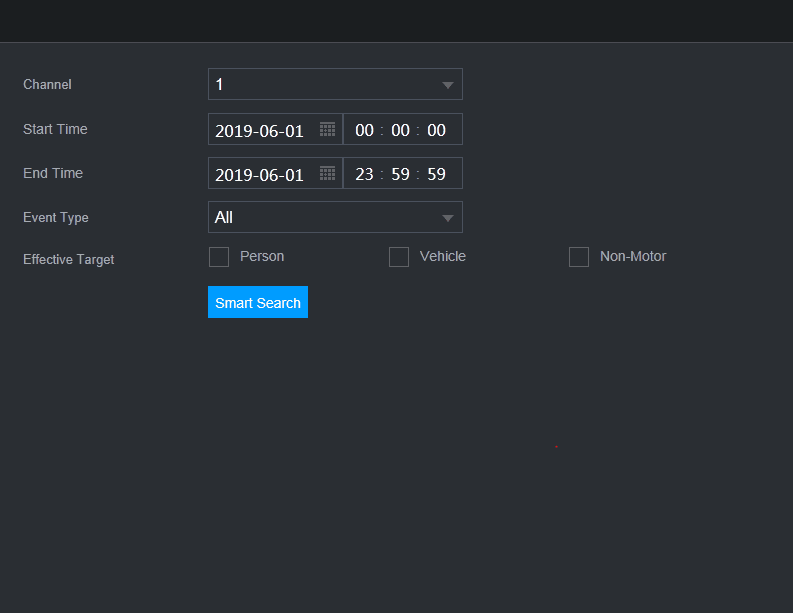
Run the search
Select a channel, start time, end time, event type, and then click Smart search.
The search result is displayed.
Play back and manage files
Click the picture that you want to play back.
You can also do the following operations to the recorded files.
- To back up the recorded files to the external storage device, select files, click Backup, select the save path and file type, and then click Start.
- To lock the files to make it unable to be overwritten, select the files, and then click Lock.
- To add a mark to the file, select the files and then click Add Mark.
- Go to the Face Properties and Person Details to view detailed information.
Human Body Detection
You can search the human body and search the alarm record during the specified period.
Open Human Body Detection
Select Main Menu > AI > SMART SEARCH > HUMAN BODY DETECTION.
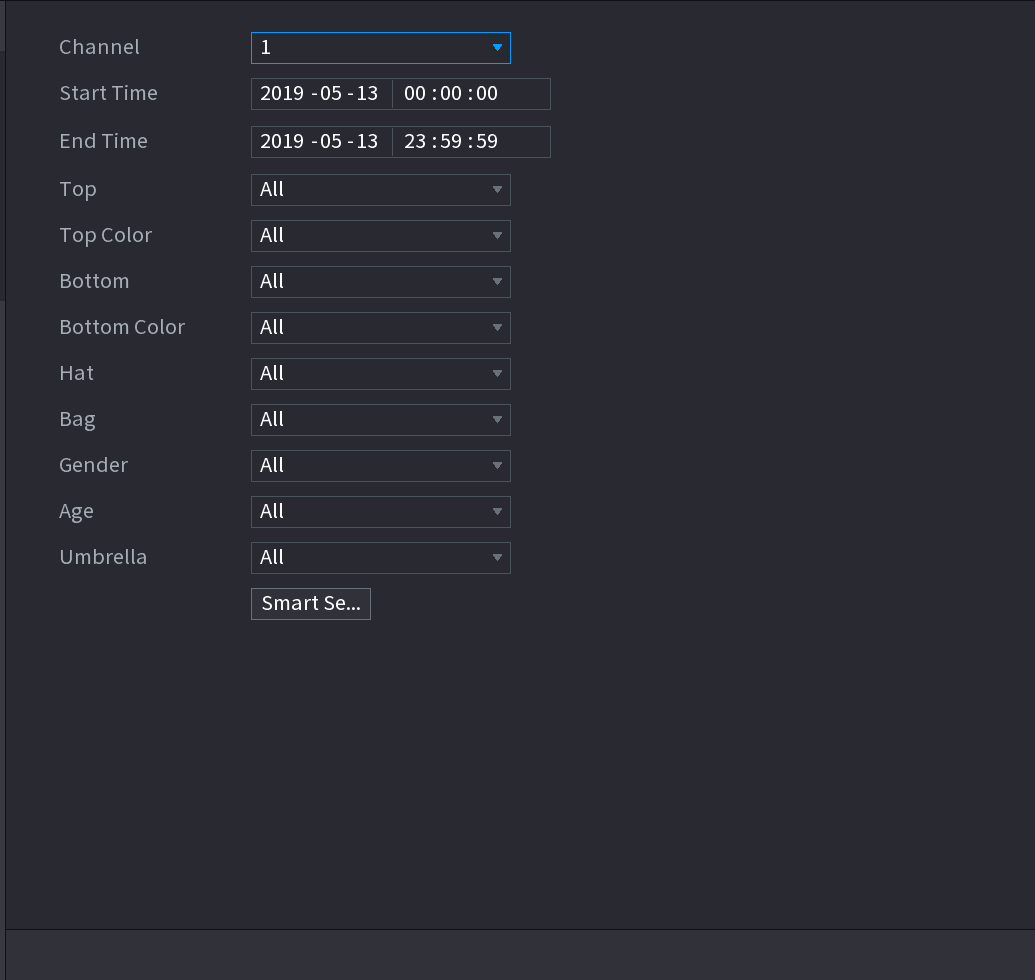
The Human Body Detection interface is displayed. See Figure 4-112.
Set parameters
Select a channel, start time, end time, and set corresponding parameters.
Run the search
Click Smart search.
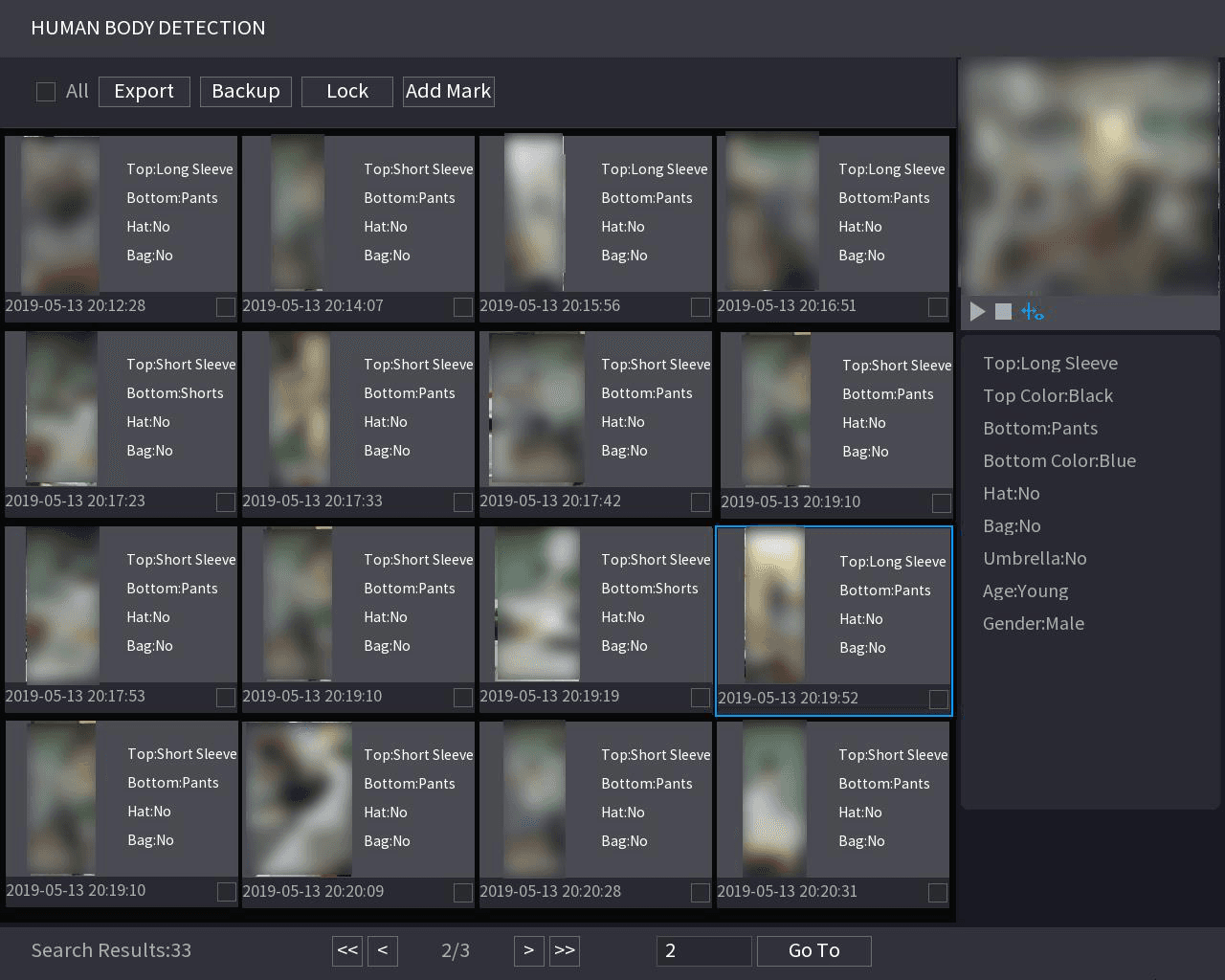
The search result is displayed. See Figure 4-113.
For privacy reason, the human face in the image is pixelated.
Select and manage files
Select one or multiple results, and then you can
- To back up the recorded files to the external storage device, select files, click Backup, select the save path and file type, and then click Start.
- To lock the files to make it unable to be overwritten, select the files, and then click Lock.
- To add a mark to the file, select the files and then click Add Mark.
- Go to the Face Properties and Person Details to view detailed information.
Vehicle Detection
You can search according to the vehicle parameters and search the alarm record during the specified period.
This function is for some series products only.
Open Vehicle Detection
Select Main Menu > AI > SMART SEARCH > VEHICLE DETECTION.
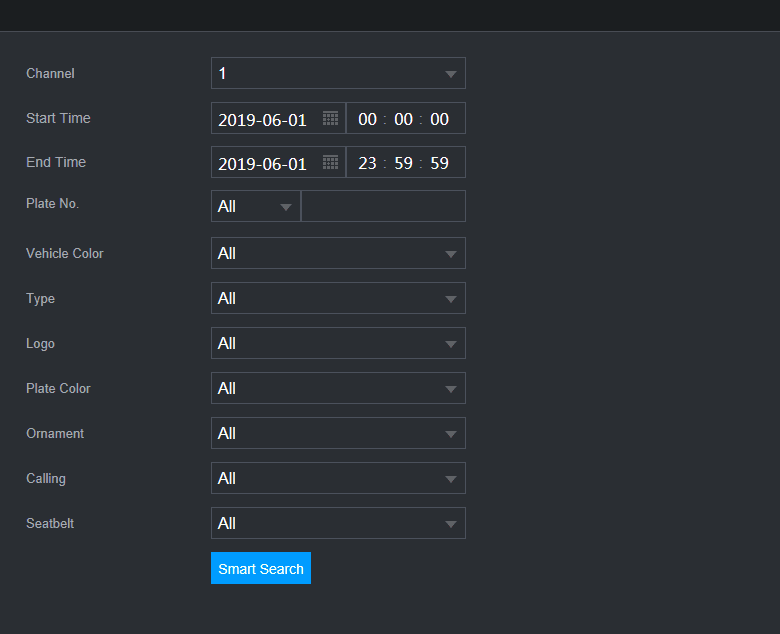
The VEHICLE DETECTION interface is displayed. See Figure 4-114.
Set parameters
Select a channel and set parameters.
- System supports plate fuzzy search.
- System searches all plate numbers by default if you have not set a plate number.
Select and manage files
Select one or multiple results, and then you can:
- To back up the recorded files to the external storage device, select files, click Backup, select the save path and file type, and then click Start.
- To lock the files to make it unable to be overwritten, select the files, and then click Lock.
- To add a mark to the file, select the files and then click Add Mark.
Non-motor Vehicle Detection
You can search according to the non-motor vehicle parameters and search the alarm record during the specified period.
This function is for some series products only.
Open Non-motor Vehicle Detection
Select Main Menu > AI > SMART SEARCH > NON-MOTOR VEHICLE DETECTION.
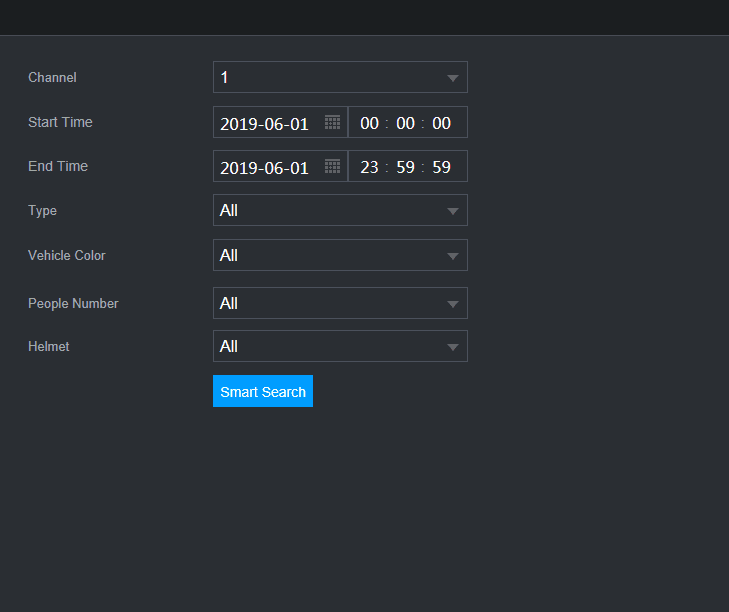
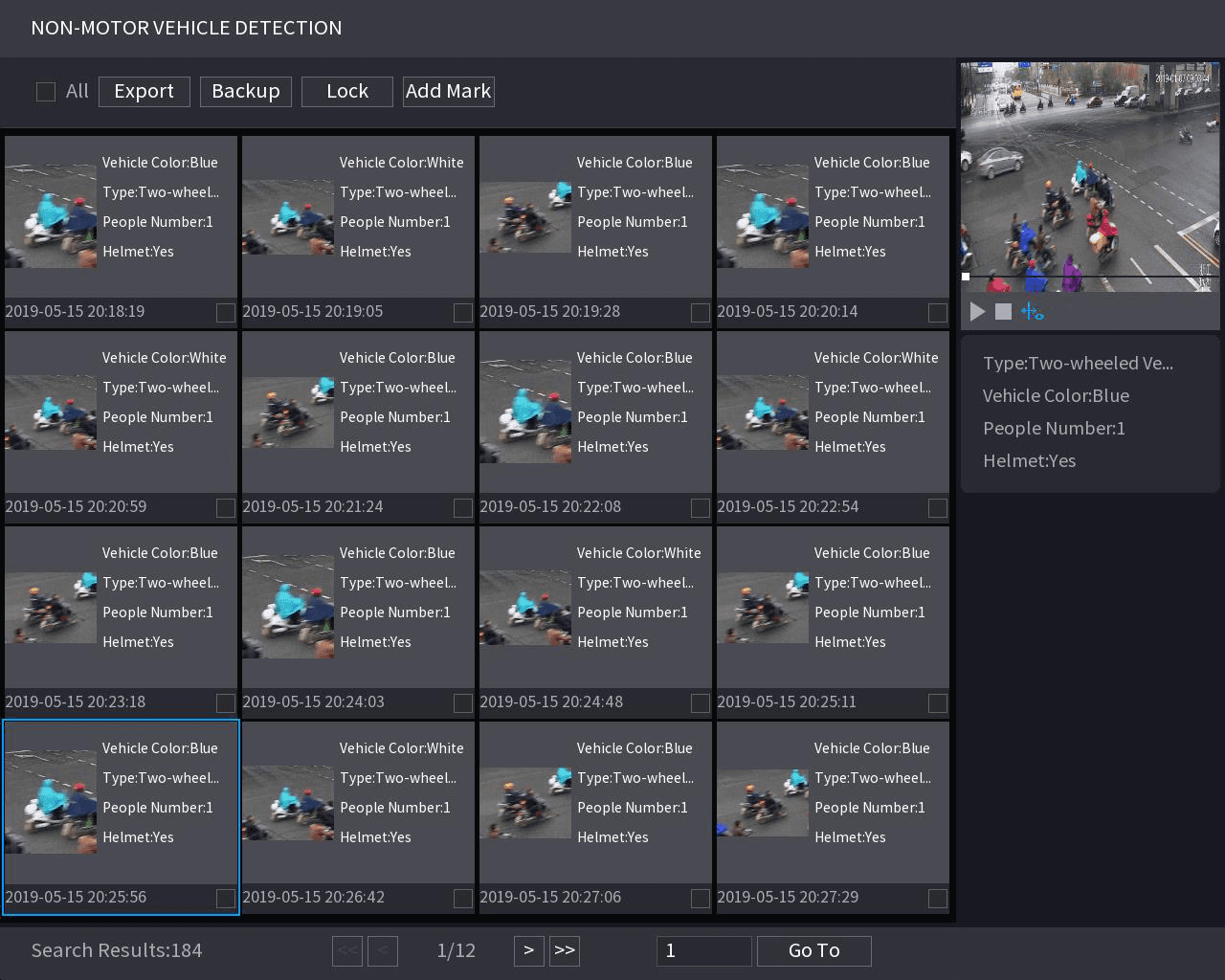
The NON-MOTOR VEHICLE DETECTION interface is displayed. See Figure 4-115.
Set features
Select the channel and the time, and then select one or multiple features from Type, Vehicle Color, People Number, or Helmet.
Select and manage files
Select one or multiple results, and then you can
- To back up the recorded files to the external storage device, select files, click Backup, select the save path and file type, and then click Start.
- To lock the files to make it unable to be overwritten, select the files, and then click Lock.
- To add a mark to the file, select the files and then click Add Mark.
People Counting
You can detect the people amount in the specified zone, and display the statistics image.
Open People Counting
Select Main Menu > AI > SMART SEARCH > PEOPLE COUNTING.
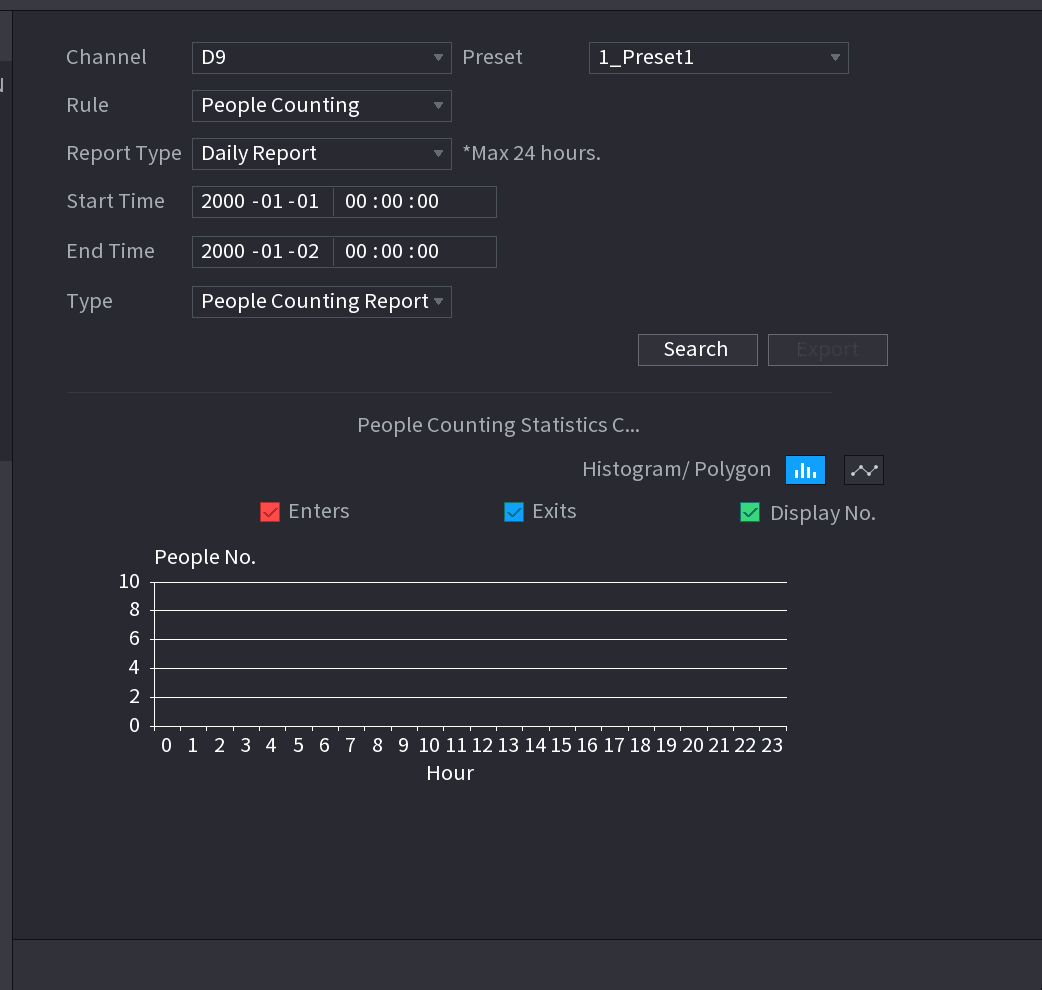
The PEOPLE COUNTING interface is displayed. See Figure 4-117.
Set parameters
Set parameters such as channel, report type, start time, end time, etc. See Table 4-25.
| Parameter | Description |
|---|---|
| Channel | Select the channel you want to search people amount. |
| Rule | Select the rule from the dropdown list. |
| Report Type | Select report type from the dropdown list: daily report, monthly report, yearly report. |
| Start time/end time | Set search start time and end time. |
| Type | Select from the dropdown list. |
Heat map
You can detect the active objects distribution in the monitor zone during the specified period, and use different colors to display on the heat map report.
Normal
Open Normal heat map
Select Main Menu > AI > SMART SEARCH > HEAT MAP > NORMAL.
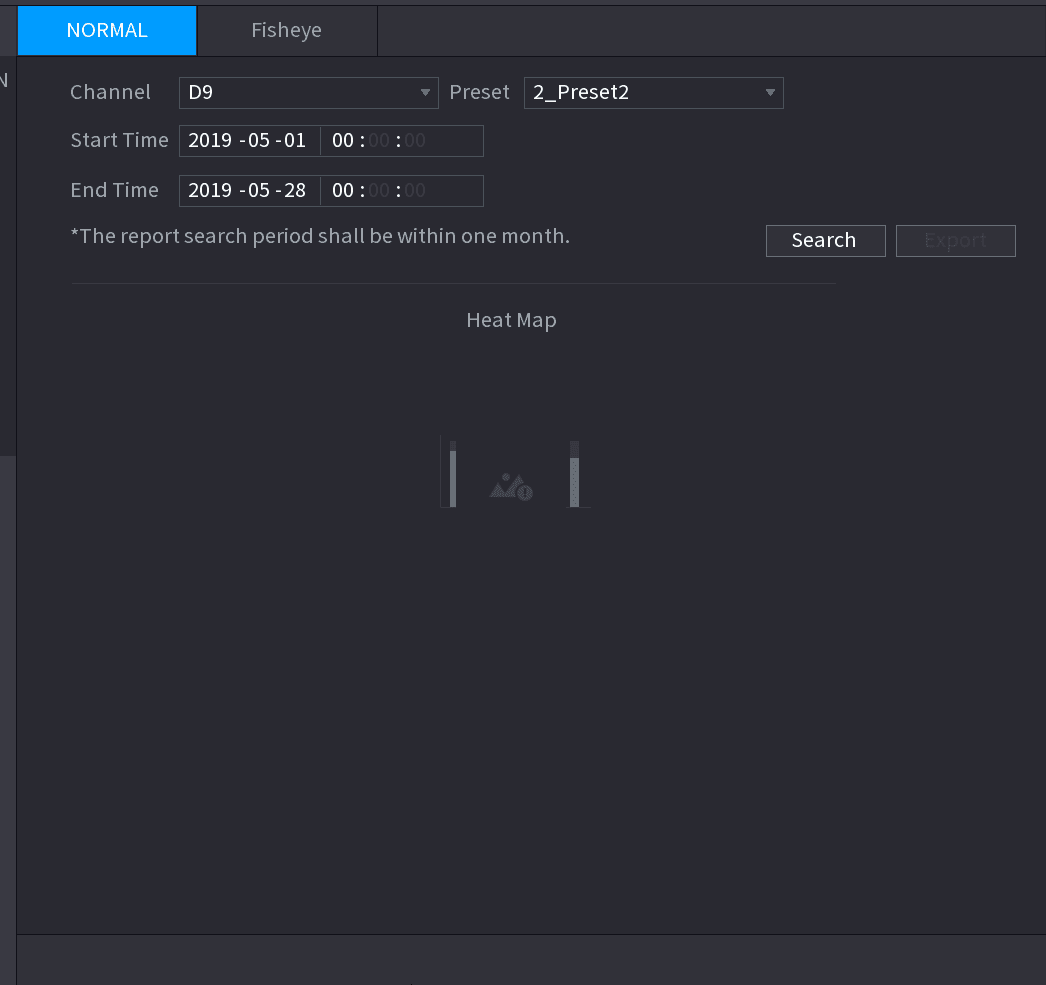
The Normal interface is displayed. See Figure 4-118.
Set channel and time
Select channel, start time, end time.
Search
Click Search.
View and export the report
System display heat map report.
Click Export, and then select path. Click Save to save current report to the USB device.
Fisheye
Open Fisheye heat map
Select Main Menu > AI > SMART SEARCH > HEAT MAP > Fisheye.
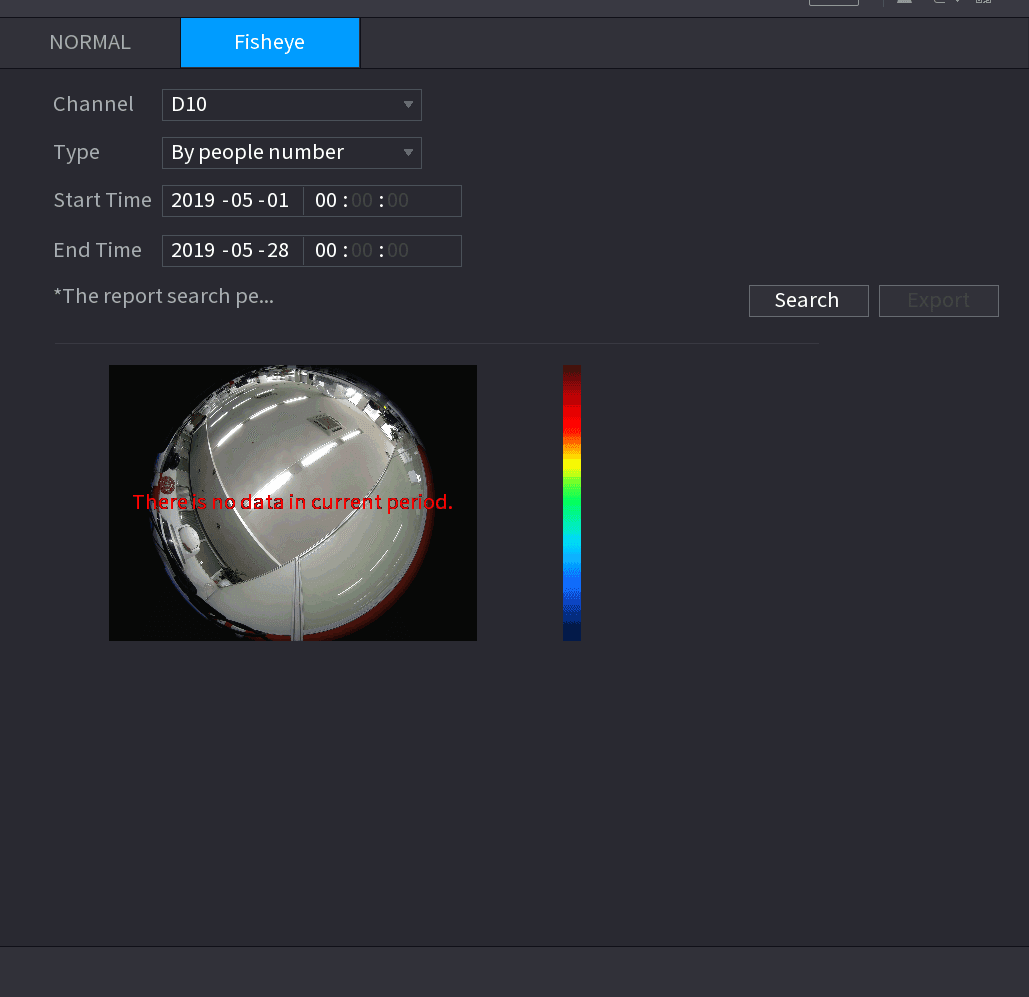
The Fisheye interface is displayed. See Figure 4-119.
Set parameters
Set Channel, Type, Start Time, End time.
Search
Click Search.
View and export the report
System displays heat map report.
Click Export and then select saved path, click Save to save the heat map report to the USB device.
Playback and Search
How to search and play back recorded video and pictures on the Sapphire Series NVR, including instant playback, the search interface, playback controls, clip, backup, smart search, mark playback, splice playback, and file list management.
AI Parameters
Configure the AI parameters of the Sapphire Series NVR, including smart plan, face detection, face recognition, IVS behavior analytics, video structuring, crowd distribution, people counting, heat map, and ANPR.