 Centrum pomocy LTS Connect
File Backup
How to back up record files from the Sapphire Series NVR to a USB device through the BACKUP interface.
File Backup
You can back up the record file to the UBS device.
Connect the USB device
Connect USB burner, USB device or portable HDD to the device.
Open the Backup interface
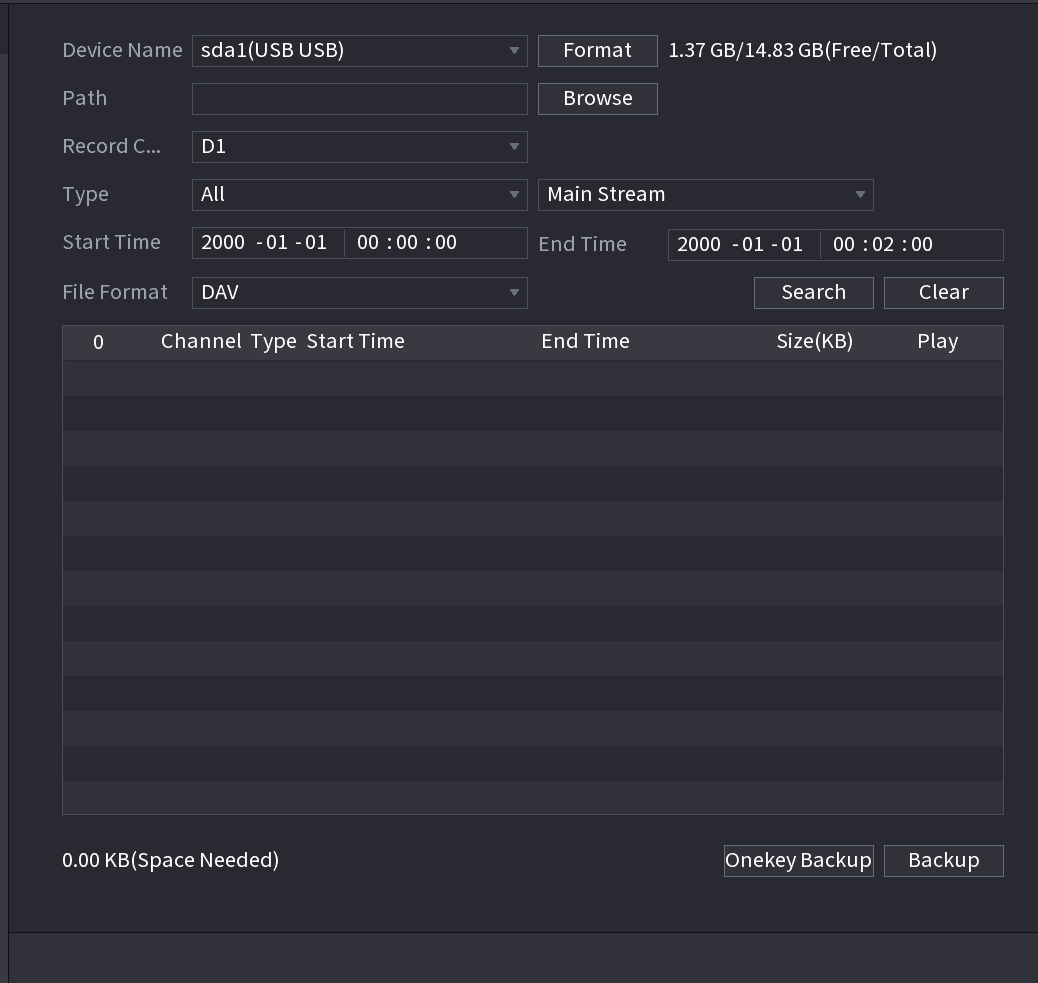
Select Main menu > BACKUP, the Backup interface is displayed. See Figure 4-201.
Set backup parameters
Select backup device and then set channel, file start time and end time.
Search for files
Click Search button, system begins search. All matched files are listed below. System automatically calculates the capacity needed and remained.
Select files to back up
System only backup files with a √ before channel name. You can use Fn or cancel button to delete √ after file serial number.
Back up selected files
Click backup button, you can backup selected files. There is a process bar for you reference.
Confirm successful backup
When the system completes backup, you can see a dialogue box prompting successful backup.
Start burning
Click Backup button, system begins burning. At the same time, the Backup button becomes Stop button. You can view the remaining time and process bar at the left bottom.
During backup process, you can click ESC to exit current interface for other operation (For some series product only). The system will not terminate backup process. (This function is for some series products only.)
Operation and Maintenance
How to view and back up logs, check system, HDD, BPS, and network information, run network tests, and maintain or upgrade the NVR through device maintenance, import/export, default, and system update.
Network
Configure the Sapphire Series NVR network settings, including TCP/IP, port, PPPoE, DDNS, UPnP, email, SNMP, multicast, alarm centre, register, P2P, and 802.1X.