 Centrul de ajutor LTS Connect
System
Configure the NVR's general system settings, RS-232 serial port, and security features including the firewall and internal system services.
General
You can set device general information. It includes device information, system date. Refer to 4.1.4.1 General for detailed information.
RS232
After setting RS-232 parameters, the NVR can use the COM port to connect to other device to debug and operate.
Open the RS232 interface
Select MAIN MENU > SYSTEM > RS232.
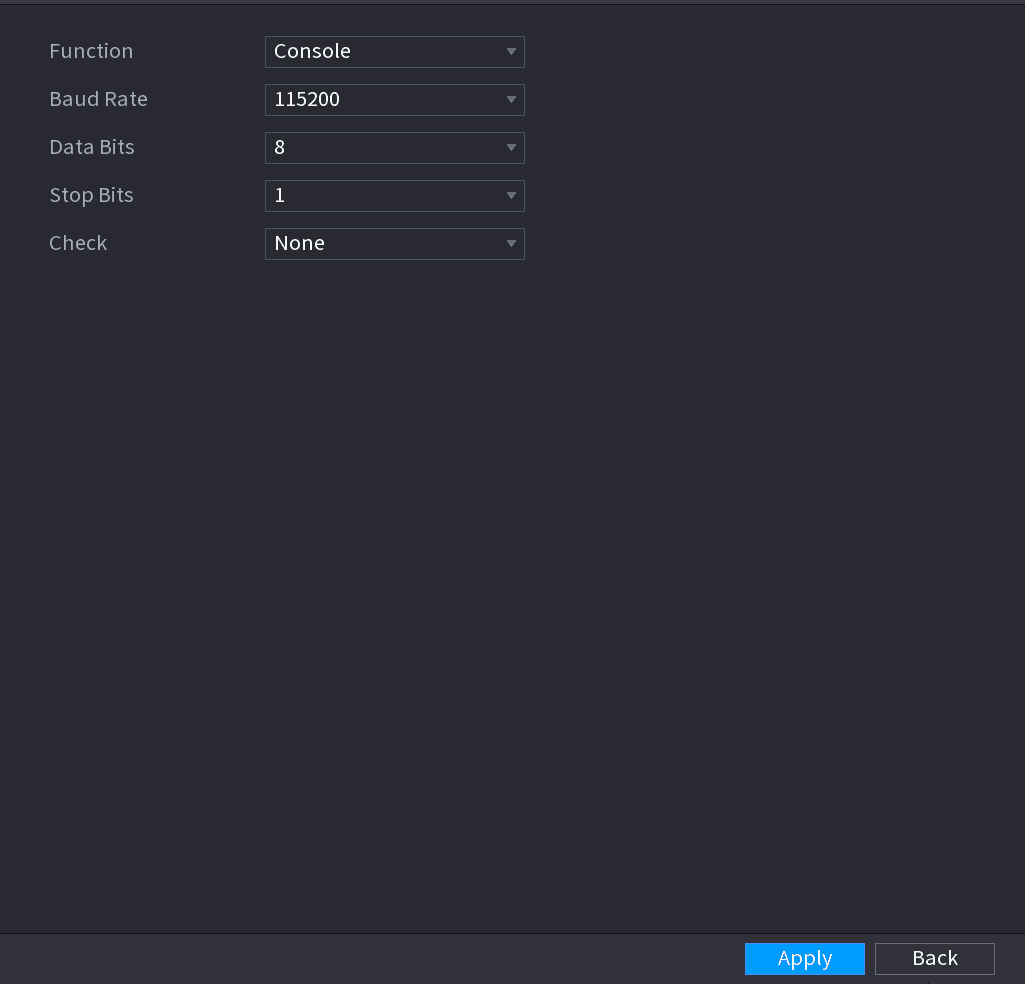
The RS232 interface is displayed. See Figure 4-235.
Configure parameters
Configure parameters. See Table 4-66.
| Parameter | Description |
|---|---|
| Function | Select serial port control protocol. ⚫ Console: Upgrade the program and debug with the console and mini terminal software. ⚫ Keyboard: Control this Device with special keyboard. ⚫ Adapter: Connect with PC directly for transparent transmission of data. ⚫ Protocol COM: Configure the function to protocol COM, in order to overlay card number. ⚫ PTZ Matrix: Connect matrix control. ⚫ Different series products support different RS232 functions. The actual product shall prevail. |
| Baud Rate | Select Baud rate, which is 115200 by default. |
| Data Bits | It ranges from 5 to 8, which is 8 by default. |
| Stop Bits | It includes 1 and 2. |
| Parity | It includes none, odd, even, mark and null. |
Apply the settings
Click Apply.
Security
Firewall
Open the Firewall interface
Select Main Menu > SYSTEM > SECURITY > Firewall.
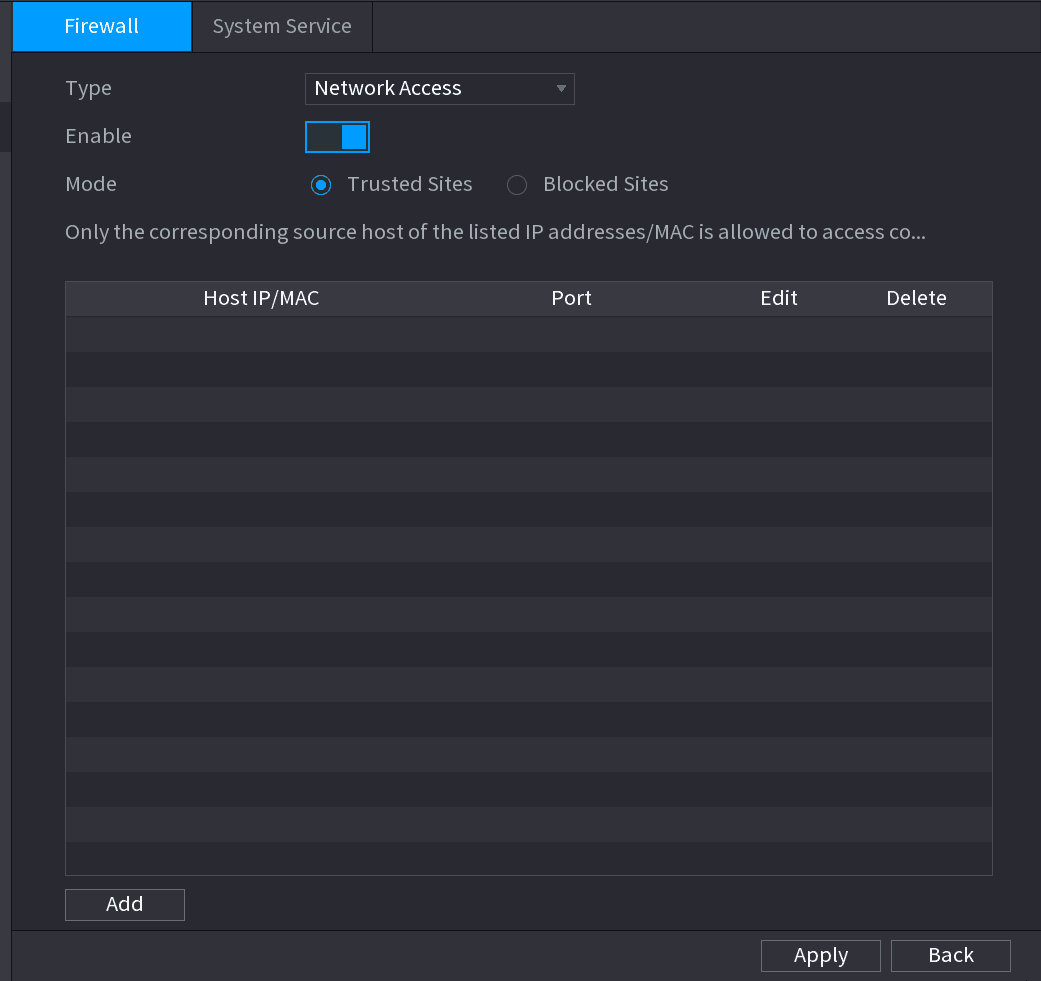
The Firewall interface is displayed. See Figure 4-236.
Enable the function
Select Enable to enable function in the Type list.
Configure the parameters
Configure the parameters. See Table 4-67.
| Parameter | Description |
|---|---|
| Type | In the Type list, you can select Network Access, Sync Time-Whitelist, Forbid Ping and Semi Join. ⚫ Network Access: Configure access right of IP host. ⚫ Sync Time-Whitelist: Allow designated IP host to synchronize or change Device time. Prevent multiple IP hosts from synchronizing system time with one Device repeatedly. ⚫ Forbid Ping: The Device does not respond to Ping requests. ⚫ Semi Join: Protect Device operation from hacker attack. |
| Mode | Mode can be configured when Type is Network Access. ⚫ If Trusted Sites is enabled, you can visit device port successfully with IP/MAC hosts in Trusted Sites. ⚫ If Blocked Sites is enabled, you cannot visit device port with IP/MAC hosts in Blocked Sites. |
| Add | When Type is Network Access, you can configure IP Address, IP Segment and MAC Address. |
| IP Address Start Port End Port | Enter IP Address, Start Port and End Port that is allowed or forbidden. When Type is IP Address, they can be configured. Start Port and End Port can be configured only in Network Access Type. |
| Start Address End Address | Enter Start Address and End Address of IP Segment. When Type is IP Segment, they can be configured. |
| MAC Address | Enter MAC Address that is allowed or forbidden. When Type is MAC Address, it can be configured. |
Apply the settings
Click Apply to complete the settings.
System Service
You can enable or disable the system internal services.
Open the System Service interface
Select Main Menu > SYSTEM > SECURITY > System Service.
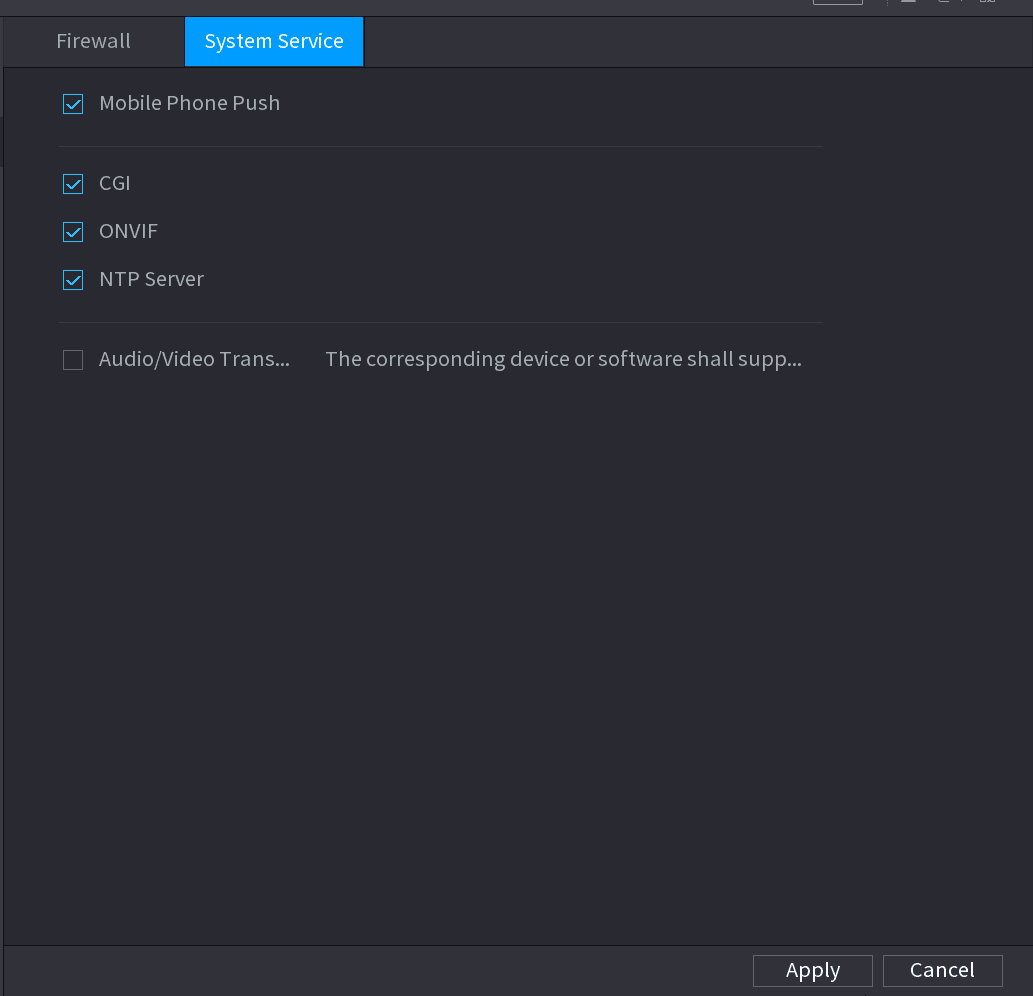
The System Service interface is displayed. See Figure 4-237.
Enable the function
Select Enable to enable function in the Type list.
Configure the parameters
Configure the parameters. See Table 4-68.
| Parameter | Description |
|---|---|
| Mobile Phone Push | After enabling this function, the alarm triggered by the NVR can be pushed to the mobile phone. This function is enable by default. |
| CGI | If this function is enabled, the remote devices can be added through the CGI protocol. This function is enabled by default. |