 LTS Connect Help Center
Direct Search
Extract a human face or body from a video scene during live view or playback, compare it with recorded videos, and find videos that contain the target on the LTS Platinum Series NVR.
Direct Search function firstly extracts pictures of human face or body from a video scene during live view or playback, then compares the extracted picture with recorded videos, and eventually finds out videos that contains the target.
Before you start
Ensure your device or camera supports this function.
Steps
-
Go to Event Configuration → Smart Settings → Algorithm Configuration → Algorithm Management to enable Direct Search algorithm.
- AI by Camera: The camera will perform the Direct Search analysis.
- AI by NVR: The device will perform the Direct Search analysis, and engine resource is required for analysis.
-
Go to Live View or Playback, and click
 at the lower-left corner during video playing.
- If targets are hard to find during playback, it is recommended to use Smart Search (
 ) to find scenes that contain targets.
 - Human face and body would be framed with different colors.
- After clicking , you can also drag the cursor on the image to manually frame a target, or manually adjust the frame area.
- If targets are hard to find during playback, it is recommended to use Smart Search (
-
Click
 of the selected target.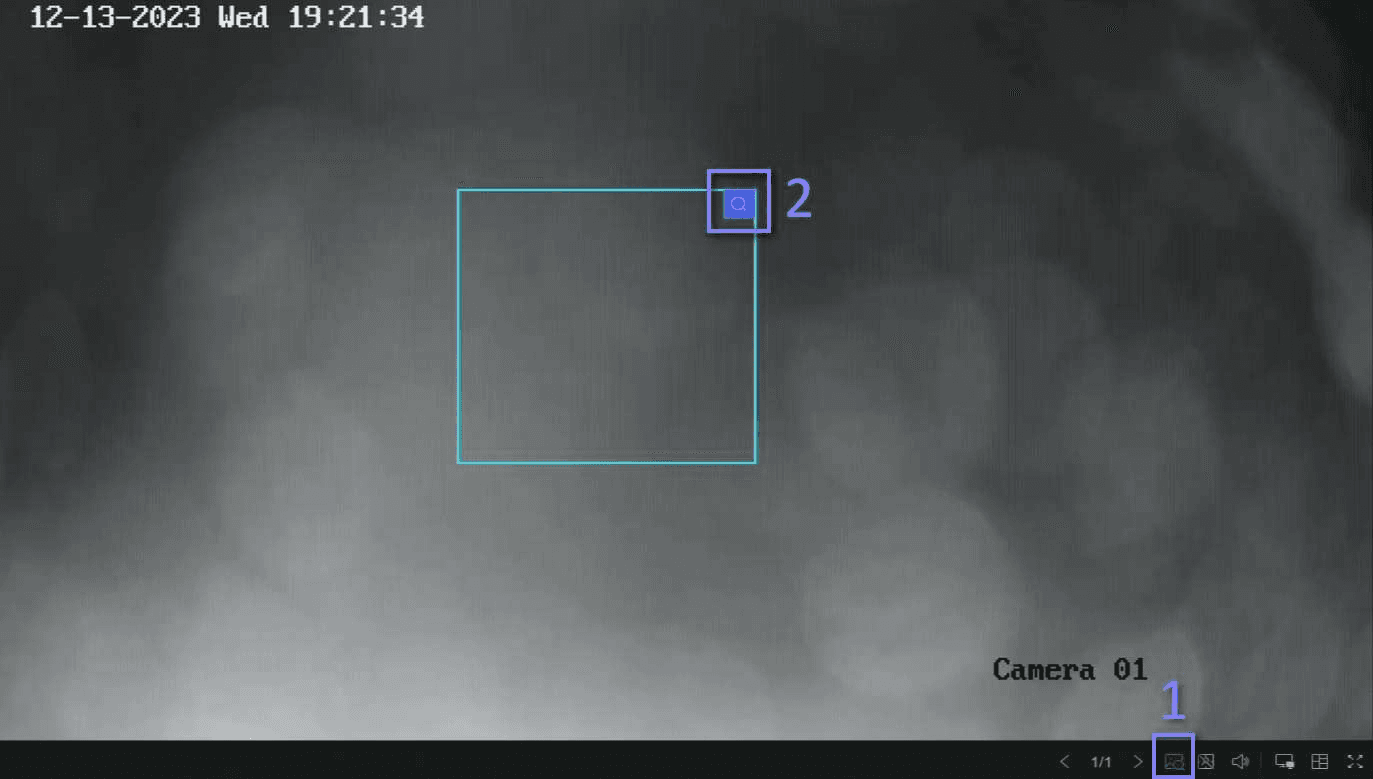
Figure 15-1 Direct Search
If compared videos are found, the device will redirect to Direct Search interface.
-
View searching results.
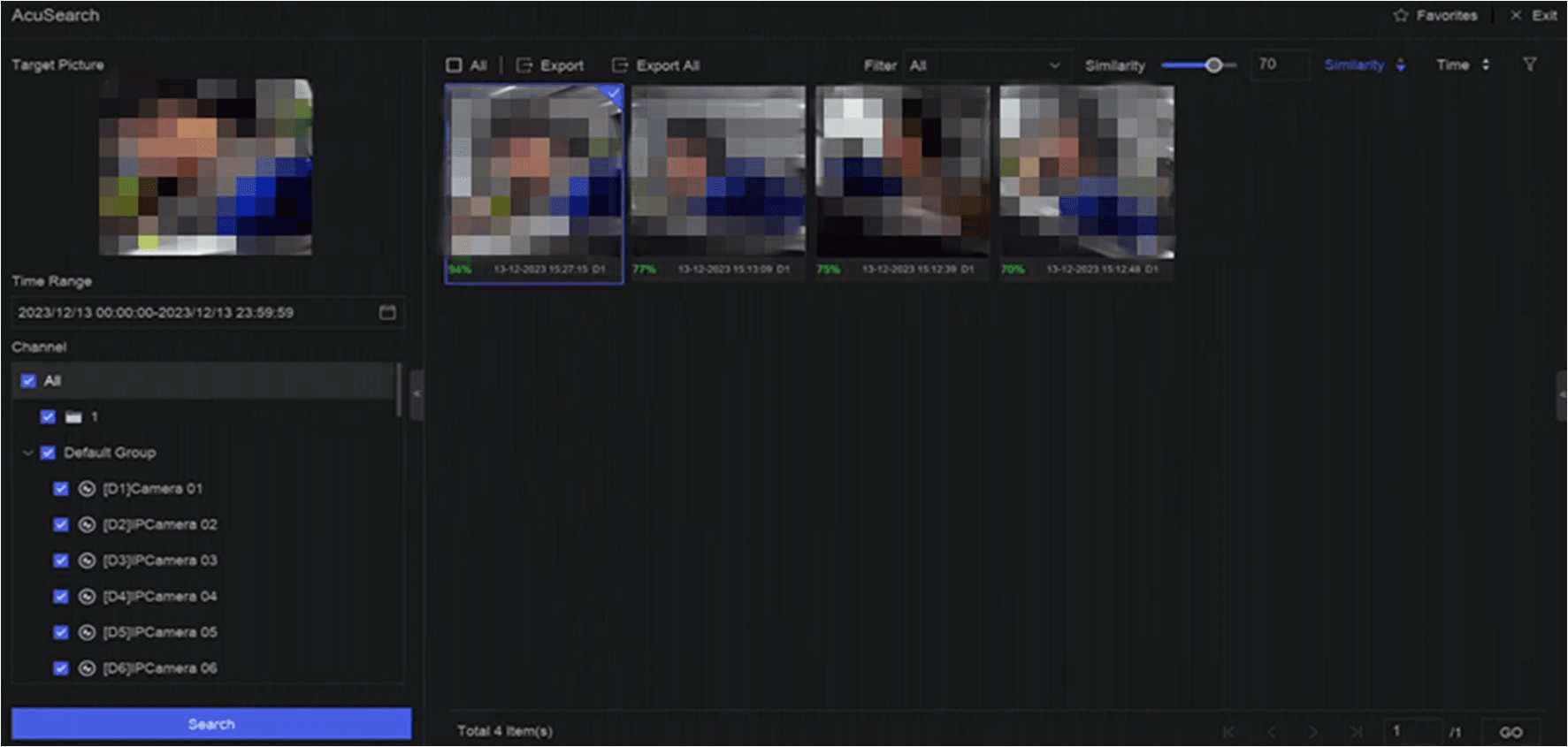
Figure 15-2 Direct Search Result
-
Optional: If the results are not desired, you can adjust parameters like Time Range, Channel, or Similarity to search again.
-
Optional: Select an item from the result list, and its corresponding video would be played back at the right side and be marked with red color. You can click the icons at the tool bar to perform functions.