 LTS Connect Help Center
Health Monitoring
Monitor the near-real-time status of devices across all sites or a single site, view device exceptions and scheduled reports, inspect encoding, access control, video intercom and network switch devices, and visualize links via network topology in the LPP Mobile Client.
The Health Monitoring module includes Exception Center, Scheduled Report and Health Status, where you can view the device exceptions, configure the report schedule, and check a device's health status.
Exception Center
When any exception occurs during health monitoring, the notification will appear in the Exception Center under the Notification Center module. See details in Exception Center.
Scheduled Report
With the scheduled report feature, the device status information will be sent to you or the corresponding user based on the configured schedule.
Health Status
Shows the near-real-time information about the status of the devices added to the sites. If you have added network switches to a site, you can view the device status and link status in a visualized way via network topology. The status information, which is important for the maintenance of devices managed across the LTS Platinum Partner platform as a whole, helps you locate the source of exceptions and determine troubleshooting methods in time, thus ensuring the smooth operation of these devices.
- The link of video tutorial on how to check device health status will pop up on the bottom of the page when you first access the Health Monitoring module. Tap the tutorial icon to make the video link pop up when you access Health Monitoring next time.
- For Installer, you can only view the status information of devices on the site assigned to you. For Installer Admin, you can view the status information of devices on all sites.
Checking the Status of Devices on All Sites
For the Installer, you can view the status of each device type on all the sites which have been assigned to you. For the Installer Admin, you can view the status of each device type on all the sites.
On the Home page, tap Health Monitoring or More → Maintenance → Health Monitoring, or Site → Health Monitoring to access the Health Monitoring page, and you can view the total number of devices and the number of abnormal devices on all sites.
Refer to the following to get the device descriptions and operations.
- For each device type, you can tap the inspect icon to inspect all the devices in the list; tap Display Abnormal Devices Only to display the abnormal devices only; tap Display Authorized Devices Only to display the devices whose configuration permission has been authorized to you.
- The Offline Duration column displays offline duration of devices in the format of "x Day(s) x Hour(s) x Minute(s)". If the offline duration is less than one day, the duration will be displayed as "x Hour(s) x Minute(s) x Second(s)".
- The icon beside the device name represents that you do not have the configuration permission for the device. You can tap the device and tap Apply for Configuration Permission to apply for the permission. For details, see Apply for Device Permission.
- The icon beside the device name represents that a new firmware is available. You can tap the device and tap Upgrade to upgrade the device. For details, see Upgrade Device.
Encoding Device
You can view the device information including network status, the number of offline linked cameras, storage status, HDD usage, last check time, overwritten recording status, etc.
The icon beside the device name represents that the IP address/domain set for the device is invalid or the DDNS is invalid, you can tap the device and tap Edit Device Information to edit the device information or tap Configure DDNS to reconfigure the device's DDNS.
- For details about configuring device IP address/domain, see Add Device by IP Address or Domain Name.
- For details about configuring DDNS, see Configure DDNS for Devices.
Tap a device to access the Device Details page to view more basic information about the device, and perform the following operations.
| Operation | Description |
|---|---|
| Inspect Device | Tap the inspect icon to inspect the device manually. |
| Remotely Configure Device | Tap the remote configuration icon to remotely configure the device parameters. For details, see the device user manual. |
| Live View | Tap the live view icon to view the live view of the device. Note: If you do not have the Live View permission, you can apply for the live view permission from the end user. For details, see Apply for Device Permission. If the selected camera has been enabled with stream encryption, you must enter the device verification code before you can view its live view. |
| View Playback | Tap the playback icon to view the playback of the device. |
| View Site Owner and Site Manager Information | Tap the icon beside the site name to view the information about the Site Owner and Site Manager, such as name and phone number. |
| View Camera Status | Tap Camera to view the cameras linked to the device and their online/offline status. |
| View DVR HDD Information | Tap HDD to view the HDD information about the DVR, including self-evaluation results, overall evaluation results, operating status, run time, HDD temperature, and S.M.A.R.T information. |
Access Control Device
You can view the device information including device model, network status, last check time, etc. Tap a device to access Device Details page to view more basic information about the device and perform the following operations.
| Operation | Description |
|---|---|
| Inspect Device | Tap the inspect icon to inspect the device manually. |
| View Site Owner and Site Manager Information | Tap the icon beside the site name to view the information about the Site Owner and Site Manager, such as name and phone number. |
Video Intercom Device
You can view the device information including network status, last check time, etc. Tap a device to access Device Details page to view more basic information about the device, and perform the following operations.
| Operation | Description |
|---|---|
| Inspect Device | Tap the inspect icon to inspect the device manually. |
| View Site Owner and Site Manager Information | Tap the icon beside the site name to view the information about the Site Owner and Site Manager, such as name and phone number. |
Network Switch
View information including network status of the switch (online/offline), the number of online ports of the switch, and the last check time.
Tap a network switch to view its information, including working duration, the thumbnail of the switch, PoE Power, peak PoE power in last 7 days, port status (alarm, normal, not connected). You can tap the switch thumbnail to view its enlarged image.
Working duration refers to the time from when the switch is turned on till the current moment. If the switch is turned off, its working duration will be recounted when turned on again.
- Tap Device Information in the upper-right corner to view more basic information about the device, including device serial No., device model, device type, etc. You can tap Reboot Device at the bottom to reboot the device.
- Tap Topology in the upper-right corner to view the topology of this switch. For details about topology, refer to Network Topology.
- For the port with alarms, tap Clear Alarm to clear the alarms of this port.
- Tap Extend Mode to extend the transmission range of this port. Tap Extend Mode (displayed in green) to disable extending the transmission range of the port.
When enabled, the transmission range of the port will be extended from 200 m to 300 m. Meanwhile, its bandwidth will be limited within 10 Mbps.
Checking the Status of Devices on One Site
You can view the status of devices on a specific site which has been assigned to you.
Access the Health Monitoring page
On the Home page, tap Health Monitoring or More → Maintenance → Health Monitoring, or Site → Health Monitoring to access the Health Monitoring page, and you can view the total number of devices and the number of abnormal devices on all sites.
Select a site
Tap the site selector to access the site list page, then select a site from the list. The status of the devices on the current site will be displayed.
Perform operations
(Optional) Perform the following operations.
| Operation | Description |
|---|---|
| Filter Data | Tap Display Abnormal Devices Only to display the abnormal devices only. Tap Display Authorized Devices Only to display the devices whose configuration permission has been authorized to you. |
| View Information About Site Owner & Site Manager | Tap Detail to view the information about the Site Owner and Site Manager, including the name, email address, and phone number. Up to 100 site managers can be displayed. |
| Inspect Devices | Tap Inspection at the bottom to inspect all the devices on the site. |
| Upgrade Device Firmware | If there are devices available for upgrade, the upgrade icon will appear. You can tap the device to access its details page, and tap Upgrade to upgrade it. Note: For details, see Upgrade Device. |
| Remote Configuration | Select a device and then tap the remote configuration icon to remotely configure the device parameters. Note: The device should be online. For details, see the user manual of the device. |
| Inspect a Single Device | Select a device and then tap the inspect icon to inspect it. |
| Reconfigure IP/Domain of Encoding Device | If the IP address/domain set for the device is invalid, the alert icon will appear. You can tap the device to access its details page, and tap Edit Device Information to reconfigure the device's IP/domain. For details about configuring IP/Domain, see Add Device by IP Address or Domain Name. |
| Reconfigure DDNS | If the DDNS of the device is invalid, the alert icon will appear. You can tap the device to access its details page, and tap Configure DDNS to reconfigure the device's DDNS. For details, see Configure DDNS for Devices. |
| View Encoding Device Details | You can view the network status, storage status, HDD usage, and overwritten recording status, etc. Also, you can tap the encoding device to view its details, including the basic information such as device type, serial No., and the network status of each linked camera. You can tap Camera to view all the linked cameras. If there is only one linked camera, tap the live view icon to view its live view. If there are multiple cameras, tap the icon and select one camera to view its live view. If the encoding device is a DVR, you can also view its HDD information, including self-evaluation results, overall evaluation results, operating status, run time, HDD temperature, and S.M.A.R.T information. For the analog camera, you can view if video loss occurs. Note: If you do not have the Live View permission, you can apply for the live view permission from the end user. For details, see Apply for Device Permission. If a camera has been enabled with stream encryption, you must enter its device verification code in the pop-up window before you can view its live view. |
| View Access Control Device Details | Tap an access control device to view its details, including basic information such as device type, serial No., and the device status including network status and the number of its linked doors. |
| View Video Intercom Device Details | Tap a video intercom device to view its basic information and its network status. |
| View Network Switch Details | Tap a network switch to view its information, including working duration, the thumbnail of the switch, PoE Power, peak PoE power in last 7 days, port status (alarm, normal, not connected). You can tap the thumbnail of switch to view its enlarged image. Note: Working duration refers to the time from when the switch is turned on till the current moment. If the switch is turned off, its working duration will be recounted when turned on again. Tap Device Information in the upper-right corner to view more basic information about the device, including device serial No., device model, device type, etc. You can tap Reboot Device at the bottom to reboot the device. Tap Topology in the upper-right corner to view the topology of this switch. For details about topology, refer to Network Topology. For the port with alarms, tap Clear Alarm to clear the alarm(s) of this port. Tap Extend Mode to extend the transmission range of this port. Tap Extend Mode (displayed in green) to disable extending the transmission range of the port. When enabled, the transmission range of the port will be extended from 200 m to 300 m. Meanwhile, its bandwidth will be limited within 10 Mbps. |
Network Topology
If you have added network switch(es) to a site and connected devices to the network switch(es), you can view these devices' network topology. Network topology displays network links between devices and shows the link exceptions and abnormal devices, helping you to locate the exception source and troubleshoot faults in a visualized way.
- Make sure you have the configuration permission for the network switch. Otherwise, network topology will be unavailable. For details about applying for configuration permission, see Apply for Device Permission.
- If you have not activated the health monitoring service for the network switch, some topology functions (e.g., viewing device status on the topology) will be unavailable. For details about activating the health monitoring service, see Activate the Health Monitoring Service.
On the Home page, tap Health Monitoring → Scheduled Report or More → Maintenance → Health Monitoring → Scheduled Report, or Site → Health Monitoring → Scheduled Report.
- Tap the icon beside All Sites, select a site from the list, and then tap View Topology.
- Tap Network Switch, tap a switch to access the device details page, and then tap View Topology in the upper-right corner.
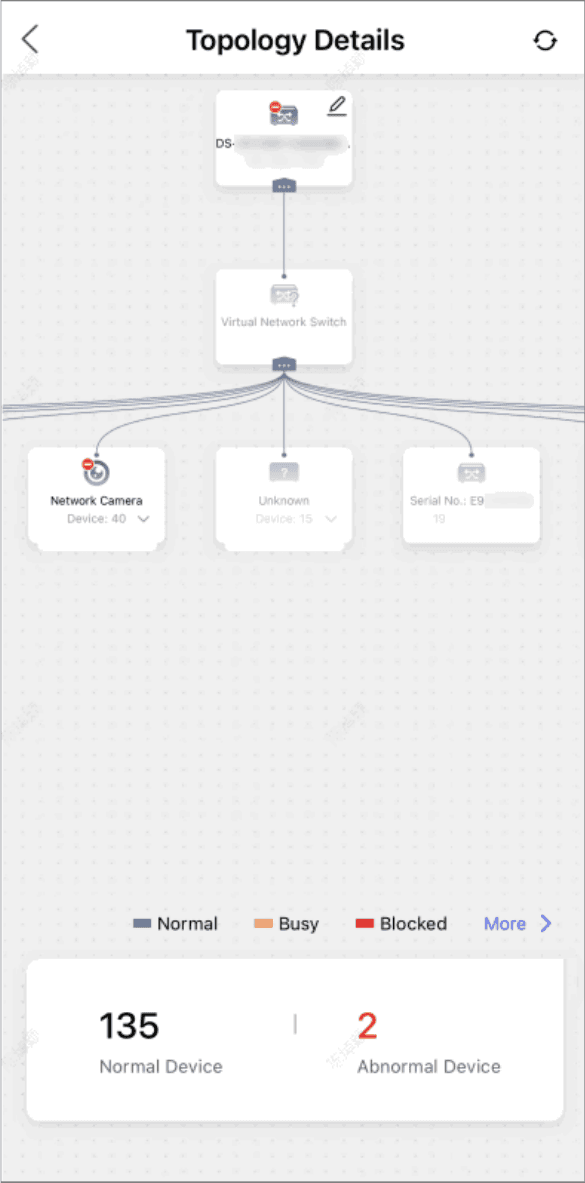
Figure 8-4 Topology Details
For detailed operations and descriptions about topology, refer to Network Topology.
Device Management
Comprehensive guide to managing devices in the LPP Mobile Client, covering batch LAN configuration, adding devices, the health monitoring service, device permissions, moving devices, password reset, remote log collection, live view and playback, network device management, and remote configuration.
Notification Center
Overview of the LTS Platinum Partner Notification Center, covering business notifications, the exception center, and system messages.