 LTS Connect Help Center
LTS Platinum Partner Portal Overview
Overview of the LTS Platinum Partner Portal home page, main modules, and navigation — including Site & Device, Health Monitoring, Exception Notification, Employee Efficiency, and global tools.
LTS Platinum Partner Portal is a B/S portal of the LTS Platinum Partner platform. The service providers (e.g., installation company) can register an Installer Admin account on LTS Platinum Partner, and then the Installer Admin can invite employees to register Installer accounts. Each company has only one Installer Admin but can have multiple Installers.
After registering, the Installer Admin and Installers can log into the LTS Platinum Partner via the web browser and the Home page of the LTS Platinum Partner Portal will show.
Main Modules
The LTS Platinum Partner Portal is divided into several main modules. You can access these modules via tabs at the top.
Home Page
On the Home page, you can check the number of added sites or devices, view the wizard about how to add and manage devices, view the number of abnormal devices and total devices, check the number of not-yet-handled and to-be-followed-up exceptions, check the efficiency statistics of all employees, view some banners showing key features, functions, and important information, have an overview of your services, manage services, set more value-added services for devices, and view video tutorials and documents to learn more about the platform and the proper ways of using the platform.
If you have any issues or suggestions when using LTS Platinum Partner, you can report them via Case or Feedback. You can also use some online tools to improve your work efficiency and quickly access some pages such as the site adding page, device adding page, and health monitoring page. Refer to Home Page for details.
Company Management
Company Information
View and manage the company information. See Manage Company Information for details.
Employee
Each company has only one Installer Admin but can have multiple Installers. The Installer Admin can invite the company's employees to register Installer accounts and assign various permissions to employees according to actual needs. Installers with permission to Manage Account and Role can also invite other employees to be Installers by registering Installer accounts. See Invite Employee for details.
Employee Efficiency Statistics
See the efficiency statistics of all employees, including the latest active time, added sites, added devices, handed-over sites, handed-over devices, and handled device exceptions here. See View Employee Efficiency Statistics for details.
Manage My Agreements
Distributors can manage and sign contract agreements of partner programs with resellers and LTS on LTS Platinum Partner.
Role and Permission
A role defines one employee's rights to the functions in the system. After creating a role and specifying the role's permission, you can assign it to the employees according to actual needs. See Manage Role and Permission for details.
Operation Log
View the operation logs of your accounts and sites in the current company. See Search Operation Log for details.
Co-Branding
Enable the displaying of a company logo on the LTS Connect Mobile Client for brand promotion to end users. For details about how to get the co-branding service for free and enable the service, refer to Co-Branding.
Account Information
My Profile
Edit your account information, including profile photo, name, email address, password, and phone number. Refer to Set Account Information for details.
My Favorites / My Comments
View your past comments on news and how-to articles, and view the news, how-to articles, and solutions that are added to your Favorites.
Home Page
Table 4-2 Home Page Description
| Name | Introduction |
|---|---|
| Site & Device Overview | View the total number of sites/devices & the number of abnormal sites/devices. Click Add Site to add a new site. For details, refer to Add Personal Site. Click Add Device to add a device. You can also click the wizard icon in the top right corner of the Site & Device Overview pane to open the wizard about adding devices, handing over devices to customers, and remote configuration. Click Add Device Now to start adding a device. For details, refer to Add Device. The recently visited sites will be displayed on the Site & Device Overview pane and you can click a site name to enter the site details page. |
| Health Monitoring Overview | You can view the number of abnormal devices and total devices, including devices overall and each device type respectively. You can click More to enter the Health Status page to check the details about device status. For detailed instructions about Health Status, refer to View Status of Devices in All Sites and View Status of Devices in a Specific Site. |
| Exception Notification Overview | You can view the number of not-yet-handled and to-be-followed-up exceptions and numbers of top 5 types of those exceptions. You can click a number on a chart to enter the Exception Center page and the exceptions will be filtered correspondingly. For example, if you click the number on the "Not Handled" chart, the exceptions will be filtered by the status of Not Handled on the Exception Center page. |
| Employee Efficiency Overview | You can view the efficiency statistics of all employees, including the numbers of added sites and handed-over sites, the numbers of added devices and handed-over devices, the number of device exceptions, the exception handling rate, and the numbers of handled and to-be-handled exceptions. You can also filter statistics data by this month, this week, and today, or click Refresh to display the latest statistics data. If you want to view more data, click More to enter the Employee Efficiency Statistics page. For details, refer to View Employee Efficiency Statistics. |
| My Service Overview | You can have an overview of your services and manage the services. |
- For Site & Device Overview: If there are no sites or devices added, the wizard will automatically be displayed on this panel. A prompt will appear at the top of this pane to show the number of notifications to be handled, and you can click Handle Now to enter the Notification Center module to handle these notifications.
- For Exception Notification Overview: To receive exception notifications, you need to configure the recipient when setting the exception rule. For details, refer to Add Exception Rule. The number of exceptions you view here may not be the same as that in the Exception Center. You can click More to enter the Exception Center page to see received exceptions. For detailed instructions about Exception Center, refer to Exception Center.
- For Employee Efficiency Overview: This is only supported if you have permission to manage the employees.
Free Package (Adding Devices + Remote Configuration)
- Display number of managed devices and devices that can be added.
- Display the entrances for adding devices and synchronizing devices from LTS Connect.
Co-Branding
Display the company logo when co-branding is enabled and the entrance for enabling the co-branding.
Health Monitoring Service
- Display the numbers of used and available service packages and the entrance for activating the service.
- Display the number of devices with expiring or expired service and the entrance for details, if there are devices with the service expiring within 30 days.
- Display the numbers of device exception notifications and scheduled reports if there are devices using the health monitoring service.
- Display the entrance for renewing/expanding.
- Display the entrance for getting the free health monitoring packages (if any).
- Display the entrances for enabling the device exception notifications and configuring the scheduled reports.
Employee Account Add-On
- Display used and available employee accounts.
- Display the expiry time when the service is expiring within 30 days and displaying the entrance for renewing the service.
- Display entrances for inviting employees and managing employees.
Site & Device Module
The Site & Device module is divided into several sections. You can access these sections via the navigation pane on the left.
You can click  to pin or unpin the navigation pane on the left of the page.
Table 4-3 Site & Device Module
| Name | Introduction |
|---|---|
| Dashboard | You can check the total number of sites / devices, view the wizard about how to add and manage devices, view the number of abnormal devices and total devices, check the number of Not Handled and To Be Followed Up exceptions, check the efficiency statistics of all employees, have an overview of your services, manage services, set more value-added services for devices, and view online documents to learn more about the platform and the proper ways of using the platform. |
| Customer Site | A site represents a physical location where devices are installed and through which the Installer Admin/Installer can manage the devices. |
| Site Map | If sites are configured with the GPS information, they can be displayed on the map for viewing the site details, such as the site name, site owner, site location, and number of online/offline/abnormal devices. |
| Health Status | The Installer can view the devices overall, normal, and abnormal status, locate the abnormal devices, and perform troubleshooting quickly. |
| Exception Center | After setting the exception rules, when an exception occurs on the device, the device will push a notification to the Portal and you can view all the received notifications of exceptions in the Exception Center. |
Other Modules
Global Search
Click  in the top right corner of the Portal to open a search pane. Select All, Sites, Device, Feeds, or How To and enter the corresponding keyword to search for sites, devices, feeds, or how-to documents/videos.
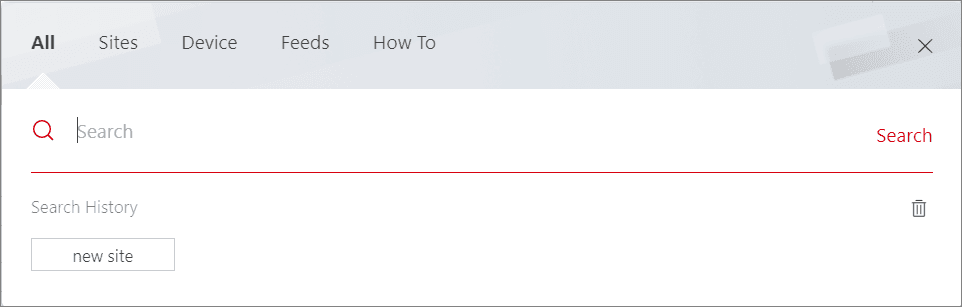
Figure 4-3 Global Search Pane
The search results will be listed on a new page. You can view the site information (including the site owner, phone number of the site owner, site address, site type, and site manager), the device information (including device name, device type, device serial no., online status, and health monitoring status), and the short descriptions of feeds or how to. You can also click a result item to enter the corresponding details page.
The search history will be displayed on the search pane, and you can click a historical keyword to search again or clear the search history.
Switch Company
If you have upgraded and become an LTS Platinum Partner user and your account still exists in more than one company, click  in the top right corner of the Portal to switch companies for logging in.
Notification Center
See all historical business notifications (including device management invitations, site sharing notifications, etc.), notifications of device/channel exceptions, new features of the system messages, and the latest deals and offers. For more details about the notification center, refer to Notification Center.
Help
Click  in the top right corner of the Portal to show a drop-down list.
User Manual
Provides an entrance for viewing the user manual of the LTS Platinum Partner Portal online.
Wizard
View a wizard that guides you through the process of configurations and operations.
Click Next or Previous to go through the introductions in the wizard. You can click the image on the right to view the large image and check the details on the image if necessary.
Click Skip to close the wizard.
After-Sales Authorization Code
Provides access for you to view the after-sales authorization code(s) of your company. The after-sales authorization code is exclusive to the technical support staff for troubleshooting only. You can give your authorization code to the staff when it is necessary to log in to your account for troubleshooting. The staff can log in to your account via the authorization code to view or edit the information about the company (name, type, etc.), manage sites, remotely configure devices, perform health monitoring, etc.
You can click Extend to extend the validity period for the current authorization code or click Invalidate Authorization Code to invalidate the code right away.
A company can only have one valid after-sales authorization code. If the code is invalidated or your company has no authorization code, you can choose to generate one.
Profile Photo and Account Name
In the upper-right corner of the Portal, click the account name or profile photo to open the drop-down list.
Account Settings and Upgrades
Access for editing the basic information of the account or deleting the Installer Admin account if it is no longer used. For details, refer to Set Account Information.
Link with LTS Connect Account
Access for linking your LTS Platinum Partner account with multiple LTS Connect accounts, so the devices managed in the LTS Connect account can be synchronized to an LTS Platinum Partner account automatically. For details, refer to Synchronize Devices with LTS Connect Account.
My QR Code
Provides access for downloading your QR code so your customers can scan via the LTS Connect Mobile Client to add you as the service provider and authorize you to manage devices.
You can also go to Account Information → My Profile page to view your QR code.
This feature is only supported by accounts with the Manage Assigned Sites permission.
About
View the version of the current system, and read the agreements, including terms of service, privacy policy, and open-source license. You can also scan the QR code with your mobile phone to download the LTS Platinum Partner Mobile Client.
Switch Company
Provides access for switching companies when logging in if you have completed company merging and your account still exists in more than one company, or if the companies in which your account exists are all kept on the LTS Platinum Partner.
Log Out
Log out of the current account and return to the login page.
Company Management
How to manage company information, authenticate your company, view employee efficiency statistics, and search operation logs in the LTS Platinum Partner web portal.
Site Management
Manage sites in the LTS Platinum Partner Web Portal — site scenarios and overview, creating and assigning sites, handing over personal and team sites, authorization, site collaboration, and the site map.