 LTS Connect Help Center
Hand Over Team Site, Authorization, and Device Management Invitation
How to hand over a team site to a customer, apply for site authorization from the site owner, and accept a device management invitation from an LTS Connect user.
Hand Over Team Sites
After the installation company has completed the installation, the Installer can hand over the team site to the customer. After the site is handed over, the customer takes ownership of the devices, and the devices are usually owned by the customers. If required, the Installer can also apply for specified permissions for further device maintenance when handing over the site.
Before You Start: Make sure the site status is Not Handed Over, the service(s) have been activated on the site, and you have the permission for site management, such as managing all sites and assigned sites.
Go to the Site & Device tab
Move your cursor to the Site & Device tab.
Open Customer Site in Site Mode
Click Customer Site, and switch to the Site Mode.
Enter the Handover List page
Use one of the following methods:
- Select a site and click ... → Transfer in the Operation column.
- Click the site name to enter the Site Details page and click Hand Over by Transferring in the lower-right corner.
You can view activated services, devices added to the site (if any), etc., on the Handover List page.
Click Hand Over
Click Hand Over to enter the Hand Over System page.
Configure the handover parameters
Configure the related parameters including account type (required), customer name, phone, and remarks.
Account Type
Select Email or Phone Number and enter the site owner's email or phone number.
Confirm
Click Confirm.
- Your customer will receive the handover application in their email box or via short message with a download link of the LTS Connect Mobile Client.
- If your customer has not registered an LTS Connect account, they need to register an LTS Connect account first. After registering the account and accepting the handover via the LTS Connect Mobile Client, your customer will become the site owner.
Please inform your customers to download or update the LTS Connect Mobile Client (V5.2.3 or later).
Apply for Site Authorization from Site Owner
After the site is handed over by transferring to a site owner (but no permission selected when handing over site), if the site owner wants the Installer to maintain the devices for them, the Installer needs to send an application to the site owner to ask for authorization. After the application is approved, the Installer can get permission to manage and configure the devices on the site. Besides, the site owner can add a device on the LTS Connect Mobile Client and authorize the Installer for further management and configuration.
Sites that are handed over by sharing do not support this function.
Go to the Site & Device tab
Move your cursor to the Site & Device tab.
Open Customer Site in Site Mode
Click Customer Site, and switch to the Site Mode.
Select a Site
Select a site.
Enter Apply for Authorization page
Use one of the following methods:
- Select a site and click the authorization icon in the Operation column.
- Click the site name to enter the Site Details page and click Apply for Authorization.
Send the application
Enter the remarks and click OK to send the application.
The Site Owner will receive and handle the application via LTS Connect Mobile Client. After the Site Owner approves the application, the Installer will have the authorization of the Site and perform some operations.
If there are maintenance requirements for the devices added in LTS Connect Mobile Client, but not added and managed in the Site by the Installer yet, after consensus, the Site Owner can select the devices and authorize the permissions of the devices to the Installer.
Please inform your end users to download or update the LTS Connect Mobile Client (V 4.15.0 or later). You can send the QR code to them.
Optional: Perform the following operations after sending the application.
| Operation | Description |
|---|---|
| Apply for Device Permission | Click the site name to enter the Site Details page and apply for permissions. |
| Discard Authorization | On the Site list page, click ... → the discard icon to discard authorization or the Site. |
Accept a Device Management Invitation from an LTS Connect User
You can accept a device management invitation from your customer (i.e., an LTS Connect user) to manage a device already added to an LTS Connect account. In this way, the device, along with its configuration and operation permissions, can be shared with you to allow you to manage the device on LTS Platinum Partner. Compared with synchronizing the device in LTS Connect with the device in LTS Platinum Partner, which requires your customer to share their LTS Connect account name and password with you, this way is more privacy-friendly and easier to accept. To learn more about the device management invitation, read the sections below:
- Overall Process
- Introduction to the Device Management Invitation on LTS Platinum Partner
- The Device Management Invitation Email
- The Device Management Invitation Notification
- How Your Customer Can Invite You to Manage Their Device via LTS Connect
Overall Process
If your customer (i.e., the LTS Connect user) has already added one device to their LTS Connect account, the customer can use the LTS Connect Mobile Client to invite you to manage this device. Once the customer completes the invitation, an email containing the invitation information (e.g., the LTS Connect username and device name) and the button/link for accepting the invitation will be sent to you, and then you can accept the invitation. Invitations for device management can also be accepted via Notification Center → Business Notification. Once you accept the invitation, the device will show on the specified site (namely, the site mentioned in the email or the notification) on LTS Platinum Partner.
Introduction to the Device Management Invitation on LTS Platinum Partner
You can go to the site list page, and then click Device Management Invitation from Customer to open the window. It shows how your customer uses the LTS Connect Mobile Client to invite you to manage their device. It should be noted that you need to provide your LTS Platinum Partner account (email address) to your customer first to let them specify you as the Service Provider who manages their device.
The Device Management Invitation Email
The email shows the invitation details including device name, device serial no., name of the site where the device(s) is added, LTS Connect user account, and the time of invitation. If you agree to manage the device(s) for your customer, you need to accept the invitation in three days, otherwise the invitation will be invalid.
The Device Management Invitation Notification
The notification shows the invitation details including name of the site where the device(s) is/are added, device name, device serial no., and the LTS Connect user account. If you agree to manage the device(s) for your customer, you need to accept the invitation within three days, otherwise the invitation will be invalid.
How Your Customer Can Invite You to Manage Their Device via LTS Connect
Refer to the following steps for details about how your customer can invite you to manage their device via the LTS Connect Mobile Client.
Open the Share Device page
In the device list, tap the share icon of the device and the Share Device page will pop up. Or select Me → Manage Sharing Settings → Share Device to show the Share Device page.
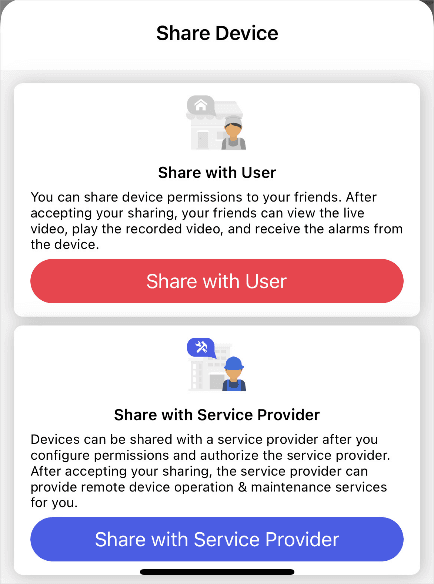
Figure 5-22 Share Device
If this page does not appear, it means the device cannot be managed by a Service Provider and can only be shared with another LTS Connect user.
Possible reasons: the device is shared from another; the device is already managed by a Service Provider; the device is not enabled with the LTS Connect service.
Tap Share with Service Provider
Tap Share with Service Provider.
Enter the Service Provider account
Tap New Service Provider and enter the Service Provider's account to share device permissions with a new Service Provider; or select an existing Service Provider.
After entering the new Service Provider's account, if the account has been linked with two or more companies, you should select a company to share device permissions with.
Select the Site and permissions
Select the Site where the device will be added and the device permissions to be granted to the Service Provider.
Hand Over Personal Site
Transfer or share a personal site to a customer by transferring device ownership or sharing device access, with options to apply for remote maintenance permissions.
Site Collaboration and Site Map
How to invite ISP and MSP partners to collaborate on sites before or after handover, accept collaboration requests, and view sites on the map.