 LTS Connect Help Center
Site Collaboration and Site Map
How to invite ISP and MSP partners to collaborate on sites before or after handover, accept collaboration requests, and view sites on the map.
Site Collaboration
Before the site handover, you can invite your installation service partner (ISP) to collaborate with you on the site so that they can help you add and hand over devices. After the site handover (by transferring), you can invite your maintenance service partner (MSP) to collaborate with you on the site in providing device management/maintenance services for your customer, especially in offering technical support.
For the ISP, they have all permissions for devices on a collaborated site before the site handover, and their device permissions will be removed after the site is handed over or the collaboration is canceled. For the MSP, you can determine the permissions for them to access devices on the collaborated site, and after inviting your MSP to collaborate with you on the site, you can change the MSP's permissions.
- Site collaboration that is after handover is not supported by sites handed over by sharing.
- If you change the MSP's permissions, your customer will receive a notification about it on the LTS Connect Mobile Client.
- If the site is handed over by the ISP to your customer, the handover email/message your customer receives will only contain your company's information and will not contain any information about the ISP.
Limitations
- You can only invite these accounts to collaborate with you on the site: your MSP's Installer Admin account, and your ISP's account with the Manage All Sites or Manage Assigned Sites permission.
- Your account and the account which you invite need to be in the same country/region.
- You cannot invite any Installer account of your company.
Site Collaboration Before Handover
Before the site handover, you can invite your installation service partner (ISP) to collaborate with you on the site for adding and handing over devices.
Before You Start
- Make sure site collaboration is supported both in your country/region and the ISP's country/region, and by both accounts.
- Make sure the site status is Not Handed Over and you have the permission to manage all sites or assigned sites.
- The ISP's account should have the Manage All Sites or Manage Assigned Sites permission and should not be an account of your company.
- Your account and the ISP's account need to be in the same country/region.
Open the Site & Device tab
Move your cursor to the Site & Device tab.
Navigate to Customer Site
Click Customer Site, and switch to the Site Mode.
Go to the Site Collaboration page
Go to the Site Collaboration page using one of the following methods:
- On the site list, select
 →
→ 
- Click a site to go to the site details page, click Site Collaboration on the top left of the page.
Enter the ISP's account
Enter the ISP's LTS Platinum Partner account.
Make sure the account you enter has permission to Manage All Sites or Manage Assigned Sites, otherwise it will not be able to manage the site.
Select the validity period
Select the validity period for the permission granted to the ISP.
- When the configured validity period ends, site collaboration will be automatically canceled.
- Before the validity period ends, the ISP has all permissions for devices on the collaborated site if the site collaboration is not canceled and the site is not handed over.
Enter remarks (optional)
Optional: Enter the remarks.
Confirm
Click OK.
- The site collaboration will be canceled automatically, and all device permissions will be removed from the ISP's account, if the set permission validity period ends, the site is handed over to the customer, or the site is deleted.
- You will receive notifications in the Notification Center when the ISP accepts / rejects / cancels the collaboration.
Perform follow-up operations as needed
Optional: Perform the operation(s) below if needed.
| Operation | Description |
|---|---|
| View Site Collaboration | You can enter the Site Collaboration page to view the site status, the ISP's account, and the validity period. |
| Cancel Site Collaboration | After the ISP accepts/rejects the site collaboration, you can cancel site collaboration. |
| Invite Again | After the ISP rejects the site collaboration or if the site collaboration is to be accepted, you can go to the site collaboration page, and edit the ISP's account and/or the validity period to invite the ISP again. |
Site Collaboration After Handover
After a site is handed over by transferring, you can invite your maintenance service partner to collaborate with you for managing and maintaining the site together.
Before You Start
Make sure the site is handed over by transferring and you have the permission to manage all sites or assigned sites.
- The maintenance service partner's LTS Platinum Partner account should be an Installer Admin account, of which the country/region should be the same as that of your account.
- You cannot invite the account of any employee in your company.
- Only the site that is handed over by transferring supports site collaboration.
Open the Site & Device tab
Move your cursor to the Site & Device tab.
Navigate to Customer Site
Click Customer Site, and switch to the Site Mode.
Select a site
Select a site for site collaboration.
Go to the Site Collaboration page
Enter the Site Collaboration page using one of the following methods:
- Move the cursor to in the Operation column and click .
- Click the site name to enter the site details page and click Site Collaboration.
Enter the maintenance service partner's account
Enter the maintenance service partner's LTS Platinum Partner account.
If the account has been linked with two or more companies, you should select a company.
Select permissions
Select permissions for the maintenance service partner.
- You can set the validity period for the permissions of configuration, live view, and playback, and select the device(s).
- If you have no permission to manage devices, or no devices are added to the site, you cannot select the permissions of configuration, live view, and playback.
- If the following permissions are selected, when your customer accepts the permission application and the maintenance service partner accepts site collaboration, the permissions will be authorized to the maintenance service partner.
Site Information Management The permission to manage the site information.
Configuration The permission to configure selected devices on the site.
Live View The permission to stream the live video from the selected devices on the site.
Playback The permission to play back videos of the selected devices on the site.
Enter remarks
Enter the remarks, such as the reason for site collaboration.
Confirm
Click OK.
Perform follow-up operations after acceptance
Optional: After your customer accepts the application and the maintenance service partner accepts the site collaboration, perform the operations below.
| Operation | Description |
|---|---|
| View Information About the Maintenance Service Partner | You can view the status of site collaboration and the email address of the maintenance service partner on the site details page. |
| Cancel Site Collaboration | You can cancel site collaboration on the Site Collaboration page. |
| Change Permissions for the Maintenance Service Partner | You can change permissions for the maintenance service partner on the Site Collaboration page. |
You can only change the permissions that have already been granted to the maintenance service partner by your customer, and your customer will receive a notification on the LTS Connect Mobile Client if the permissions are changed.
Accept Site Collaboration
If you are the maintenance/installation service partner (MSP/ISP), you can receive and handle the site collaboration application in the Notification Center on LTS Platinum Partner.
Before You Start
- If you are the MSP, make sure the site owner has agreed to the device authorization on the LTS Connect Mobile Client.
- Make sure you (MSP/ISP) have logged in to the LTS Platinum Partner.
If you (ISP) are invited to collaborate on a site, all accounts of your company can view the site collaboration application in the Notification Center, but only the ISP account specified in the site collaboration application and the accounts with the Manage All Sites permission can handle the application.
Open the Notification Center
In the upper-right corner of the page, click  to enter the Notification Center.
Open Business Notifications
Click the Business Notification tab.
Accept the collaboration
Click I Agree to accept the site collaboration.
For MSPs, you can manage and maintain devices on the collaborated site; for ISPs, you can add, configure, and hand over devices on the collaborated site.
Features Available to MSPs and ISPs on a Collaborated Site
After the maintenance/installation service partner (MSP/ISP) accepts the site collaboration, the MSP can perform configurations and operations which the customer authorized on the collaborated site, and the ISP can add, configure, and hand over devices on the collaborated site. The MSP can also release device permissions, and both the MSP and ISP can cancel the site collaboration. If the MSP is authorized to manage the site, the MSP can directly apply from the customer for device permissions.
The MSP/ISP who accepted the site collaboration cannot invite another MSP/ISP for collaboration on the site.
Customer Sites
For MSPs
Live view and playback, arming and disarming, remote configuration, device upgrade, linkage rule configuration, DDNS configuration, password reset, exception notification configuration, and deleting the site.
If the MSP deletes the site, it indicates that the site authorization is discarded by the MSP, but the installer can still manage the sites and their devices.
For ISPs
Adding and deleting devices, live view and playback, arming and disarming, remote configuration, linkage rule configuration, DDNS configuration, exception notification configuration, device upgrade, remote log collection, editing device names, editing site information (except the site name), and site handover.
Health Monitoring
Viewing the status of devices on the collaborated sites, device remote configuration, refreshing devices' status, live view, playback, manually inspecting devices, exporting health check reports, and device upgrade.
Exceptions Center
Receiving device exceptions and exporting exception records.
Send Reports Regularly
Configuring report settings to send reports regularly.
This feature is not available to the ISP.
My Service
Viewing the validity periods, expiration time, and status of activated services of the collaborated site and their corresponding resources.
- The MSP cannot activate or transfer services on the collaborated site.
- This feature is not available to the ISP.
MSP Applies from Customer for Device Permissions
If the MSP is authorized to manage the site, the MSP can directly apply from the customer for device permissions. The installer who invited the MSP for collaboration on the site will receive the notification after the MSP sends the application for device permissions.
MSP Releases Device Permissions
If the MSP does not need device permissions, or the MSP completed the device configuration task earlier than the planned time, the MSP can release permission.
MSP/ISP Can Cancel Site Collaboration
An MSP/ISP can cancel the site collaboration. After the site collaboration is canceled, the site (and the devices on the site) will be deleted from the MSP/ISP's LTS Platinum Partner account, and the granted permissions will be removed.
View Sites on the Map
If you have configured GPS information for the sites, you can view them on the map.
Move your cursor to the Site & Device tab. Select Site Map to enter the Site Map page.
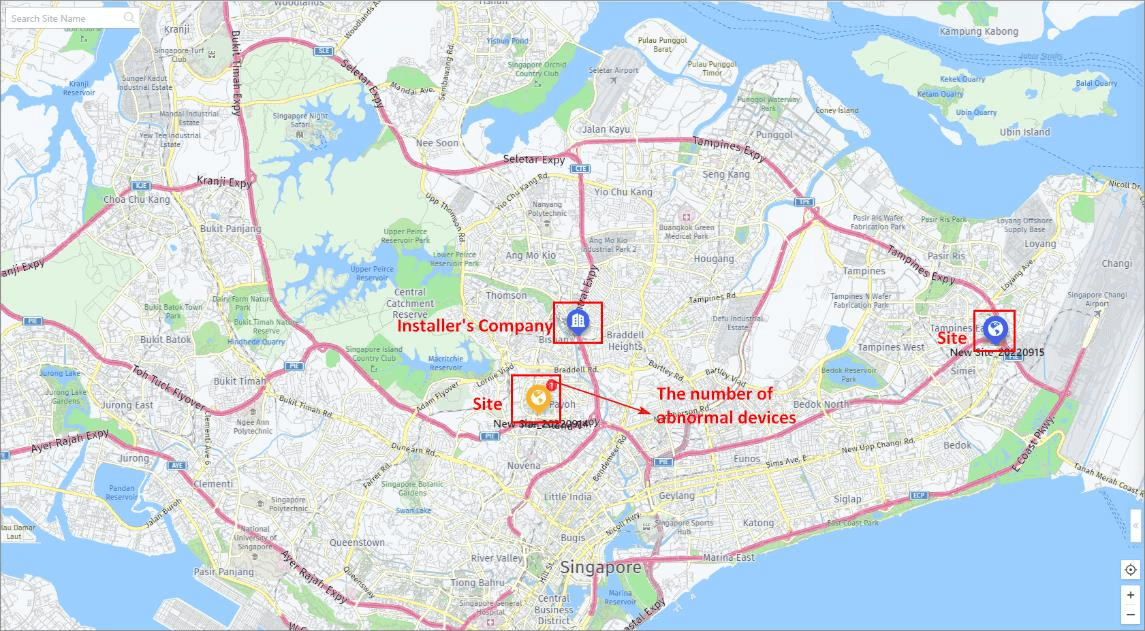
Figure 5-28 Site Map
- Installer's company is at the center of the map by default.
 : There are device(s) that have activated the health monitoring service in this site.
 : No device has activated the health monitoring service in this site.
You can perform the following on this page.
- You can view companies and sites whose GPS information has been configured on the map. For details about configuring GPS information for companies and sites, refer to Add and Assign Sites.
- You can click a site to view its information, including site name, site owner, site location, the number of online/offline/abnormal devices, etc. Also, you can click Site Details to enter the site details page to view more information about the site. You can click Health Monitoring Details to enter the health status page and view the health status of all the devices added to this site.
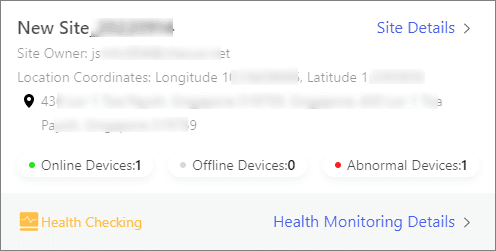
Figure 5-29 Site Information
- You can drag the map as needed. You can scroll the mouse or click
 /
/  in the lower-right corner to zoom in/out the map. Also, you can click
  to view the company's location on the map.
 - You can enter keyword(s) in the search box in the upper-left corner to search for the site name.
Hand Over Team Site, Authorization, and Device Management Invitation
How to hand over a team site to a customer, apply for site authorization from the site owner, and accept a device management invitation from an LTS Connect user.
Device Management
Manage devices in the LTS Platinum Partner Web Portal — batch LAN configuration, adding devices, moving devices and permissions, linkage and exception rules, password reset, remote logs, live video and playback, and other operations.